Key takeaways
- You can build a comfortable, productive home office cheaply by planning first, buying second-hand, and prioritising comfort over looks.
- Save on a pricey ergonomic chair with a simple lumbar cushion, and position your desk for good natural light to cut lighting costs.
- Second-hand and upcycled furniture is affordable and greener; charity shops, marketplaces and a tin of paint go a long way.
- Choose energy-efficient kit, a modest laptop uses far less power than a big gaming PC, saving money over time.
- Get the basics right (comfort, light, a reliable computer) before spending on anything decorative.
- Set the workstation up properly using free HSE guidance, and remember that the working-from-home tax relief changed in April 2026.
How do you set up a good home office on a budget? The trick is to plan before you buy, spend on the few things that affect comfort and productivity, and save everywhere else with second-hand finds and clever fixes. With more of us working remotely or splitting time between home and the office, a workspace that is comfortable and functional matters, but it does not have to be expensive. This guide walks you through every part of it, from measuring the room and setting up your screen safely, to cutting running costs, sorting your broadband and knowing what the taxman will and will not give you back. Here are practical, budget-friendly ways to build a home office that actually works.
Plan before you buy
It is easy to start buying furniture with no plan, only to find it does not fit or you did not need it. Before spending anything, sketch a rough layout of your space and measure where things will go. This tells you what will actually fit, helps you spot items you can do without, and frees up budget for the things that matter. A little planning is the single best money-saver.
Be honest about the space you genuinely have. A spare bedroom, a landing nook, the corner of a living room or a converted box room can all work; the key is a spot where you can sit comfortably, see a screen without glare, and not be tripping over a cable every time you stand up. Grab a tape measure and write down three numbers: the width of the wall or alcove you want to use, the depth available for a desk (anything under about 50cm gets cramped once a monitor and keyboard are on it), and the clearance you need behind the chair to push back and stand. Then sketch it on paper or use a free room-planner app. You will quickly see whether a corner desk, a slim wall-mounted fold-down desk or a standard rectangular one suits the room best.
Think about where the plug sockets and the broadband router are too, because running a desk halfway across the room from the nearest socket means trailing extension leads that look messy and are a trip hazard. The goal at this stage is simple: know exactly what you need before you spend a penny, so every pound goes on something useful.
Set up your workstation the right way
Comfort is not just about a nice chair; it is about how your desk, screen and seat work together. Getting this right costs little or nothing and protects you from the aches that build up over months of sitting. The Health and Safety Executive (HSE) publishes free, plain-English advice for anyone using a screen for work, and crucially it confirms that home workers and hybrid workers are covered by the same display screen equipment (DSE) rules as office staff. If you are employed, your employer still has a duty of care for your home setup, and you can ask them to carry out a DSE workstation assessment even when you work from home.
You do not need expensive kit to follow the core principles the HSE DSE guidance sets out. Aim for these:
- Screen at eye level. The top of your monitor should sit at or just below eye level, roughly an arm's length away (about 50 to 75cm). If you use a laptop for hours, prop it up on a stack of books or a cheap stand and add a separate keyboard and mouse, otherwise you are forced to hunch over the built-in keyboard.
- Desk at the right height. When your hands are on the keyboard, your forearms should be roughly parallel to the floor and your elbows at about a 90 degree angle. If the desk is too high, your shoulders creep up; too low and you slump.
- Feet flat, back supported. Feet flat on the floor (or on a footrest, which a sturdy box or ream of paper can stand in for), and your lower back supported so you are not curving forward.
- Wrists neutral. Keep wrists straight rather than bent up or down. A rolled towel or a cheap wrist rest helps if you type a lot.
None of this requires a designer setup. A kitchen chair with a cushion, a laptop on some books and a borrowed keyboard can tick every box and spare you the neck, shoulder, wrist and back pain the HSE warns comes from poor screen-work setups.
Don't overspend on a desk chair
You do not need an expensive ergonomic chair to support your back. A simple lumbar cushion or pillow added to a standard chair instantly improves comfort and support for your lower back, the area that aches most over long sedentary hours, for a fraction of the price. That said, comfort and posture genuinely matter when you sit all day; the HSE's guidance on working comfortably at a screen is a useful, free reference for setting up your seat, screen and posture well.
If you do want to upgrade the chair itself, the second-hand market is your friend here too. Quality office chairs are some of the most common items going cheaply on local marketplaces, because companies refit offices and people clear spare rooms. A used chair from a good brand, picked up for a fraction of the new price, will usually outlast and outperform a budget new one. Look for adjustable seat height and a backrest you can tilt, give it a wipe down, and you have a proper task chair for very little.
Whatever you sit on, the most important habit costs nothing: move. The HSE recommends short, frequent breaks rather than rare long ones, suggesting 5 to 10 minutes away from the screen every hour beats a 20 minute break every two hours. Stand up, stretch, make a drink, take a call on your feet.
Choose multifunction and second-hand furniture
On a budget, furniture that does more than one job pays off: a desk lamp with built-in USB charging ports, or a desk with built-in drawers or a laptop stand, saves buying separate items that quickly add up. And do not overlook second-hand. Charity shops, vintage markets and online marketplaces like Facebook Marketplace and Shpock are full of hidden gems, often with character a flat-pack desk lacks. The British Heart Foundation, for example, sells furniture and can deliver larger items. Buying used is cheaper and greener, reducing your carbon footprint, the same sustainable thinking behind our guide on repairing rather than replacing tech.
When you buy used furniture, a few quick checks save disappointment. Take your measurements with you and check a desk is solid and not wobbly, that any drawers run smoothly, and that the surface is deep enough for a screen plus keyboard. For storage, a second-hand bookcase or set of drawers is often a third of the new price and far better built than modern flat-pack. Search local listings with the collection-only filter on, because furniture nobody wants to post is usually the cheapest, and a Manchester pickup beats paying delivery.
Upcycle what you already have
Before buying anything, look at what you already own. An old kitchen table in the garage can become a home office desk with a clean and a fresh coat of paint, and old shelves or storage can be repurposed. Upcycling keeps money in your budget and furniture out of landfill, a small win for your wallet and the planet alike.
You would be surprised how far small fixes go. A tired desk can be transformed with a tin of paint or some stick-on wood-effect vinyl. A dining chair becomes a usable work chair with a firm seat cushion and a lumbar pillow. Mismatched jars and tins make perfect, free desk tidies for pens and cables. An unused shelf above the desk gives you storage without taking up floor space. Even a large cork board or a sheet of pegboard, mounted on the wall, keeps notes, headphones and chargers off the desk and within reach. The aim is not to make it look like a showroom, it is to make a space that works, using what is already in the house.
Make the most of light, and save on energy
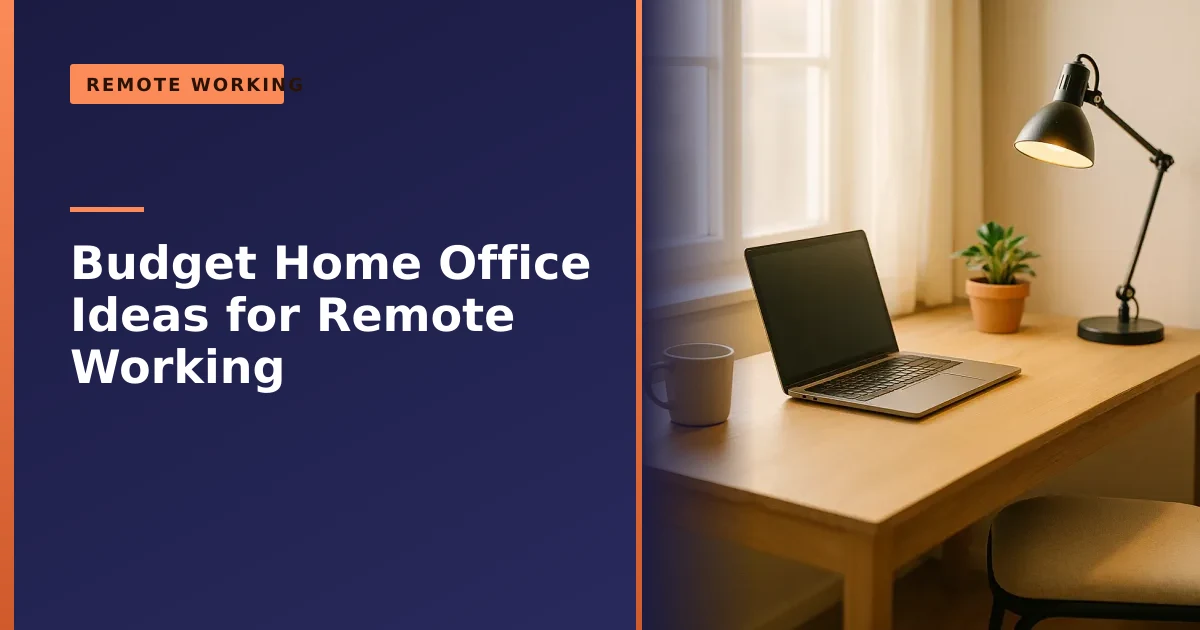
Position your desk near a window or in a lighter room so you rely on natural light during the day, which reduces both eye strain and your lighting costs. Where you do need lighting, energy-saving LED bulbs in a desk lamp cost little and last for years. Think about energy efficiency more widely too: a modest laptop uses far less power than a full gaming PC, and power-saving monitors help. Energy-efficient kit costs less to run and often lasts longer, and if you want your existing laptop to sip less power, our guide on improving battery performance has tips.
There is a balance to strike with daylight, though. A window directly behind your screen causes glare, and one directly behind you reflects off the screen, so the comfortable position is usually side-on to the window, with light falling across the desk. If the sun still gets in, a cheap blind or net curtain softens it. According to the Energy Saving Trust, LED bulbs use around 80% less electricity than old halogen bulbs for the same light, and it estimates a typical household could save roughly £45 a year by replacing all its halogen bulbs with LEDs. A single warm-white LED desk lamp is one of the cheapest, longest-lasting upgrades you can make.
Protect your eyes: glare, breaks and the 20-20-20 rule
Staring at a screen all day tires your eyes, and the symptoms are familiar: dryness, blurry vision, headaches and that gritty feeling by mid-afternoon. The good news is that the fixes are free. The most widely recommended habit among opticians is the 20-20-20 rule: every 20 minutes, look at something around 20 feet (about 6 metres) away for 20 seconds. It lets the focusing muscles in your eyes relax and reminds you to blink, which is the simplest way to keep them from drying out, because we blink far less when concentrating on a screen.
Beyond that, a few easy tweaks make a real difference:
- Cut the glare. Angle the screen away from windows and bright lamps, and lower the wattage of any light that reflects off it. A position side-on to the window usually works best.
- Match your screen to the room. If the screen is much brighter than its surroundings it strains the eyes, so turn the brightness down until it roughly matches the light around it, and use any night or warm mode in the evening.
- Keep your distance. Sit about an arm's length from the screen, with the top of it at or just below eye level so you look very slightly down.
- Take real breaks. Build in the short, frequent breaks the HSE recommends, and use them to look out of the window rather than at your phone.
If you are employed and use a screen for work, you are entitled to ask your employer about an eye and eyesight test under the DSE rules; the HSE explains how this works. It is a free benefit many home workers do not realise they have.
What it really costs to run a home office
Working from home shifts some running costs onto your own electricity bill, so it pays to understand where the money goes and how to keep it low. The single biggest factor is the computer itself. A laptop is dramatically more efficient than a tower PC, and a gaming or workstation desktop can use several times more power again. Here is a rough guide to typical power draw while working (your figures will vary with the model and what you are doing):
| Device | Typical power in use | Why it matters |
|---|---|---|
| Laptop | Low (tens of watts) | Designed to run on a battery, so it sips power; cheapest to run all day. |
| Standard desktop PC plus monitor | Moderate | More capable, but the tower and a separate screen add up over a full day. |
| Gaming or workstation PC | High | Powerful components draw a lot, often more than you need for office work. |
For most remote work, email, documents, browser tabs and video calls, a modest laptop does everything you need and costs the least to run. If you already own a power-hungry desktop, you do not have to replace it; just enable its power-saving settings, turn the monitor off at lunch, and avoid leaving it running overnight. The Energy Saving Trust points out that kit left on standby still draws power, so switching off at the wall genuinely trims the bill over a year. Combine that with LED lighting and daylight, and the running cost of a home office becomes very small.
Get your internet sorted
A reliable internet connection is as important as the computer, because nothing wastes more time than dropping out of a meeting. The reassuring news is that you rarely need the fastest, most expensive package. Video call services such as Zoom recommend only around 3 to 4 Mbps for a high-definition call, a tiny fraction of what most UK home broadband now delivers. A solid, stable connection beats a headline-grabbing top speed every time.
If your connection feels slow or drops out, the cause is often the setup rather than the package. A few cheap or free fixes:
- Move the router. Keep it out in the open, off the floor and away from other electronics, not tucked inside a cabinet. Position matters more than people expect.
- Use a cable for the desk. If your desk is near the router, a cheap Ethernet cable gives a rock-solid connection for calls and removes Wi-Fi interference entirely.
- Boost weak Wi-Fi. If the office is far from the router, a powerline adapter or a mesh extender is far cheaper than upgrading your whole broadband package.
- Restart and update. A monthly router restart and keeping its firmware updated clears a surprising number of slowdowns.
Only once you have tried these and still struggle is it worth paying for a faster line. For most people, a mid-range package and a well-placed router are plenty for full-time remote work.
Declutter your cables
Cable clutter is the quiet enemy of a tidy, safe home office. A tangle of leads collects dust, hides trip hazards and makes the whole space feel chaotic, and sorting it out costs almost nothing. Start by unplugging everything and only plugging back in what you actually use. Then tame what is left:
- Group cables together with reusable Velcro ties (cheaper and kinder to cables than cable ties you have to cut off).
- Run leads along the back of the desk and clip them underneath with stick-on cable clips so nothing dangles.
- Hide a multi-socket extension in a shoebox or a cheap cable-management box to keep plugs off the floor and out of sight.
- Label both ends of each cable with a strip of masking tape so you know what is what when something needs unplugging.
- Keep one short, dedicated charging cable on the desk rather than letting chargers migrate around the house.
A tidy desk is not just about looks. Fewer trailing leads means fewer trip hazards and less dust pulled into your computer's fans, which helps it run cooler and quieter. If your machine has become noisy or hot, that is often a sign it needs a clean or a service, something we cover in our laptop care guide.
Wait for discounts and ask your employer
Two more easy savings. First, if you have your eye on a piece of equipment, wait for a sale or discount code where you can, many retailers post exclusive codes on social media or in their apps, and late summer is a good time for clearance deals. Often, by the time it goes on offer, you may find you no longer need it. Second, ask your employer what they can contribute. If your role has moved to remote or hybrid working, many companies will provide a laptop, phone or a contribution towards office equipment, which can take a real chunk out of your home-office budget.
It is worth asking specifically, because there is a tax advantage that still works in your favour. As GOV.UK explains, employers can reimburse homeworking costs free of Income Tax and National Insurance, commonly at a round sum of up to £6 a week, or by covering specific equipment you need to do your job. So a polite request to your manager could mean a free chair, a monitor, or a small monthly contribution towards your bills, with no tax to pay on it. The worst they can say is no.
Working from home and your taxes in 2026
This is the part many home workers get wrong, because the rules changed. For years, employees could claim a flat rate of tax relief for the extra household costs of working from home, £4 a week historically, rising to £6 a week from the 2020 to 2021 tax year. From 6 April 2026, GOV.UK confirms that this tax relief for non-reimbursed homeworking expenses has been removed, so as an employee you can no longer claim it directly from HMRC. The government estimates this affects around 300,000 people.
So what can you still do? Two things are worth knowing:
- Backdated claims may still be possible. Claims for earlier tax years (within the normal time limits) may still be valid if you were eligible and never claimed, so it is worth checking GOV.UK's guidance on tax relief for working at home before the window closes.
- Employer reimbursement is the route now. As above, your employer can still pay towards your homeworking costs tax-free. With the personal relief gone, asking your employer to contribute is the practical way to recover some of the cost.
If you are self-employed rather than employed, these changes do not affect you in the same way; you can still deduct a reasonable share of your home-running costs as a business expense. Tax can get fiddly, so always check the current GOV.UK pages or speak to an accountant, but the headline for employees is simple: the old £6-a-week claim has gone, so look to your employer instead.
Get the tech basics right
The heart of any home office is a reliable computer and a steady internet connection, so it is worth making sure yours are up to the job before splashing out on decor. A slow laptop will cost you far more in lost time than a nice lamp will save you, and the fix is often cheap: a memory or SSD upgrade can transform an older machine, as our guides on RAM and SSDs explain. The right tools also help you work smoothly, our guides on the best software for remote meetings and apps that sync across your devices are good starting points, and do not forget to work securely from home.
Before you assume you need a new machine, ask whether your current one can be revived for far less. A laptop that takes an age to start up or grinds to a halt on video calls is very often held back by an old mechanical hard drive or too little memory, not because it is genuinely worn out. Fitting a solid-state drive (SSD) is the single biggest speed improvement most older computers can get, and more RAM helps it juggle the apps a working day demands. Both are inexpensive next to a new computer and can give a five or six year old laptop several more useful years. If yours already feels sluggish, our guide on why a laptop runs slow explains the causes worth fixing. Backing up your work matters too when your home is now your office; our advice on backing up your data could save you a very bad day.
Common budget home office mistakes
Saving money is easy to get wrong if you cut the wrong corners. These are the slip-ups we see most often, and how to sidestep them:
- Buying for looks, not comfort. A stylish chair that wrecks your back by 3pm is no bargain. Spend on what your body sits in and your eyes look at all day, and save on the decorative bits.
- Skipping measurements. Ordering a desk that does not fit, or is too shallow for a monitor, is the most common and avoidable mistake. Measure twice, buy once.
- Working from the sofa or bed. Fine for the odd hour, but bad for posture and focus over a full day. Even a basic dedicated desk is better for your back and your concentration.
- Overpaying for broadband you do not need. Faster is not always better. Sort the router position first; you may already have plenty of speed.
- Ignoring the computer. People spend on a lamp and a plant while limping along on a machine that loses them an hour a day. Fix the tech first.
- Forgetting to ask your employer. Free or subsidised kit is left on the table simply because nobody asks. With the personal tax relief gone, this matters more than ever.
A budget home office, in priority order
If you are starting from scratch with limited funds, spend in this order and you will never waste money. Get the lower items only once the ones above are sorted:
| Priority | What to sort | Budget approach |
|---|---|---|
| 1 | A reliable computer | Revive your current one with an SSD or RAM upgrade before buying new. |
| 2 | A stable connection | Reposition the router or run an Ethernet cable before paying for a faster package. |
| 3 | Comfortable seating and a desk at the right height | Second-hand task chair plus a lumbar cushion; an upcycled or used desk. |
| 4 | Screen at eye level and a separate keyboard or mouse | A stack of books or a cheap stand; an inexpensive keyboard and mouse set. |
| 5 | Good, low-glare lighting | Daylight side-on to the desk plus one warm-white LED desk lamp. |
| 6 | Storage and cable tidying | Repurpose shelves and jars; Velcro ties and clips for cables. |
| 7 | The nice-to-haves | Plants, art, a second monitor, only once everything above is done. |
Focus on what matters
Above all, spend on what helps you do your job well and stay comfortable, rather than on what looks impressive to visitors. Comfort, good light and reliable tech are what make a home office genuinely productive, and all three are achievable on a modest budget with a bit of planning and a willingness to buy second-hand. Build it up over time, fix and reuse where you can, and let the finishing touches come last. A home office that costs little but works brilliantly will do far more for your working day than an expensive one that simply looks the part.
How Manchester PC can help
If you are a remote worker in Manchester and your home-office tech needs a hand, we are here to help. We can upgrade a slow laptop, sort out connection and setup problems, recommend affordable, energy-efficient kit, and get your home office running smoothly without overspending. Whether it is fitting an SSD to breathe new life into an older machine, adding memory, clearing out a virus, or simply getting your screen and Wi-Fi behaving, we will give you honest advice on what is worth doing and what is not.
We cover Manchester and the surrounding areas with free local collection and return and honest, friendly advice. For any IT or tech support, or a computer repair, get a free, no-obligation quote or call us on 0161 820 1992.