Key takeaways
- The big three for remote meetings in 2026 are Zoom, Microsoft Teams and Google Meet, and the best one for you usually depends on the tools you already use.
- Choose Microsoft Teams if your business runs on Microsoft 365, Google Meet if you use Google Workspace, and Zoom if you want the simplest, most reliable standalone meeting tool.
- All three have free tiers that are perfectly good for smaller or occasional meetings, with paid plans lifting time and participant limits.
- Meeting quality depends as much on your kit and connection as the software: a decent webcam, a good headset and a wired connection make the biggest difference.
- For a smooth meeting, a stable internet connection matters most, so sort that before blaming the app.
- Security and privacy matter too: use waiting rooms, passcodes and end-to-end encryption where you can, and follow the NCSC's simple advice for safer calls.
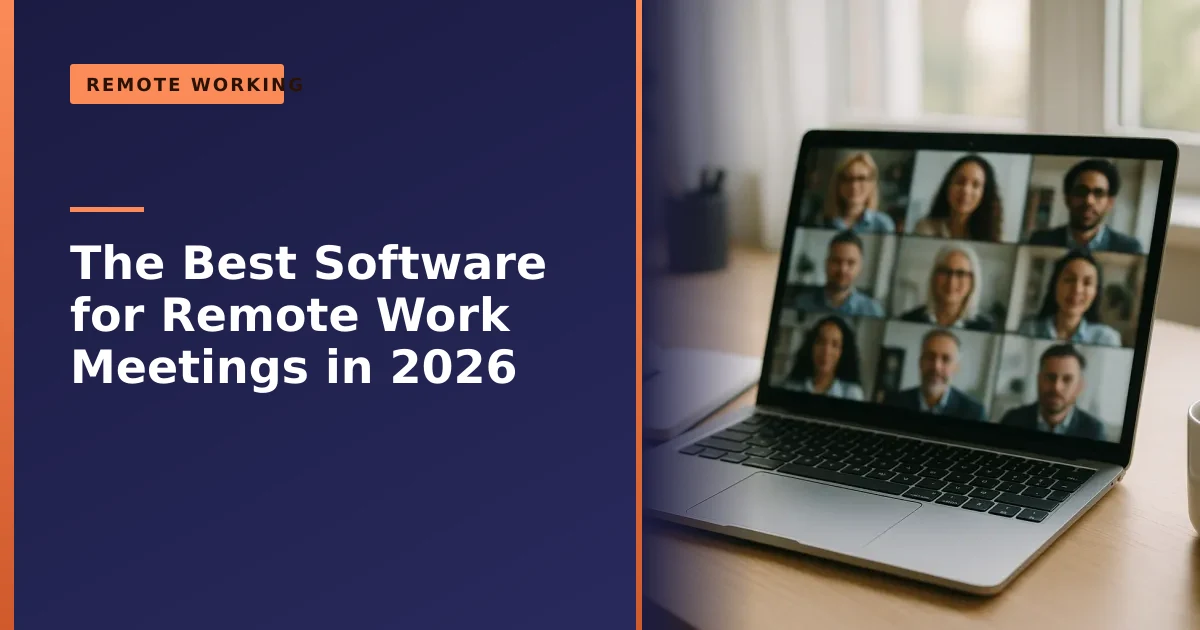
What is the best software for remote work meetings? For most people in 2026 it comes down to three: Zoom, Microsoft Teams and Google Meet. All three are excellent and reliable, so the right choice is less about which is "best" and more about which fits the tools you already use, your budget, and how big your meetings are. This guide compares them honestly, helps you pick, and shows how to get great results whichever you choose.
We set up and troubleshoot video meeting tools for home workers and small businesses across Manchester every week, so here is practical, real-world advice rather than a feature checklist.
The big three at a glance
Here is how the leading options compare for a typical small business or home worker:
| Software | Best for | Free tier highlights |
|---|---|---|
| Zoom | Simple, reliable standalone meetings with anyone | 40-minute group meeting limit, up to 100 people |
| Microsoft Teams | Businesses already using Microsoft 365 | Generous free meetings; deep Office integration on paid plans |
| Google Meet | Google Workspace and Gmail users | Runs in the browser; 60-minute limit on free group calls |
Any of these will serve you well. The differences that actually matter day to day are how they fit with your other tools and how easy they are for the people you meet with to join. Spend five minutes thinking about who you meet with most (clients outside your business, or colleagues inside it) and the answer usually picks itself.
Zoom: the simple, reliable standalone choice

Zoom became a household name for good reason: it is simple, dependable and works for everyone. Its biggest strength is that anyone can join a meeting in seconds by clicking a link, with no account needed, which makes it ideal for meeting clients, suppliers or anyone outside your organisation. Video quality is consistently good, and features like screen sharing, breakout rooms and virtual backgrounds are easy to use.
The main catch is the free plan's 40-minute limit on group meetings, fine for quick catch-ups but a nudge towards a paid plan if you run longer sessions. According to Zoom's own support documentation, almost all meetings hosted by free Basic users are capped at 40 minutes once a second person joins, though a solo meeting can run on. Paid plans (Zoom Workplace Pro and above) remove that cap and allow meetings of up to 30 hours, which is far longer than anyone sensibly needs. Worth knowing: the free and Pro plans both top out at 100 participants, so if you need bigger meetings you would move up to the Business tier. If you want one tool that just works with anybody, regardless of what software they use, Zoom is the safe choice.
Microsoft Teams: best if you use Microsoft 365
Microsoft Teams is the obvious pick for any business already on Microsoft 365. It is far more than a meeting tool, combining video calls with chat channels, file sharing and tight integration with Word, Excel, PowerPoint and Outlook. If your team lives in Office and SharePoint, Teams keeps everything in one place, and you may well already be paying for it as part of your subscription.
The trade-off is that Teams is more of an all-in-one collaboration platform than a simple meeting app, so it has a steeper learning curve and is at its best when everyone is inside the same organisation. The free version is generous for everyday use but caps group meetings at 60 minutes with up to 100 participants and gives you 5GB of cloud storage per person. Paid Microsoft 365 Business plans push that up to 300 people in a meeting (and up to 1,000 on some enterprise plans), with meetings able to run up to 30 hours, as set out in Microsoft's published limits for Teams. For internal meetings in a Microsoft business, it is hard to beat, and it pairs naturally with the synced apps we cover in our guide on apps that sync across your devices.
Google Meet: best for Google Workspace users
Google Meet is the natural choice if you use Gmail and Google Workspace. It runs straight from your browser with nothing to install, integrates neatly with Google Calendar and Gmail so starting or joining a meeting is effortless, and offers clean, reliable video. For anyone already in the Google ecosystem, it is the path of least resistance.
Free group meetings (three or more people) are capped at 60 minutes, which is generous for most purposes, while one-to-one calls can run up to 24 hours. The free tier supports up to 100 participants and includes handy extras like screen sharing and live captions, though it does not include recording. Paid Workspace plans remove the 60-minute cap, lift the limit to as many as 500 participants, and add features like recording, attendance tracking and noise cancellation. If your world is Google, Meet is the sensible, friction-free option.
Free tiers and pricing compared
One of the most common questions we hear is whether the free versions are good enough, or whether you really need to pay. For a lot of home workers and small teams, the free tiers genuinely do the job. The table below sums up the limits that matter most, based on each provider's published information at the time of writing. Prices change often, so always check the official pricing page before you commit, but the structure is what counts.
| Platform | Free group meeting limit | Free participants | What paid plans add |
|---|---|---|---|
| Zoom | 40 minutes | Up to 100 | Up to 30-hour meetings, cloud recording, larger meetings on Business |
| Microsoft Teams | 60 minutes | Up to 100 | Up to 300 (or 1,000) people, 30-hour meetings, full Office integration, dial-in |
| Google Meet | 60 minutes | Up to 100 | Up to 24-hour meetings, up to 500 people, recording, attendance tracking |
| Cisco Webex | 40 minutes | Up to 100 | Longer meetings, larger capacity, advanced admin and security controls |
The honest takeaway: if your meetings are short, internal or occasional, the free plans are often all you need. You usually pay for one of three things: longer meetings, more participants, or features like recording, dial-in and admin controls. Many small businesses run free tools for ages and only upgrade when one limit (most often the meeting length) starts to bite. Note too that Microsoft has announced changes to some Microsoft 365 plan prices during 2026, so check the current figures rather than relying on last year's quote.
Other options worth knowing
Beyond the big three, a couple of others are worth a mention. Cisco Webex is a long-established, enterprise-grade platform with strong security, popular with larger organisations; its free plan offers meetings of up to 40 minutes with up to 100 participants, much like Zoom. Slack also offers built-in "huddles" for quick audio and video chats, handy if your team already uses Slack for messaging. On the free Slack plan a huddle is limited to two people and 30 minutes, while paid plans allow group huddles of up to 50 people. There are also privacy-focused newcomers offering fully encrypted, no-account calling, which can be worth a look if confidentiality is your top priority. For most small businesses and home workers, though, one of Zoom, Teams or Google Meet will cover everything you need.
When to use which: real-world scenarios
Picking by feature list is exhausting. Picking by situation is easier. Here is how the choice tends to play out in practice:
- You mostly meet clients and contacts outside your business. Zoom wins, because they can join by clicking a link with no account or download. The fewer hurdles for your guest, the more professional you look.
- Your whole team is on Microsoft 365. Use Teams. Meetings, chat, files and calendars all live together, and you are probably already paying for it.
- You run on Gmail and Google Calendar. Google Meet is the least effort. A meeting link drops straight into the calendar invite and opens in the browser.
- You need a quick word, not a formal meeting. If your team chats in Slack all day, a huddle is faster than scheduling a call. If you are in Teams, a quick "meet now" does the same job.
There is no rule that says you must pick only one. Plenty of Manchester businesses we support run Teams internally and join Zoom calls with outside clients without a second thought.
Security and privacy: what to check before you trust a meeting tool
Video meetings often involve sensitive information, so a few minutes spent on security is well worth it. The good news is that all three major platforms encrypt your calls while they travel across the internet, and all hold recognised security certifications. The differences are in the controls you get and how you use them.
- End-to-end encryption (E2EE). This is the strongest setting, where only the people in the call can unscramble it. Zoom offers E2EE on free and paid meetings, although turning it on disables some extras like cloud recording and breakout rooms. Google Meet offers optional end-to-end encryption for calls, and Teams supports it for one-to-one calls and meetings. For most everyday chats the standard encryption is fine; switch on E2EE when a conversation is genuinely confidential.
- Waiting rooms and lobbies. A waiting room lets you vet who is joining before you let them in, which stops uninvited guests dropping into a call. Zoom has waiting rooms and passcodes, Google Meet has a "knock to join" request for outside guests, and Teams has a lobby. Switch these on for any meeting where the link might get forwarded.
- Passcodes and links. Always protect meetings with a passcode and avoid posting meeting links anywhere public, such as social media. A leaked open link is the most common way meetings get gatecrashed.
The UK's National Cyber Security Centre has straightforward advice on this in its guidance on how to secure your online meetings. Its key points for smaller organisations are to choose a reputable paid plan where you can for better controls, protect your account with a strong, unique password and two-step verification, use passcodes and waiting areas, and be mindful of your surroundings and any AI "note-taker" bots that might be recording. If keeping your wider home setup safe is on your mind, our guide on working securely from your home office and our roundup of the best free firewalls are good companions to this.
It is not just the software: kit and connection matter
Here is something we see constantly: people blame the meeting software for problems that are really down to their equipment or internet. The best software in the world cannot fix a weak connection or a poor microphone. To get genuinely good meetings:
- Sort your internet first. A stable connection matters more than anything. If you can, use a wired connection or sit close to the router, as a shaky connection is the number one cause of frozen video and dropped calls.
- Use a proper microphone. Clear audio matters more than video; a cheap headset or dedicated mic transforms how you come across, far more than a built-in laptop mic.
- Improve your camera and lighting. A decent webcam and facing a window or a lamp make a big difference. Even a budget external webcam beats most built-in ones.
- Keep your computer healthy. A sluggish, overloaded machine struggles with video calls, so if yours is slow, our guide on why laptops run slow will help.
Getting these basics right makes more difference to your meetings than agonising over which app to choose. The rest of a solid home-working setup, including the desk, chair and screen, is covered in our guide on budget home office ideas for remote working.
The kit that actually makes you sound and look good
You do not need to spend a fortune to look and sound far more professional on calls. If you only change one thing, change your audio, because nothing makes a meeting harder than struggling to hear someone. Here is the order we would spend money in:
- A headset or dedicated microphone first. A wired USB headset is cheap, comfortable and keeps the other person's voice out of your microphone, which prevents echo. If you would rather not wear a headset, a small USB desk microphone is a big step up from the one built into your laptop.
- An external webcam second. Built-in laptop cameras sit low down (an unflattering angle) and look grainy in poor light. A 1080p external webcam clipped to the top of your monitor sits at eye level and looks far sharper.
- Lighting third. This is the cheapest upgrade of all. Sit facing a window or a desk lamp, never with a bright window behind you, or you will appear as a silhouette.
If your laptop is more than a few years old and chugs during calls, the most cost-effective fix can be a hardware upgrade rather than new peripherals. A faster drive or more memory often gives an older machine a new lease of life, as we explain in our guide on why you should upgrade to an SSD.
Getting your internet connection right
Video calls are surprisingly forgiving on raw speed but very sensitive to stability. A connection that drops or stutters will ruin a call even if your headline broadband speed looks healthy. A few practical steps remove most problems:
- Go wired if you possibly can. Plugging an Ethernet cable from your router to your computer is the single most reliable fix for choppy video. Wi-Fi is convenient but more prone to interference, especially in a busy household or shared office.
- If you must use Wi-Fi, get close to the router. Walls, distance and other devices all weaken the signal. A mesh system or a powerline adapter can help in a house where the router is far from your desk.
- Close the bandwidth hogs. Big downloads, cloud backups and other people streaming video in the same house can all eat into your connection. Pausing them during an important call makes a noticeable difference.
- Turn off your camera if things get rough. Video uses far more bandwidth than audio. If a call starts breaking up, switching your camera off often restores clear sound instantly.
If your connection is genuinely poor across all devices, the problem may be your line or router rather than your computer, and it is worth speaking to your broadband provider. Backing up your work to the cloud also means a mid-call crash never costs you anything, as covered in our guide on why backing up your data is critical.
Accessibility: captions and inclusive meetings
Good meetings work for everyone in them, and a few small habits make a real difference for colleagues who are deaf or hard of hearing, who have slower internet, or who simply find it easier to follow text. Live captions are now built into all three major platforms, and Zoom in particular is well regarded for its accessibility features, including automatic captions and support for professional human captioning.
- Turn live captions on. They help far more people than you might expect, and they cost nothing. Just be aware that automatic captions can struggle with strong accents, technical jargon, acronyms and several people talking at once.
- For important sessions, consider human captioning. For formal events, training or anything legal, a professional captioner is far more accurate than the automatic option.
- Speak one at a time and leave pauses. Talking over each other breaks captions and makes life hard for anyone taking notes, using sign language interpretation, or on a slower connection.
- Share materials in advance. Sending the agenda or slides beforehand means people can follow along even if the audio or captions stumble.
Hybrid meetings: getting everyone on equal footing
Hybrid meetings, where some people are together in a room and others join remotely, are now normal, and they are also where things most often go wrong. The classic problem is that people in the room have a great conversation while the remote attendees can barely hear and never get a word in. A few deliberate habits fix that:
- Get the room audio right. A laptop microphone on the far side of a meeting room will not pick up everyone. Use a decent conference microphone or speaker, or pass a handheld mic around, so remote people hear every voice clearly.
- Give remote attendees a real voice. Appoint someone in the room to watch the chat and the raised-hand button, and actively bring remote people into the discussion rather than leaving them to fight for a gap.
- Show captions on the room screen. Displaying live captions on the shared display helps everyone, in the room and online, follow along.
- Have everyone join the call. Even people in the same room can join on their own laptops, with microphones muted to avoid echo, so screen sharing, chat and reactions work the same for everybody.
Meeting etiquette and productivity
Software and kit aside, the meetings people enjoy tend to follow a few simple courtesies that together save a remarkable amount of time and frustration:
- Mute yourself when you are not speaking. Background noise, typing and traffic are distracting and make captions worse. One person forgetting to mute can derail a whole call.
- Send an agenda and finish on time. A short agenda keeps things focused, and a clear finish respects everyone's day. Many meetings could comfortably be 25 minutes rather than an hour.
- Turn your camera on for important conversations. Being able to see faces builds trust and cuts down on people talking over each other, though it is fine to go audio-only to save bandwidth or give people a break.
- Ask before recording. Always let people know if you are recording, and that includes any AI note-taking bot, both as a courtesy and because it is the right thing to do under UK privacy expectations.
- Test your setup before big calls. A two-minute check of your camera, microphone and connection saves the awkward "can you hear me?" scramble at the start.
Common video meeting problems and how to fix them
Most meeting trouble comes down to a handful of repeat offenders. Here is how to deal with the ones we are asked about most:
- "They cannot hear me." Check you are not muted (in both the app and your headset), then check the app is using the right microphone in its audio settings. A surprising number of "broken" microphones are simply the wrong device selected.
- "There is an echo." Echo is almost always caused by someone's microphone picking up their own speakers. The fix is a headset, or asking everyone to mute when not talking.
- "My video keeps freezing." This is nearly always the connection. Move closer to the router or go wired, close other apps, and turn your camera off if it persists.
- "The camera will not turn on." Close any other app using the camera, check the app has permission in your system settings, and on a laptop make sure any physical privacy shutter is open.
- "Everything is slow and the fan is roaring." Your computer may be struggling. Close unused browser tabs and programmes, and if it happens on every call, the machine itself may need attention; our guide on fixing random crashes and restarts and a good disk cleanup are sensible first steps.
- "The browser version is glitchy." Try the desktop app instead, or update your browser, since an out-of-date browser causes a lot of avoidable problems. Our look at the most popular internet browsers may help you pick a reliable one.
So which should you choose?
To keep it simple: choose Microsoft Teams if your business already uses Microsoft 365, Google Meet if you use Google Workspace, and Zoom if you want the easiest standalone tool for meeting people regardless of what they use. All three are genuinely good, all have usable free tiers, and you can happily use more than one, for instance Teams internally and Zoom with outside clients. The best advice is to pick the one that fits your existing tools and the people you meet with most, then invest in a good headset and a solid connection. Get the basics right (clear audio, a stable connection, sensible security settings and a little meeting etiquette) and the software almost stops mattering, because they all do the core job well.
How Manchester PC can help
If you want help getting set up for smooth remote meetings, choosing the right software, sorting out audio or video problems, recommending and fitting a webcam or headset, or fixing a slow computer that struggles on calls, we can help. For small businesses, we offer ongoing IT support and dedicated business computer support in Manchester to keep your team running smoothly, in the office or at home. If your problem is something we can sort out without an in-person visit, our remote PC repair service can often get you going the same day.
We cover Manchester and the surrounding areas with free local collection and return and honest, jargon-free advice. For help with your setup or any computer repair, get a free, no-obligation quote or call us on 0161 820 1992.