Key takeaways
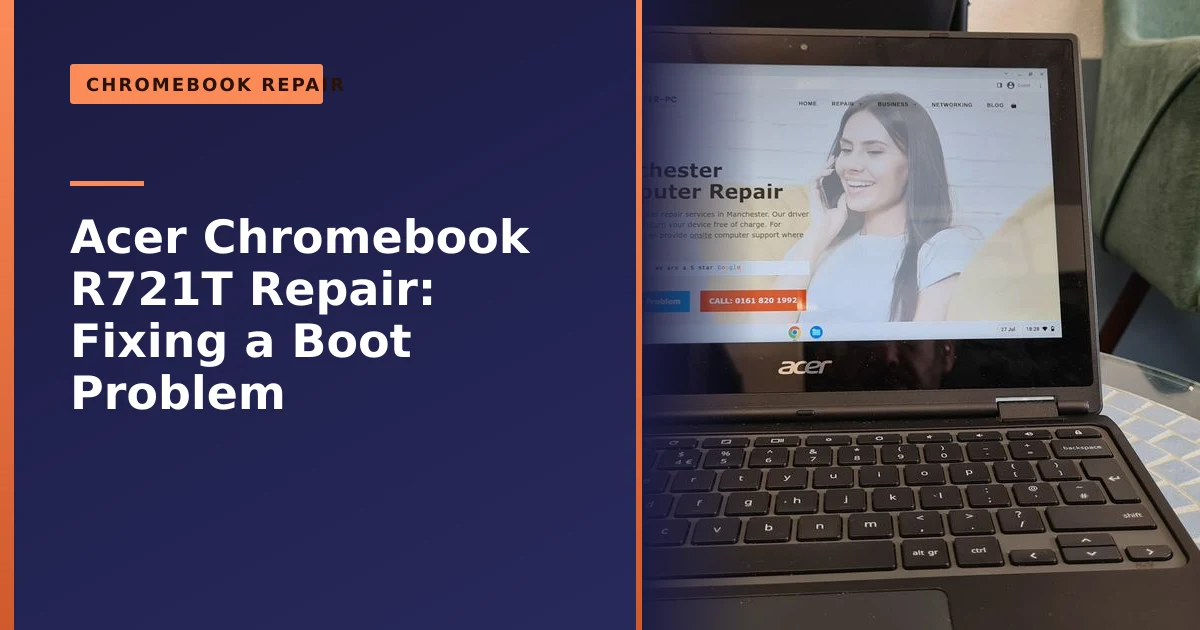
- This Acer Chromebook R721T came from Oldham with a booting problem and would not start properly.
- We checked and cleaned the cooling, reinstalled Chrome OS (a recovery), and replaced missing hinge screws.
- Many Chromebook faults are software or simple hardware issues that are quick and affordable to fix, not reasons to replace it.
- A Chrome OS recovery reinstalls the operating system cleanly and is the single most effective fix for a Chromebook that will not boot.
- Every Chromebook has an Auto Update Expiration (AUE) date, and there are good options (including ChromeOS Flex) for when it arrives.
- Reviving a Chromebook keeps a useful device out of landfill and saves you buying new.
Chromebook stuck on a booting problem? It is often fixable. This Acer Chromebook R721T arrived at our Manchester workshop from Oldham refusing to boot properly, and we had it running like new again by cleaning its cooling, recovering Chrome OS and replacing some missing screws. Here is what was wrong, how Chromebook repairs like this work, and what you need to know to keep your own Chromebook healthy for years.
What came in: a Chromebook that would not boot
The Acer Chromebook R721T is a handy little convertible, but this one had developed a booting hiccup and would not start up reliably. Chromebooks run Google's Chrome OS rather than Windows, so they need a slightly different approach to diagnose and repair, which is where experience with Chrome OS comes in.
When a Chromebook arrives that will not boot, the symptoms are usually one of a few things: a black screen with a flashing cursor, a frozen logo, repeated restarts, or the dreaded "ChromeOS is missing or damaged" message. Each points us in a slightly different direction, so the first job is never to assume. We power the device up, watch how far it gets, and rule out the simple causes before we open it. A surprising number of "dead" Chromebooks are simply flat batteries, a faulty charger, or a screen that has stopped waking, so it pays to check the cheap and obvious things first.
Meet the Acer Chromebook R721T
The R721T is a 2 in 1 convertible Chromebook with an 11.6 inch touchscreen and a hinge that folds the full way back, so it works as a laptop or a tablet. It was built as a rugged, affordable machine aimed largely at schools and students. That education focus matters for repair: devices like this are handled constantly, carried in bags, dropped occasionally and rarely cleaned, so the faults we see tend to be physical wear (loose hinges, missing screws, worn ports) combined with the software corruption that builds up on any hard-used machine. The good news is that both problem types are usually very fixable, and far cheaper than most people expect.
How we fixed it
We started with the cooling system, checking and cleaning it thoroughly, since a Chromebook needs to stay cool to run reliably. Next we tackled the boot problem itself by reinstalling Chrome OS, carefully selecting the correct recovery version for this model and performing a clean recovery that wiped away whatever had become corrupted. Like that, the Chromebook sprang back to life and ran as though it were fresh out of the box. While we were inside, we also noticed a few missing screws holding the hinges together and replaced them with new ones, making the whole machine feel sturdier again.
The order matters. Cleaning the cooling first means that when we test the recovered machine under load, any heat-related instability has already been ruled out. Recovering Chrome OS second deals with the reported fault. Tightening the hinges last is a small extra we do as a matter of course, because a wobbly hinge today is a cracked screen tomorrow. A repair is finished not when the original symptom has gone, but when the whole device is reliable again.
What actually causes a Chromebook boot problem
A Chromebook that will not boot is almost always suffering from one of a handful of causes, and knowing which one you are dealing with is half the battle.
- Corrupted operating system. Chrome OS can become damaged after a failed update, a sudden power loss, or file system corruption. This is the classic cause behind the "ChromeOS is missing or damaged" error, and it is exactly what a recovery fixes.
- Overheating and thermal shutdown. If dust has clogged the vents, the device can get hot enough to shut down as a safety measure, sometimes before it finishes booting. Heat also drains the battery, which can leave a machine looking dead when it is really just hot and flat.
- A flat or failing battery. A battery left uncharged too long can fall into a deep discharge state and refuse to wake without a long charge, and older batteries can simply fail with age.
- A faulty charger or charging port. No power in means no boot. A frayed cable, dead power brick or loose charging port will all stop a Chromebook starting, and these are some of the cheapest faults to fix.
- Loose internal connections. On a well-travelled device, ribbon cables can work loose, especially around the screen and hinge, which is why physical inspection matters.
- Account or network lockout. On managed school or work Chromebooks, the device may need an internet connection to let you sign in, so what looks like a boot failure is really a login block.
Because the causes overlap, a good diagnosis works through them in order from cheapest and least invasive to most. If your device feels generally slow rather than broken, our guide on why laptops run slow covers the usual culprits, many of which apply to Chromebooks too.
How a Chrome OS recovery actually works
Recovery is the heart of most Chromebook boot repairs. It removes and reinstalls Chrome OS, which permanently erases everything on the device's local storage and returns the operating system to a clean, working state. Because Chromebooks are built around the cloud, the files, settings and apps synced to your Google Account are not affected and come back when you sign in again.
There are two main ways in, both documented in Google's official recover your Chromebook guide. To recover using the internet, disconnect any peripherals, hold Esc and Refresh, press the power button, then choose to recover using an internet connection, and the device downloads and reinstalls the correct version of Chrome OS. If that is unavailable or fails, you create recovery media on a working computer using Google's Chromebook Recovery Utility and an 8 GB or larger USB stick, then boot the Chromebook from it.
The detail that catches people out is choosing the correct recovery image for the exact model. Each Chromebook has a specific build, and using the wrong one will fail. On this R721T we selected the right recovery version for the model, the kind of step that turns a frustrating afternoon at home into a quick job for someone who does it regularly.
Powerwash versus recovery: which is which
People often use "powerwash" and "recovery" interchangeably, but they are different tools. A Powerwash is a factory reset you run from inside a working Chromebook, while a recovery is a full reinstall of the operating system used when the device will not boot at all. Both wipe your local data and both leave synced Google data untouched.
| Feature | Powerwash (factory reset) | Chrome OS recovery |
|---|---|---|
| When to use | Chromebook still boots but is misbehaving, or you are passing it on | Chromebook will not boot, or shows "ChromeOS is missing or damaged" |
| How to start | Sign out, then press Ctrl + Alt + Shift + R and choose Powerwash | Hold Esc + Refresh, press power, then recover via internet or USB |
| Reinstalls the OS? | No, it resets your settings and removes accounts | Yes, it removes and reinstalls Chrome OS completely |
| Local files erased? | Yes | Yes |
| Synced Google data affected? | No | No |
| Rough time | 1 to 2 minutes | 10 to 20 minutes plus setup |
The Powerwash shortcut and steps are set out in Google's official factory reset guide. One important warning applies to both: if the device is a managed school or work Chromebook, do not reset or recover it yourself, because you may not be able to re-enrol it afterwards. In that case, speak to whoever administers the device first. Whatever method you use, back up anything that lives only on the device before you start, just as we always advise in our piece on why backing up your data is critical.
Common Chromebook problems and how they are fixed
Chromebooks are simple and reliable, but they do go wrong, and most issues fall into a few categories. Boot and software problems can usually be solved with a Chrome OS recovery, which reinstalls the operating system cleanly, often the single most effective fix. Sluggishness or shutdowns can be down to dust-clogged cooling, which a clean resolves. And physical niggles like loose hinges, missing screws or worn ports are straightforward hardware repairs.
The key point is that a Chromebook that will not boot is very rarely beyond help. Before assuming it needs replacing, it is well worth having it checked, as the fix is often quick and inexpensive. A slow, stuttering Chromebook usually just has too many tabs and extensions, low storage, or an OS that benefits from a clean reset, while a device that will not charge points to a failed charger, worn port or tired battery, all replaceable parts.
Keeping a Chromebook cool: overheating and cleaning
Heat is the quiet killer of laptops and Chromebooks alike. As dust builds up in the vents and around the cooling, the device loses its ability to shed heat, the result we found on this R721T. Left unchecked, sustained heat can shorten the life of the battery and other components, so a clean is one of the most worthwhile bits of maintenance there is.
You can do a lot at home to keep things cool:
- Use the Chromebook on a hard, flat surface rather than a bed, sofa or lap, so the vents are not blocked.
- Keep it out of direct sunlight and away from radiators and other heat sources.
- Close tabs and apps you are not using, since dozens of open tabs make the processor run hotter, and remove extensions you no longer need.
- Give the vents a gentle blast of compressed air from time to time to clear loose dust.
When a Chromebook keeps overheating despite all that, the dust has usually worked deeper inside than canned air can reach, and it is time for a proper internal clean: opening the device, clearing the heatsink and vents, checking the thermal interface and reassembling it correctly, which is exactly what we did here. Our general laptop care guide covers the day to day habits that keep any portable device in good shape.
Hinges, screws and other hardware repairs
The other thing we put right was the hinges. Convertible Chromebooks like the R721T fold all the way back into tablet mode, so the hinges get worked hard, and on a school-age device it is common to find screws that have worked loose or gone missing. That might sound trivial, but a loose hinge transfers stress to the screen and the cables running through it, and a cracked screen is a far bigger and more expensive job than a few new screws.
Hinge and casing faults are preventable: catch a wobbly lid early and it is a quick, cheap fix, but ignore it and you risk the display, bezel and internal wiring. The same logic applies to worn charging ports, frayed cables and rattling fans, so it pays to act when you first notice something is not right. If your device has gone further than a few loose screws, our pages on laptop screen repair and general laptop repair in Manchester explain what is involved.
Auto Update Expiration (AUE): the date every Chromebook owner should know
One thing makes Chromebooks genuinely different from Windows laptops, and it catches a lot of owners by surprise: every Chromebook has an Auto Update Expiration date, usually shortened to AUE. This is the date after which Google stops shipping Chrome OS updates and security patches to that model. It is not a fault, it is a published support window, much like the end of support for an old version of Windows.
The good news is that the window is now long. Chromebooks released from 2021 onward receive ten years of automatic updates from the platform's release date, according to Google. AboutChromebooks reports that as of 2026 around 83 percent of active Chromebooks qualify for that full ten year window, up from 68 percent in 2024, so most newer devices have years left.
You can check your own device's date in a minute. Select the time in the bottom right corner, open Settings, choose About ChromeOS, click Additional details, and look at the Update schedule section, as set out in Google's official guide to checking your Chromebook's update schedule. It is well worth knowing your AUE date before you spend money on a repair, because it tells you how much fully supported life the device has left.
What happens at AUE? The Chromebook keeps working. It still boots, runs your apps and keeps protections like verified boot. What it stops getting is new security patches and features, so it slowly becomes less safe for anything sensitive. The important nuance: an expired Chromebook is not bricked, it is just no longer receiving the updates that keep it secure online.
When AUE arrives: ChromeOS Flex, Linux and sensible reuse
If your Chromebook has reached or is approaching its AUE date, you have more options than simply binning it.
- Use it intentionally. An expired Chromebook is fine for low risk, offline-leaning tasks like word processing, reading, music and video. The industry advice is to avoid logging into banking, email or anything with sensitive credentials on an unsupported device.
- Install ChromeOS Flex. ChromeOS Flex is a free operating system from Google that gives older hardware a fresh, fully updated experience. It is aimed mainly at old Windows and Mac laptops, so it is the natural route to breathe new life into ageing kit you have lying around. Google lists the requirements in its official prepare for installation guide: an Intel or AMD x86 64-bit device, at least 4 GB of RAM, at least 16 GB of storage, and the ability to boot from USB. Flex is only guaranteed on certified models, so performance elsewhere is not promised.
- Run Linux. Many Chromebooks include Google's built-in Linux environment, which runs Linux apps alongside Chrome OS for more capable software while the device is still supported.
One word of realism: ChromeOS Flex has its own support timeline, and some older machines lose Flex support over time too, so it extends a device's useful life rather than guaranteeing it forever. For most people the simplest path is to keep using a supported Chromebook, and recycle it responsibly when it truly reaches the end, the same reuse thinking behind our right to repair article.
Are Chromebooks worth repairing?
The honest answer is: it depends on the fault, the model and the device's remaining supported life. A budget Chromebook with a cracked screen near its AUE date may not be worth a major repair, while the same model with a boot problem and years of updates left absolutely is. The deciding factors are repair cost against replacement cost, the value and age of the device, and how long Google will keep supporting it.
| Fault | Typical fix | Usually worth repairing? |
|---|---|---|
| Will not boot / corrupted OS | Chrome OS recovery | Yes, quick and inexpensive |
| Overheating / random shutdowns | Internal clean | Yes |
| Loose or missing hinge screws | New fixings | Yes, cheap and prevents worse damage |
| Will not charge | New charger, port or battery | Usually yes |
| Cracked screen on a budget model near AUE | Screen replacement | Sometimes, weigh against replacement |
| Multiple major faults on an expired device | Several repairs | Often not, consider replacing |
The boot problem on this R721T is a textbook "yes". A recovery and a clean cost a fraction of a new machine and gave the owner back a perfectly good device. The maths gets harder with a costly part, like a screen or board, on a cheap and ageing Chromebook, which is why we give a free, no-obligation quote first and tell you plainly when a repair is not worth it. Our guide on repair or replace walks through the decision, and our page on how much it costs to fix a laptop sets out what to expect.
Chromebook versus Windows laptop: which suits you
If your Chromebook has reached the end of the road, it helps to understand what each platform is genuinely good at. Neither is better outright, they are built for different jobs.
| Consideration | Chromebook | Windows laptop |
|---|---|---|
| Best for | Web, email, documents, study, simplicity | Full software, gaming, professional tools |
| Software | Web apps, Android and Linux apps | Huge range of desktop programmes |
| Offline use | More limited, leans on the cloud | Works fully offline |
| Security | Verified boot, sandboxing, smaller attack surface | Flexible but needs more care and antivirus |
| Updates | Fast and unobtrusive, with an AUE date | Frequent, can interrupt with restarts |
| Typical cost | Often cheaper at the entry level | Wider range, including premium |
In short, a Chromebook is an excellent, low-maintenance choice if you mostly live in a browser and value simplicity and battery life, while a Windows laptop earns its place if you need specific desktop software, want to game, or work offline a lot. Plenty of households run both. Our article on laptop versus PC is a useful read, as is our piece on whether to upgrade to Windows 11 if you go the Windows route.
Why Chromebooks are hard to infect
One of the strongest points in a Chromebook's favour is security. Chrome OS uses verified boot, which checks the system has not been tampered with every time the device starts, automatic background updates, and sandboxing that isolates each web app and tab from the rest of the system. The relative simplicity of the platform also means a far smaller attack surface than a full Windows PC, where the range of installable software gives attackers more openings.
That does not make a Chromebook invincible. Phishing, dodgy browser extensions, weak passwords and scam websites work just as well against Chromebook users, because they target you rather than the operating system. Keep the system updated, only install extensions you trust, use strong unique passwords, and be wary of "too good to be true" offers. Our guide to spotting fake online stores is just as relevant on a Chromebook, and if you suspect a Windows machine has been hit, our virus removal service can help there too.
Common mistakes and simple maintenance
A few habits will keep almost any Chromebook running sweetly for years.
- Do back up anything stored only on the device before a reset, recovery or repair. Synced Google data is safe, but downloads and local files are not.
- Do not reset or recover a managed school or work device yourself. You may be unable to re-enrol it. Ask the administrator first.
- Do keep the vents clear, use the device on a hard surface, and close tabs and unused extensions to keep it cool and responsive.
- Do act on a wobbly hinge or loose screw early, before it damages the screen or cables.
- Do check your AUE date before paying for a major repair, so you know how much supported life is left.
- Do not assume a Chromebook that will not boot is dead. A recovery fixes the most common cause in minutes.
When to call a professional
Plenty of Chromebook issues are safe to try at home: a Powerwash, clearing a few tabs, a gentle blast of compressed air, charging a flat battery overnight, or even an internet recovery if the device cooperates. It is worth attempting those first.
It is time to bring it to a professional when the device will not boot even after a recovery attempt, when it keeps overheating despite basic cleaning, when there is physical damage such as a loose hinge, cracked screen or dead port, when it will not charge, or when it is a managed device you must not reset yourself. A workshop can open it safely, clean the cooling, apply the correct recovery image, replace worn parts and tell you honestly whether the repair is worth it first. If your data matters and the storage is failing, our data recovery service is there as well.
Why repair a Chromebook?
Chromebooks are affordable, but that is no reason to throw one away over a fixable fault. Reviving this one gave it a new lease of life for its owner and kept a perfectly good device out of landfill, the same sustainable thinking behind the right to repair. A repair like this typically costs far less than a replacement.
The greenest device is the one you already own, so squeezing a few more good years out of a working machine is genuinely worthwhile. A boot problem, a dusty heatsink and a couple of missing screws are not the end of a Chromebook's story, they are just a service it was due.
How Manchester PC can help
If your Chromebook will not boot, runs slowly, or has a hardware niggle, we can help. We are experienced with Chrome OS recoveries as well as hardware repairs, and we will tell you honestly whether yours is worth fixing.
We cover Manchester and the surrounding areas, including Oldham and nearby Chadderton and Failsworth, with free local collection and return, fair pricing and honest advice, we will always tell you when a repair is not worth it rather than push one. For an Acer laptop repair or any computer repair, get a free, no-obligation quote or call us on 0161 820 1992.