Key takeaways
- This Intel i7 gaming PC from Oldham had a booting problem caused by an ageing, worn-out SSD.
- We fitted a new high-performance SSD and cloned all the data across, so nothing was lost.
- SSDs do wear out over years of use, and a tired drive can cause boot problems and slowdowns.
- Replacing an ageing SSD restores both reliability and speed, far cheaper than a new PC.
- Warning signs include slow or failed boots, freezing, file corruption and the drive dropping out, so act before total failure.
- A free tool like CrystalDiskInfo lets you read the drive's own SMART health report in minutes.
Gaming PC developing booting problems? An ageing SSD is a common and easily fixed cause. This Intel i7 gaming rig came to us in Oldham, Manchester, struggling to boot because its solid-state drive had worn out. We fitted a fast new SSD, cloned all the data across, and it ran like new. Here is what was happening, why even SSDs eventually need replacing, and how you can spot the warning signs on your own machine before they turn into lost data.
What came in: an i7 powerhouse struggling to boot
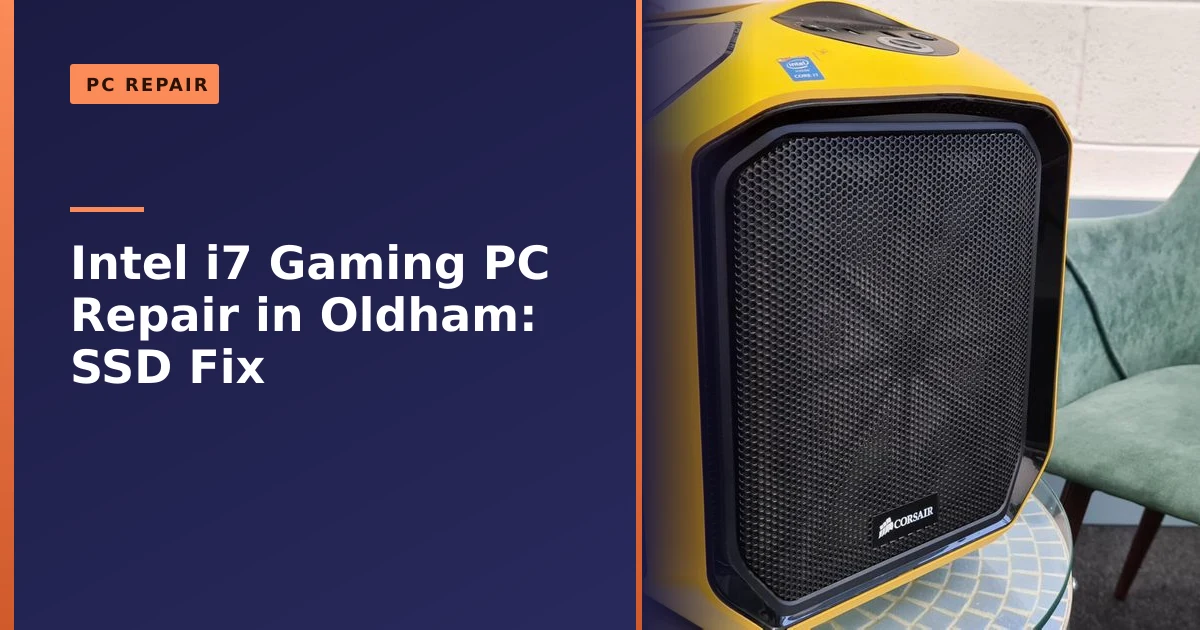
This was a capable gaming PC, an Intel i7 processor in a compact Corsair Graphite Series 380T case, built for speed and serious gaming. But it had developed a booting problem, struggling to start up reliably, which traced back to its ageing SSD. The drive that had once delivered fast performance had reached the point where its reliability had waned, and it was hindering the whole system.
The symptoms were the classic, frustrating kind. Some days the PC would start first time. Other days it would sit at a black screen, hang at the manufacturer logo, or drop into the BIOS complaining that no boot device could be found, then start perfectly on the next attempt. That intermittent behaviour is a strong clue. When a machine boots fine one minute and refuses the next, the fault is rarely random. It usually points to a component that is on its way out but has not failed completely yet, and the drive holding the operating system is one of the prime suspects. Because the SSD stores Windows itself, any unreliability there shows up first and most dramatically at start-up, exactly the kind of trouble this PC was showing.
The owner had done the sensible thing and brought it in early. That timing mattered, because it meant the old drive was still readable when it reached our bench, and that is the difference between a clean data migration and a data recovery job.
How we fixed it
The fix was a storage replacement done carefully to protect the owner's data. We replaced the worn SSD with a modern, high-performance solid-state drive capable of matching the demands of the i7 processor. Crucially, we cloned the data from the old drive to the new one, copying everything from the operating system to the owner's files and settings, so they could pick up exactly where they left off with no loss and no fresh setup. We installed the new drive precisely and tested the result. With the new SSD in place, the booting problem was gone and the PC initiated with speed and precision, restored to its full potential.
Before any spanner came out, we confirmed the diagnosis. A boot problem is not always the drive, it can also be a failing power supply, loose connections, a tired CMOS battery or a software fault, so we ruled those out first. Once the drive was confirmed as the culprit, we connected the new SSD, cloned the old one, swapped it in and set it as the boot device in the firmware. We then ran the machine through a series of restarts and checks to make sure the intermittent fault was genuinely gone. Only when it booted cleanly every single time did we call it done.
Do SSDs wear out? Yes, eventually
It surprises some people, but SSDs do have a finite lifespan. Although they have no moving parts and are far more durable than old mechanical hard drives, the memory cells inside an SSD can only be written to a certain number of times, so after years of heavy use a drive can begin to wear out. The warning signs include slow or failed boots, files that become corrupted, the system freezing, or the drive dropping out intermittently, exactly the kind of booting trouble this PC showed.
The reason comes down to how the storage actually works. An SSD stores your data in NAND flash memory cells, and writing to those cells gradually wears out the thin oxide layer that traps the electrical charge. Each cell can survive only a limited number of program and erase cycles before it can no longer hold data reliably. According to Wikipedia's overview of solid-state drives, manufacturers express this endurance as Terabytes Written, or TBW, which is the total amount of data you can write to the drive within its warranty. As an example, it cites a 1TB Samsung 970 EVO with an endurance rating of 600 TBW. The TBW figure is simply the program/erase cycle budget multiplied by the drive's capacity, which is why larger drives generally last longer.
The good news is that for everyday use those numbers are huge. Most consumer SSDs carry ratings between 150 and 600 TBW, and at a normal 10GB a day even a modest drive can take decades to exhaust its rated endurance on paper. In practice, though, a drive in a heavily used gaming machine that is years old, that has sat close to full, or that has run hot, can age far faster than a simple sum suggests. Heat is a particular enemy, and electrical faults or controller failures can end a drive long before its cells are worn out. That is why a tired SSD in a real-world gaming PC can start misbehaving while the textbook lifespan still looks comfortable.
Why an ageing or full SSD slows down
Wear is not the only thing that changes as a drive gets older. The way an SSD manages data means performance can quietly drop off over the years, especially if the drive is kept close to full, which helps explain the sluggishness people often feel before a drive fails.
Flash memory has an awkward quirk. It can be written in small units called pages, but it can only be erased in much larger units called blocks. When you change a small file, the drive often has to read a whole block, modify it and write it back somewhere else, which means it physically writes more data than you actually asked it to. This effect is called write amplification, and as Wikipedia explains, it both slows the drive down and uses up its write endurance faster. The drive's controller runs a background housekeeping process called garbage collection to consolidate half-used blocks and free them up for reuse, but that housekeeping itself involves shuffling data around.
The problem gets worse as a drive fills up. With plenty of free space, the controller has empty blocks ready to write into and can do its tidying in the background without you noticing. On a drive that is nearly full, it has to constantly juggle data just to find room, write amplification climbs, and real-world speeds can tank. The widely repeated rule of thumb is to keep at least 10 to 20 percent of the drive free so it has breathing room. So if an older SSD feels slow, it is not always wear, sometimes it is simply choked for space, and a good clear-out can help. Our guide to disk cleanup walks through how to reclaim space safely, and if the whole machine feels sluggish it is worth reading why a computer runs slow for the other usual suspects.
The warning signs of a failing SSD
An ageing SSD rarely dies without warning. It usually drops hints for weeks or months first, and learning to read them can save your data. Here are the symptoms worth taking seriously:
- Slow or failed boots. Start-up that has crept from a few seconds to a minute, or a machine that intermittently refuses to boot and shows a "no boot device found" message before working on the next try, exactly what happened with this Oldham gaming PC.
- Random freezes. The system locks up for a few seconds, the cursor stops, then everything springs back to life. This often happens when the controller is struggling with bad blocks and falling back on error correction.
- File corruption. Documents that will not open, photos that show garbled or partly broken images, or files that were fine yesterday and unreadable today.
- Apps and saves failing. Programs crashing on launch, games refusing to save, or the drive flipping into a read-only state where you can open files but cannot write or delete anything.
- The drive dropping out. The SSD vanishing from the system and then reappearing after a restart, or showing up intermittently in the BIOS.
- Blue screens. Frequent crashes and blue or black screens, particularly during disk-heavy tasks like loading a game or copying files.
One of these once in a blue moon is not a crisis, but a pattern getting more frequent is a clear message that the drive needs attention. The moment you see several together, treat it as urgent and back up before you do anything else. These same symptoms can point to other faults too, so if your machine is crashing or restarting at random it is worth reading our guide to random PC crashes and restarts to help narrow it down.
How to check your SSD's health yourself
You do not have to guess. Every modern SSD keeps its own internal health report using a standard called SMART, short for Self-Monitoring, Analysis and Reporting Technology. As Wikipedia notes, SMART is built into both hard drives and SSDs and, for solid-state drives, tracks flash-specific indicators such as wear levelling counts, program/erase failures and the percentage of endurance remaining. The same article carries an important caveat worth remembering: in one large study, around 36 percent of drives that failed did so without ever recording a SMART error, so a clean report is reassuring but not a guarantee.
To read it, a free Windows tool called CrystalDiskInfo is the easiest route. It scans your drives and shows a plain Health Status of Good, Caution or Bad, along with the temperature and, for many SSDs, a remaining life percentage based on how much of the rated TBW has been used. The numbers that matter most beyond that headline figure are Reallocated Sector Count, Current Pending Sector Count and Uncorrectable Error Count. If those are climbing, the drive is genuinely in trouble. A common guideline is that consumer SSDs keep working happily up to around 80 percent of their rated lifespan, after which it is wise to plan a replacement rather than wait for a failure. Here is a sensible way to use it:
- Download CrystalDiskInfo from its official source and run it.
- Note the Health Status and the remaining life percentage for each drive.
- Check the temperature, anything persistently high suggests an airflow or dust problem.
- Watch the reallocated, pending and uncorrectable counts, any non-zero figures that grow over time are a red flag.
- If the status reads Caution or Bad, back up immediately and arrange a replacement.
Replacing an SSD and cloning the data, step by step
Replacing a drive is one of the most worthwhile upgrades you can make, and done properly you lose nothing. This is the same careful process we followed for the Oldham machine, laid out so you can understand exactly what is involved.
- Check compatibility first. Confirm the form factor and interface your PC actually supports, whether that is a 2.5 inch SATA drive, an M.2 SATA stick or an M.2 NVMe drive. Choose a new SSD whose usable capacity is at least as large as the data on the old one.
- Back up before you start. Cloning is reliable, but a separate backup means a slip-up costs you nothing.
- Connect the new drive. Power down, switch off the supply, and either fit the new SSD into a spare bay or M.2 slot, or connect it through a USB adapter or enclosure if there is only one internal slot.
- Clone the old drive. Using reputable cloning software, choose the old drive as the source and the new one as the destination, check the partition layout, and let it copy everything including Windows, your programs, files and settings. Remember the destination is wiped during this, so double-check you have the direction right.
- Swap and set the boot device. If there is room for only one drive, shut down, physically swap the new SSD in, then enter the BIOS or UEFI and set it as the primary boot device.
- Verify everything. Boot into Windows, check your desktop, programs and files all look right, and confirm the new drive shows its full capacity in Disk Management.
The single most important point is the order of events. Clone the data while the old drive is still readable. If you wait until a failing SSD finally dies, cloning is off the table and you are into the slower, costlier territory of data recovery, which is never guaranteed. Acting on the warning signs keeps a drive change a simple job.
SATA or NVMe: which SSD should you choose?
When you replace an ageing SSD, you also get to choose what goes in its place, and the two main types perform very differently. A SATA SSD uses the older connection that hard drives used and is limited to around 500 to 550 MB/s. An NVMe drive plugs into the motherboard's M.2 slot and talks directly over the PCIe bus, which is far faster. The right choice depends on what your motherboard supports and what you actually do with the machine.
| Feature | SATA SSD | NVMe SSD |
|---|---|---|
| Typical read speed | Around 500 to 550 MB/s | 3,000 to 7,000 MB/s and beyond on newer drives |
| Connection | SATA cable, 2.5 inch bay or M.2 SATA | M.2 slot over PCIe |
| Best for | Older systems, budget upgrades, extra storage | New builds, fast game loading, heavy file work |
| Cost per gigabyte | Lower, roughly 30 to 40 percent cheaper | Higher, though the gap keeps narrowing |
| Everyday feel | Huge jump over a hard drive | Fast, with a smaller real-world edge over SATA for most tasks |
Here is the honest part. For pure gaming frame rates, independent testing shows almost no difference between SATA and NVMe, often less than one percent. Where NVMe pulls ahead is loading times in big, asset-heavy modern games, and in moving large files around. So if your board has a free M.2 slot, NVMe is the smart default in 2026 and what we usually recommend. If your machine is older and only supports SATA, a quality SATA SSD is still a massive upgrade over a hard drive and well worth fitting. The key thing is to match the drive to the slot.
A speed boost as well as a fix
Replacing an ageing drive is not just a repair, it is an upgrade. The new SSD did not only cure the booting problem, it made the whole PC faster and more responsive again, restoring the snappy performance the i7 is capable of. It is a great example of how the right fix can leave a machine better than it was, for far less than the cost of a new PC.
That dual benefit is why a drive swap is one of our favourite jobs. A fresh SSD boots faster, loads games and applications quicker, and brings back the instant feel a tired drive slowly robs you of. If you are weighing up whether to spend money on an older machine at all, our guide on upgrading to an SSD makes the case, and there is more on getting the most from an older system in our wider computer upgrade guide. Often a drive and a little extra memory is all it takes to keep a capable PC going for years more.
Looking after a gaming PC so its drive lasts
A gaming PC works hard, and a little routine care keeps every component, storage included, healthy for longer. Heat is the biggest enemy of an SSD's lifespan, and the most common cause of avoidable heat is dust. Corsair, who made the Graphite 380T case this PC lives in, recommends cleaning a typical PC every three to six months, more often if you have pets, smoke in the home, or run the machine hard as gamers do. A clean machine runs cooler, quieter and more reliably. A few sensible habits go a long way:
- Blow dust out of fans, filters and heatsinks every few months using short bursts of compressed air, never a household vacuum, which can build up static and damage components.
- Keep the PC off the carpet and give it room to breathe so air can actually flow through the case.
- Keep at least 10 to 20 percent of every SSD free so the controller can do its housekeeping efficiently.
- Keep Windows and your drivers up to date, and let the drive's firmware updates install when offered.
- Check your drive health with a SMART tool a couple of times a year, so you spot a tired drive while there is still time to act.
- Watch your temperatures, especially in summer, since persistent heat shortens the life of storage and everything around it.
None of this is complicated, and it is far cheaper than a surprise failure. If you would rather someone else give the machine a once-over, a periodic computer service picks up dust, heat and early drive warnings before they become a breakdown.
Why backups still matter, even with a healthy drive
Cloning a failing drive in time is the ideal outcome, but it depends on catching the problem early. A proper backup is your safety net for everything else, the sudden controller failure, the power surge, the accidental deletion, the theft or the ransomware. Because SMART does not catch every failure, and because some drives die with no warning at all, a backup is the one protection that always works.
The UK's National Cyber Security Centre recommends backing up anything you would hate to lose, using a mix of cloud storage and removable media, keeping removable backups disconnected when not in use, and testing now and then that the backups actually contain your recent files. A simple, reliable approach is one copy in the cloud and one on an external drive you only plug in to back up. Our guide on why backing up your data is critical goes into the practicalities, and if you would like a hand setting up something hands-off, we can help with computer backup across Manchester. The golden rule with any drive showing warning signs is simple: back up first, then act, and act before it fails completely.
Common mistakes and when to call a pro
Plenty of drive problems get worse because of well-meaning but risky DIY. The most common mistake is ignoring the early warning signs and carrying on using a drive that is clearly struggling, which uses up the narrow window in which the data can still be cloned cleanly. The second is reaching for a full reinstall of Windows at the first sign of slow boots, which wipes everything before you have backed up. The third is buying the wrong type of drive, an M.2 NVMe stick for a board that only takes SATA, for example, or a drive too small to hold the existing data.
If you are confident, cloning and swapping a drive is within reach of a careful home user. It is worth calling in a professional when the drive is already failing and the data is not backed up, when you are not sure whether the fault is really the drive, or when you would rather not risk irreplaceable photos and files. A proper diagnosis up front avoids spending money on the wrong part, which is why we confirm the cause before we replace anything. For anyone weighing up a tired machine, our honest take on whether to repair or replace is a good place to start.
How Manchester PC can help
If your PC has booting problems, freezes, or is slowing down, an ageing drive could be the cause. We diagnose it, fit a fast new SSD and clone your data across so nothing is lost, restoring both reliability and speed. We quote up front.
We cover Manchester and the surrounding areas, including Oldham and nearby Chadderton, with free local collection and return, fair pricing and honest advice, we will always tell you when a repair is not worth it rather than push one. For a gaming PC repair in Oldham or Manchester or any computer repair, get a free, no-obligation quote or call us on 0161 820 1992.