Key takeaways
- Random crashes and restarts are almost always one of a handful of causes: overheating, a failing power supply, faulty memory, a bad driver or update, a dying drive, or malware.
- Diagnose before you replace anything. Windows records the clues in Event Viewer and Reliability Monitor, and the stop code on a blue screen points at the culprit.
- Overheating is the single most common cause. Dust-clogged fans and dried-out thermal paste make a PC shut down to protect itself, and a clean-out often fixes it.
- A sudden restart with no blue screen (logged as Kernel-Power 41) usually points to the power supply or a loose connection rather than software.
- The exact symptom matters: a freeze, a blue screen, an instant restart and a crash only under load each point at a different shortlist of suspects.
- If a sensible fix does not settle it, a proper hardware diagnosis is far cheaper than guessing and buying the wrong parts.
If your PC keeps randomly crashing or restarting, the cause is almost always one of six things: overheating, a failing power supply, faulty memory, a bad driver or Windows update, a dying hard drive or SSD, or malware. The trick is to work out which one before you spend money, because Windows quietly records what happened every time, and reading those clues turns a baffling, intermittent fault into something you can actually fix.
This is the same methodical process we use in our Manchester workshop every week, written so you can follow it at home. We start with the free, no-tools checks, go through each likely culprit, show you how to force the fault to appear, and finish with how to read the crash logs so you are not just guessing.
The short answer
Random restarts feel alarming, but they are your computer's way of protecting itself or telling you something is wrong. A machine that shuts down hard usually does so because a component got too hot, lost power, or hit an error it could not recover from. Your job (or ours) is to narrow six suspects down to one.
Do not jump straight to reinstalling Windows or buying parts. A reinstall will not fix overheating, a failing power supply or bad RAM, and a new graphics card will not help if the real problem was a dusty fan. Spend the first hour gathering evidence rather than money, and where you can, try to make the fault repeatable, because a crash you can trigger on demand is one you can actually test a fix against. Diagnose first, fix once.
Start with the quick wins
Before opening anything up, rule out the easy causes. A surprising number of "random" crashes are solved in ten minutes:
- Think about what changed. Did the crashes start after a new program, a driver, a Windows update, or new hardware? That is your prime suspect, and undoing the change is the fastest test.
- Install all Windows updates. Sometimes the fix is a patch you have not installed. Equally, a buggy update can cause crashes, which is why the next section covers rolling one back.
- Give it a quick listen and feel. Are the fans screaming? Is the case hot? Is there a faint burning smell? Those point straight at heat or power.
- Unplug recent additions such as a new USB device, dock or second monitor, and plug the PC straight into the wall rather than a tired extension lead, with the cable pushed home at both ends. A flaky mains connection mimics a failing power supply perfectly.
- Try Safe Mode. If the PC is stable in Safe Mode but crashes in normal use, that strongly suggests a driver or software cause rather than failing hardware. It is a quick, revealing test.
If none of that settles it, work through the six causes below in order. They are roughly ranked by how often we see them.
A simple order to work through it
If the quick wins did not help, test the suspects in a sensible order rather than at random, starting with the cheapest and most common:
- Check temperatures with a free monitor while you use the machine normally, then under load. If it is overheating, clean the dust and sort the cooling first.
- Read the crash logs in Reliability Monitor and Event Viewer (covered below). The clues there often jump you straight to the cause.
- Test the memory with Windows Memory Diagnostic or MemTest86, since faulty RAM is common and quick to rule in or out.
- Update or roll back drivers, especially graphics, and run the system-file repair commands.
- Check the drive's health with CrystalDiskInfo, and run a full malware scan.
- Suspect the power supply if restarts are instant, happen under load, and the logs show a Kernel-Power 41 with no stop code.
That order confirms or eliminates each suspect with a quick, free test before you spend money. Change one thing at a time and note what you did, because with an intermittent fault that is the difference between solving it and going round in circles.
What the exact symptom is telling you
People say "crashing" to mean four quite different things, and noticing which one you have narrows the search before you run a single test.
| What you see | What it usually means | Where to look first |
|---|---|---|
| Blue screen with a stop code, then a restart | Windows caught a serious error and shut down on purpose | Drivers and RAM (read the stop code) |
| Instant restart, no blue screen at all | The machine lost power or hard-reset before it could report anything | Power supply, mains, overheating |
| Total freeze, picture frozen, mouse dead | A hard hang, often a driver, storage or memory fault | Graphics driver, drive, RAM |
| Freeze with the sound looping or buzzing | A common signature of a GPU or driver lock-up | Graphics driver and GPU temperature |
| Apps closing on their own, no restart | Often software, corrupted system files or low memory | System-file repair, RAM, free disk space |
None of these are cast-iron rules, but they save time. An instant restart with no blue screen points firmly at hardware power, while a blue screen that names the same file every time is practically handing you the answer.
Desktop or laptop? The differences that matter
The six causes are the same whether you have a desktop or a laptop, but where they hide is different. On a desktop you have room to see the dust, reseat the memory and swap a power supply, and cooling problems usually come down to dust or old paste. On a laptop everything is squeezed together: a single small fan and thin vents clog far more easily, and the charger and the battery add two extra power-related suspects.
That is why a laptop that restarts during video calls or games is so often just overheating, either because the vents are caked in dust or because it is sitting on a soft surface like a bed, sofa or lap that smothers the airflow. The diagnostic logic is identical to a desktop; the physical fixes just take more care, since modern laptops are tightly packed and easy to damage, so a strip-down is one job many people sensibly leave to us. If your laptop is also generally sluggish, our guide on why a laptop runs slow covers some of the same ground.
Laptop-only suspects: charger, battery and a smothered fan
If the crashing machine is a laptop, three suspects exist that a desktop owner never has to think about, and they are quick to check:
- The charger. A failing power brick, a frayed cable or an under-rated replacement charger can let the battery sag under load until the laptop drops out. Test with the genuine charger if you can, and inspect the cable where it meets the plug, since that is where they break.
- The battery. A worn or swollen battery can cause sudden shutdowns, especially the moment you unplug. If the case feels like it is bowing or the trackpad has lifted, stop using it, because a swollen battery is a safety issue. Our guide on a laptop battery that will not charge covers related symptoms.
- A smothered or clogged fan. Laptops pull cooling air from underneath, so using one on a duvet or cushion blocks the intake and it cooks itself within minutes. Run it on a hard, flat surface; if the fan is loud but the air coming out is barely warm, the vents are probably clogged with dust.
Overheating: the number one cause
Heat is the most common reason a PC restarts for no obvious reason. When a processor or graphics card gets too hot, it first slows itself down to cool off, and if that is not enough it shuts the whole machine down instantly to avoid damage. No blue screen, no warning, just off.
It helps to know what normal looks like. As a rough guide, and in line with Intel's own temperature guidance, here is where things should sit:
| Component | Idle | Under load | Time to worry |
|---|---|---|---|
| Processor (CPU) | 40 to 65°C | 65 to 85°C | 90°C and above (throttles, then shuts down around 100 to 110°C) |
| Graphics card (GPU) | 30 to 45°C | 65 to 85°C | 90°C and above |
Most modern processors throttle hard once they hit roughly 95 to 100°C and cut power entirely if that does not help, so a machine that reaches those numbers just before it dies is telling you what is wrong. Watch your temperatures with a free tool such as HWMonitor or Core Temp, left open in a corner of the screen during whatever normally triggers the crash. If they spike into the danger zone just before a shutdown, heat is your answer.
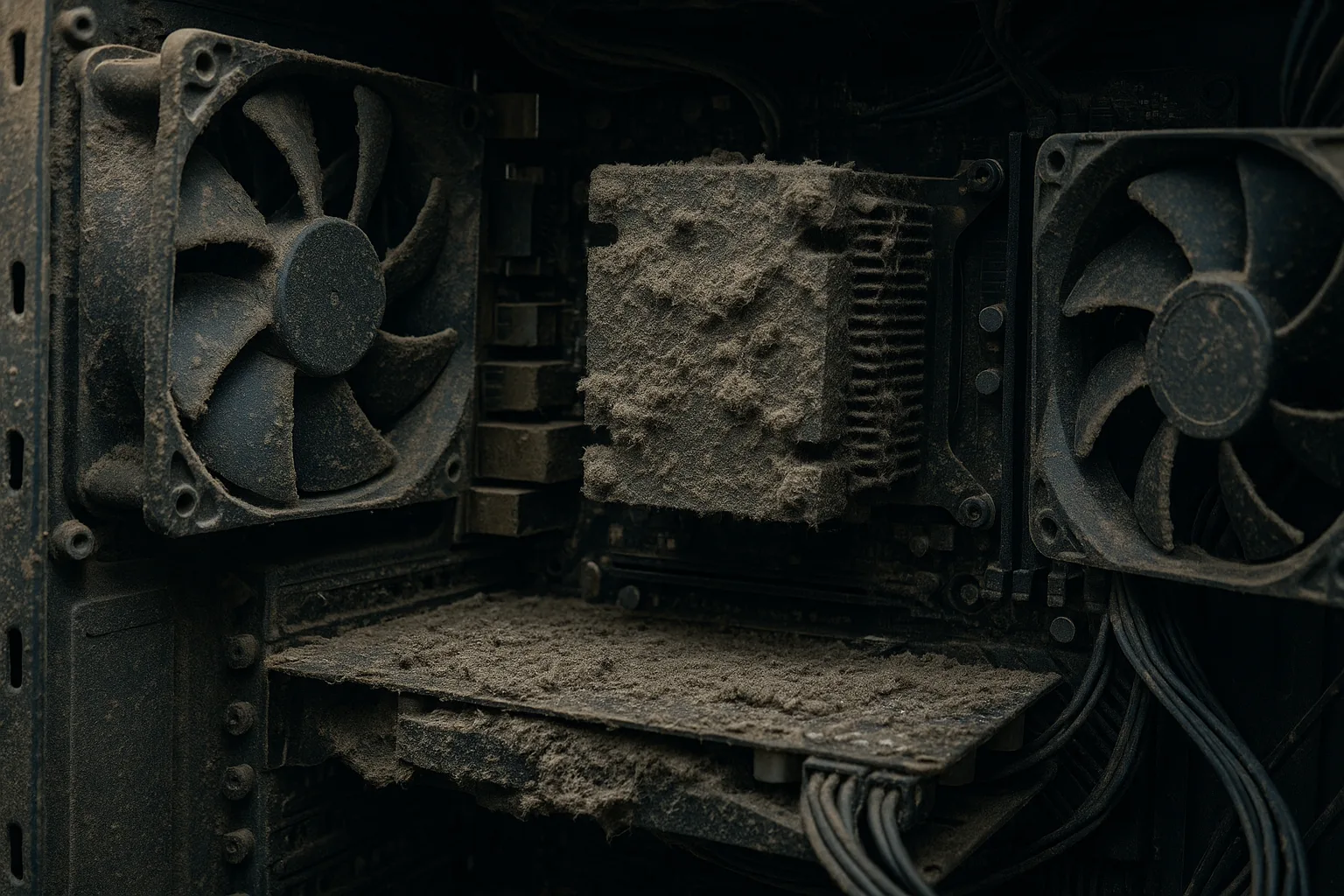
The usual culprits are simple: dust clogging the fans and heatsink, like the photo above, or thermal paste that has dried out over the years. Both are straightforward to put right, and a proper clean-out and re-paste can drop temperatures dramatically; we cover the detail in our guide to thermal paste and why it matters. When you clean, hold the fan blades still while you blow the dust out, because letting them spin freely can damage the bearing. And before you assume a fancier cooler is the answer, our piece on the risks of water cooling a PC is worth a read.
How to stress test your PC to make the crash happen on demand
An intermittent crash is maddening because you cannot test a fix you cannot trigger. Stress testing solves that by deliberately pushing one part of the machine hard while you watch the temperatures and wait to see what falls over. Keep a monitor like HWMonitor open alongside, and stop immediately if anything climbs past about 95°C.
- Processor: Prime95 or OCCT load every core. A crash within minutes points at cooling first, then the power supply, then an unstable overclock.
- Graphics card: FurMark or a game's built-in benchmark pushes the GPU. A crash, frozen picture or looping buzz here points at the graphics driver, GPU heat, or a power supply that cannot cope with the peak draw.
- Memory: MemTest86 (below) is the dedicated test, but a long Prime95 "blend" run also leans on the RAM.
- Storage: CrystalDiskMark exercises the drive while CrystalDiskInfo watches its health. Freezes during heavy file access point at the drive.
Isolate one component, load it, and see whether the crash lines up with a heat spike or a peak in power draw. If the PC sails through a CPU test but dies the instant you load the graphics card, you have narrowed six suspects to two or three without spending a penny.
Power supply problems
If your PC restarts instantly with no blue screen, especially under load such as gaming or rendering, a failing power supply unit (PSU) is a strong suspect. A PSU that can no longer deliver clean, stable power will cause the whole system to drop out the moment demand spikes.

The tell-tale clue is in the Windows logs (see below): a Kernel-Power event ID 41 with no accompanying bug-check usually means the machine lost power suddenly rather than crashing in software. Microsoft's own documentation on Event ID 41 says exactly this: when the event is missing or its bug-check code is zero, the likely causes are an underpowered or faulty power supply, a drained laptop battery, or interrupted mains. So check a loose power cable or a poor wall socket too.
Power demand is not fixed. A PSU that coped fine for years can become the weak link the moment you add a hungrier graphics card, more drives or extra fans, so size it with headroom, as our notes on things to consider before building a new PC explain. We have also seen how destructive a faulty unit can be; our write-up on a power supply destroyed by a faulty DVD drive shows why a quality, well-protected unit matters and why diagnosing the real cause beats simply swapping the box.
Faulty memory (RAM)
Bad memory is one of the most common causes of blue screens and crashes, second only to drivers. Faulty RAM produces crashes that feel completely random, with different stop codes each time, often getting worse under load or as the machine warms up, and it can quietly corrupt files too.
The good news is that memory is easy to test. Windows has a built-in tool: press the Windows key, type "Windows Memory Diagnostic", and let it restart and scan, as Microsoft explains in its guide to the Memory Diagnostic tool. For a more thorough check, the free MemTest86 runs from a USB stick and should complete at least four full passes, because intermittent errors often only show up once the modules have warmed through. Before buying new memory, power down and reseat the sticks firmly, and if you have more than one, test them one at a time to find the bad one. If the machine also feels short of memory day to day, our guide on whether more RAM will speed up your computer is worth a read.
Drivers, Windows updates and software
Drivers are the single biggest cause of blue-screen crashes. A driver is the small piece of software that lets Windows talk to a piece of hardware, and an outdated, buggy or mismatched one, particularly for the graphics card, can bring the whole system down.
- Update your drivers, especially the graphics driver, from the manufacturer's website (Intel, AMD or NVIDIA) rather than relying on Windows alone. Avoid third-party "driver updater" programs, which often install the wrong versions and cause the very crashes you are trying to stop.
- If crashes started right after an update, roll it back. You can uninstall a recent Windows update or a specific driver, then pause updates while you confirm the crashes have stopped.
- Repair Windows system files. Open Command Prompt as an administrator and run
sfc /scannow, followed byDISM /Online /Cleanup-Image /RestoreHealth. - Consider the BIOS. An out-of-date motherboard BIOS can cause instability with newer processors or memory, but it is not without risk, so read our guide on whether you should update the motherboard BIOS first.
Keeping Windows itself current matters too, and if you are still on Windows 10 it is worth reading our guide on whether to upgrade to Windows 11, because an unsupported, unpatched operating system is more prone to exactly these problems over time.
A failing hard drive or SSD
If your computer freezes, crashes when opening files, or hangs and then reboots, the storage drive can be to blame. A failing mechanical hard drive often gives audible warnings first, such as clicking or grinding, while a dying SSD tends to fail more quietly with freezes, corrupted files and sudden restarts.
Check the drive's health with the free CrystalDiskInfo, which reads the drive's own SMART data and flags a "Caution" or "Bad" status before total failure. If the drive is on its way out, back up your data immediately and replace it, ideally with a fast, reliable SSD; our guide to upgrading to an SSD explains why an SSD is both faster and more dependable than an ageing hard drive. If a drive has already failed and taken your files with it, our data recovery service can often get them back.
It is also worth checking how full the drive is. A drive with almost no free space can cause freezes and instability on its own, because Windows has nowhere to write its temporary and paging files; as a rule of thumb, keep at least ten to fifteen per cent free. Our walkthrough on using Disk Cleanup to free up space shows the quickest way to do it safely.
Malware
Malware is a less common but very real cause of crashes and restarts. Some malicious software is simply badly written and destabilises the system; some deliberately interferes with Windows; and some hammers the processor in the background, causing the overheating shutdowns described above.
Run a full scan with Microsoft Defender, which is built into Windows and genuinely good these days, and consider a second-opinion scan with the free Malwarebytes. The NCSC's guidance on mitigating malware is a sensible companion. If you suspect an infection but cannot shift it, our virus and malware removal service will clean the machine properly. A machine that suddenly runs hot and noisy while idle, throws up pop-ups and redirects, or launches unfamiliar programs at start-up is a candidate for a scan sooner rather than later.
What if it only crashes under load, like gaming or video editing?
A PC that is rock-solid for browsing and email but crashes the moment you game, render video or run something demanding is handing you a big clue. Heavy load draws the most power and produces the most heat, so this pattern points firmly at three suspects rather than six: overheating, where the processor or graphics card hits its thermal limit; a power supply that cannot deliver enough clean, stable power when demand peaks; or an unstable graphics driver.
Work through those three first. Watch your temperatures with HWMonitor while you deliberately push the machine, as in the stress-testing section above. Check the power supply is genuinely rated for your components, since a power-hungry graphics card paired with an under-sized or ageing PSU is a classic cause. Make sure the graphics driver is the latest stable release from Intel, AMD or NVIDIA. And if you have ever overclocked anything, set it back to default as a test, because an overclock that is not quite stable holds up at idle and only falls over under load. That includes memory XMP or EXPO profiles, which are technically a mild overclock and a surprisingly common cause.
How to read the clues: Event Viewer, Reliability Monitor and stop codes
This is the part that turns guesswork into diagnosis, and it is free. Windows records every crash, so you rarely have to wonder what happened:
- Reliability Monitor is the friendliest place to start. Press the Windows key, type "reliability", and open "View reliability history". It shows a simple timeline of crashes and whether they cluster around a particular update or program.
- Event Viewer goes deeper. Under Windows Logs then System, look for Error and Critical events at the time of each crash. The key IDs are 41 (Kernel-Power, a sudden power loss or hard reset), 1001 (a recorded bug-check, with the stop code), and 6008 (an unexpected shutdown).
- The stop code on a blue screen, or in event 1001, is your biggest clue. Microsoft's guide to unexpected restarts and stop codes and its bug-check code reference explain what each one points to.
- BlueScreenView, the free NirSoft tool, reads the small dump files Windows saves after each blue screen and lists the likely offending driver in plain language.
Together these tell a story: Kernel-Power 41 with no stop code points at power or heat, repeated memory codes point at RAM, and the same driver named again and again in BlueScreenView points at that driver. One quirk worth knowing, noted in Microsoft's Event ID 41 documentation, is that the bug-check code in Event Viewer is shown in decimal while most references use hexadecimal, so 159 in the log is the same as the well-known 0x9F.
Common blue screen stop codes and what they point to
You do not need to memorise these, but recognising the common ones tells you which part of this guide to jump to. The meanings below follow Microsoft's bug-check code reference.
| Stop code | Common meaning | Where to look first |
|---|---|---|
| IRQL_NOT_LESS_OR_EQUAL | A driver accessed memory it should not | Drivers, then RAM |
| MEMORY_MANAGEMENT | A memory-handling error | RAM, then drivers |
| PAGE_FAULT_IN_NONPAGED_AREA | Data was not where Windows expected | RAM, drivers or the drive |
| SYSTEM_THREAD_EXCEPTION_NOT_HANDLED | A driver threw an error it could not handle | The named driver, often graphics |
| VIDEO_TDR_FAILURE | The graphics driver stopped responding | Graphics driver and GPU heat |
| WHEA_UNCORRECTABLE_ERROR | The hardware itself reported a fault | Overheating, overclock, CPU or RAM |
| CLOCK_WATCHDOG_TIMEOUT | A processor core stopped responding | CPU, an unstable overclock |
| DPC_WATCHDOG_VIOLATION | A device or driver took too long | Drivers, SSD firmware |
| CRITICAL_PROCESS_DIED | A vital Windows process stopped | System files, the drive |
Notice how often "drivers" and "RAM" appear; between them they account for most blue screens, which is why testing memory and reviewing drivers sit so high in the order we work through. If you keep getting different codes each time with no pattern, that randomness is itself a clue and tends to point at failing memory or a power problem rather than one specific driver.
How to stop random crashes coming back
One quick word on mistakes and cost first. Reinstalling Windows on a hunch cannot fix heat, power, RAM or a dying drive, and buying parts blind just adds expense to the same problem, so always diagnose before you spend. Most crashes are free to fix once found; where there is a cost it is usually a part plus the labour, and our guide on what a laptop repair costs gives a realistic sense of typical jobs. Once you have found and fixed the cause, a few simple habits keep your PC stable for the long term:
- Clean the dust out once or twice a year. A quick blow-out of the fans and vents with compressed air prevents the slow heat creep that causes so many shutdowns. It is the single most valuable bit of PC maintenance most people never do.
- Keep Windows and your drivers updated, but sensibly. Let updates install, and if one ever causes trouble you now know how to roll it back rather than panic.
- Do not skimp on the power supply. If you ever replace it, fit a quality, properly rated unit with headroom to spare. It is the one component that protects everything else.
- Glance at your temperatures now and then, especially after a hot summer or if the fans get louder. Catching heat early is far easier than diagnosing a mystery crash months later.
- Leave some breathing room on your drive, so Windows always has space for its temporary files.
- Keep a backup. Crashes can corrupt files, and a failing drive can take your data with it, so a good backup means a crash is an inconvenience rather than a disaster. Our guide to why backing up your data is critical covers the simple 3-2-1 approach.
When to call a Manchester repair expert
You can get a long way with the steps above, and plenty of crashes turn out to be a dusty fan or an out-of-date driver you can sort yourself. But there is no shame in handing it over, especially when the fault is intermittent and maddening to pin down, or when the clues point at hardware inside the machine.
It is worth getting checked if the crashes continue after a clean-out and driver updates, if you see scorching or smell burning (switch it off at the wall), if the logs point at the power supply or memory, or if you simply would rather someone diagnosed it properly the first time. We carry test power supplies, memory and tools to isolate the exact cause, so you only pay to fix the real problem rather than replacing parts on a hunch. Whether it is a desktop computer repair or a laptop repair, we cover Manchester and the surrounding areas with free local collection and return. Get a free, no-obligation quote or call us on 0161 820 1992 and we will get to the bottom of it.