Key takeaways
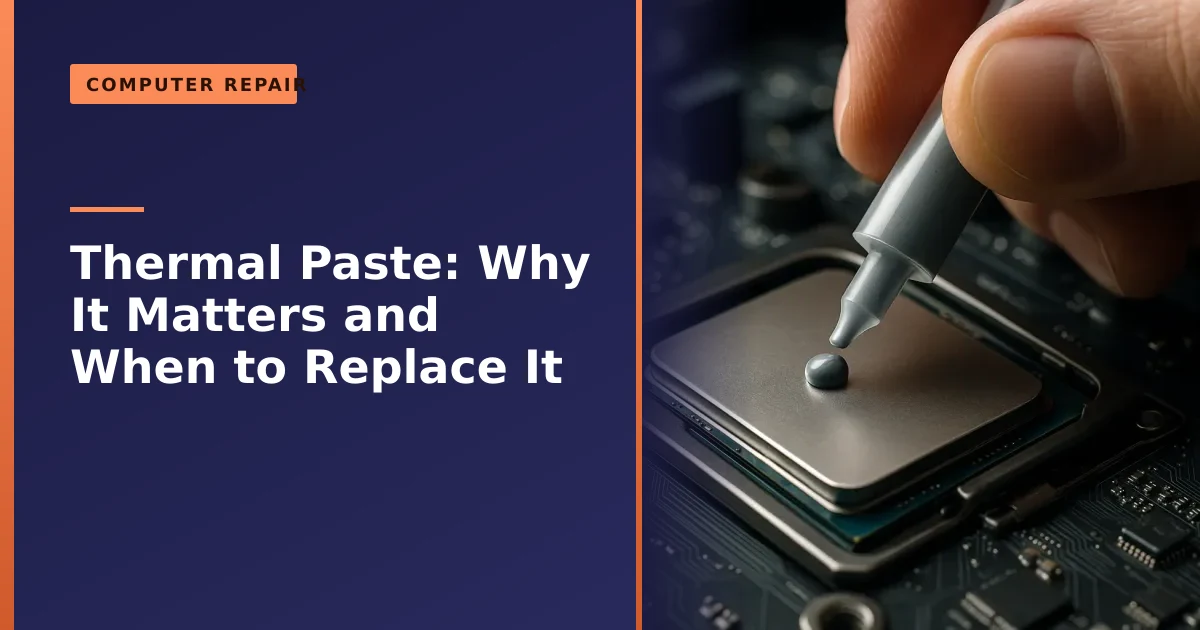
- Thermal paste is the heat-conducting layer between your processor and its cooler. It fills the tiny gaps so heat can escape efficiently.
- It dries out over time. When it does, the chip overheats, slows itself down (throttles), gets noisy, and can shut down or crash under load.
- Most thermal paste lasts around three to five years, but laptops, which run hotter in tighter spaces, often need it sooner, especially gaming machines.
- A fresh re-paste can drop processor temperatures noticeably, restoring lost speed and quietening the fans, often the cheapest fix for an overheating machine.
- For everyday machines a standard non-conductive paste is the right choice. Liquid metal performs better but carries real risks, so it is best avoided unless you know exactly what you are doing.
- Re-pasting a laptop means a careful strip-down, so unless you are confident it is usually best left to a professional.
If your computer has started running hot, throttling its speed, roaring its fans or shutting down under load, old thermal paste is one of the most common and most overlooked causes. Thermal paste is the thin layer of heat-conducting compound between your processor and its cooler, and it gradually dries out and stops doing its job. The good news is that replacing it, a job we call re-pasting, is often the cheapest and most effective way to bring an overheating machine back to life.
We re-paste laptops and PCs for customers across Manchester regularly, and the temperature improvements can be dramatic. Here is the full picture: what thermal paste does, how to tell when yours needs replacing, the types you can buy, how it is applied and cleaned off, what temperatures to expect, and what a re-paste achieves on a tired old machine.
What thermal paste is and why it matters
Your processor (and graphics chip) produces a lot of heat, and a metal heatsink and fan sit on top to draw that heat away. The problem is that two metal surfaces, the chip and the heatsink, are never perfectly flat at a microscopic level, so tiny air gaps form between them, and air is a poor conductor of heat.
Thermal paste fills those microscopic gaps. It is far better at conducting heat than the trapped air it replaces, so it lets heat flow efficiently from the chip into the cooler, where the fan can blow it away. According to Wikipedia's overview of thermal interface materials, a typical paste is a polymer matrix loaded with a thermally conductive filler such as aluminium oxide, zinc oxide or boron nitride, and that filler makes up the bulk of the compound by mass. The point is simple: even a slightly imperfect contact between two flat-looking pieces of metal leaves enough air to trap heat, and the paste removes that air.
The trapped air conducts heat very poorly, while a standard paste conducts it many times better, so without effective paste heat gets stuck on the processor and the trouble starts. As Acer's own explainer puts it, it is a small component with an outsized effect on how cool and stable your computer stays. It costs pennies in a repair, yet it can be the one thing standing between a quiet, fast machine and one that throttles, stutters and shuts itself down.
How to tell your thermal paste needs replacing
You cannot see the paste without opening the machine, but the symptoms of it failing are clear once you know them. Suspect dried-out thermal paste if you notice:
- Higher temperatures than before. If monitoring software shows your processor running several degrees hotter for the same tasks, the paste may have lost its effectiveness. A machine that used to idle in the 40s but now sits in the 50s or 60s is a classic sign.
- Fans running loud and often, even at idle, as the cooling system fights to compensate. A laptop that whirs to full speed just opening a web browser is telling you something.
- Thermal throttling, where the computer feels sluggish under load because the chip is deliberately slowing itself to cool down. This usually appears a few minutes into something demanding rather than the moment you start.
- Shutdowns or crashes under load, such as during games or video editing, as the processor hits its safety limit and cuts the power to protect itself.
- Visibly dried, cracked or crumbly paste if you open the machine. Good paste is smooth and slightly tacky. When it has gone hard, grey and flaky, it can no longer keep continuous contact and must be replaced.
These overlap with other cooling problems, especially dust, which is why we usually check both together. If your machine is crashing or restarting, our guide on random crashes and restarts covers how to confirm heat is the cause, and if it just feels slow, see why laptops run slow, because not every slowdown is a heat problem.
One useful tip before you reach for a screwdriver: install a free temperature monitor and watch the numbers for a few days. If your processor is cool when idle and only climbs under heavy load, the paste is probably fine. If it is hot even when you are barely doing anything, that points to a cooling fault, with old paste high on the list of suspects.
What temperatures should you expect?
Knowing what is normal makes it much easier to spot a problem. Temperatures vary by chip and machine, and laptops run hotter than desktops because they pack everything into a thin shell with little airflow, but the following ranges, cross-checked across several hardware guides, are a sensible reference.
| State | Typical CPU temperature | What it means |
|---|---|---|
| Idle or light use | 30°C to 50°C | Healthy. Cooling is doing its job. |
| Under load (gaming, editing, rendering) | 70°C to 85°C | Normal and expected for demanding work. |
| Sustained 90°C and above | Approaching the limit | Throttling is likely. Worth checking dust and paste. |
| 95°C to 100°C | At the thermal limit | Emergency throttling or shutdown to protect the chip. |
Brief spikes towards the top of the range during a heavy task are not a disaster, because modern chips are designed to manage that. The warning sign is sitting near the limit for long stretches, or running hot when you are doing very little. If your idle temperatures have crept up over the months, that gradual rise is exactly the fingerprint of paste drying out and dust building up.
How often should thermal paste be replaced?
There is no single number, because it depends on the quality of the paste and how hard and hot the machine runs, but here are sensible guidelines. Most quality thermal paste lasts around three to five years before it is worth refreshing. Cheaper, factory-applied paste in many pre-built machines can degrade sooner, often within two to three years, particularly if the machine runs hot day in, day out.
Laptops generally need re-pasting sooner than desktops, because they run hotter in much tighter enclosures with less airflow. For a laptop under everyday use, three to five years is a reasonable window, but for a gaming laptop or one used for heavy video work, every one to three years is more realistic. Heat is the enemy of paste, so the harder a machine works and the warmer the room it lives in, the faster the compound dries and the more it suffers from what enthusiasts call pump-out, where repeated heating and cooling slowly squeezes paste away from the centre of the chip.
The honest answer, though, is to go by symptoms rather than the calendar. If your machine is showing the warning signs above, the paste is worth checking regardless of its age. If it is running cool and quiet, there is no need to disturb it, and opening a machine purely to re-paste a healthy chip just introduces risk. Treat the three to five year figure as a prompt to watch temperatures, not as a hard deadline.
Types of thermal paste: which one do you actually need?
Walk into any computer shop or browse online and you will find dozens of pastes at wildly different prices. They mostly fall into three families, and for the overwhelming majority of people the cheapest family is the right one.
| Type | Roughly how well it conducts heat | Electrically conductive? | Best for |
|---|---|---|---|
| Standard ceramic or silicone based | Up to around 4 to 10 W/mK | No | Everyday laptops and desktops. The safe default. |
| Metal or silver loaded (high performance) | Higher again, often into the low teens | Can be | Enthusiasts chasing a few extra degrees. |
| Liquid metal | Far higher, well beyond conventional paste | Yes, highly | Extreme builds and overclocking only. |
Standard pastes use a non-conductive ceramic filler such as aluminium oxide or zinc oxide. They are cheap, easy to apply, forgiving and perfectly good for normal laptops, office PCs and most gaming. This is what we fit on the vast majority of machines, because the real-world difference between a good standard paste and an exotic one is usually small, while the safety margin is large.
High-performance metal-loaded pastes (often silver based) conduct heat a little better and can shave a few extra degrees off under heavy load. The trade-off is that some are mildly electrically conductive, so if a smear bridges nearby contacts it can cause problems. The gain over a quality standard paste is modest for everyday use.
Liquid metal is a different animal. As the Wikipedia entry on thermal paste notes, gallium-based liquid metal alloys conduct heat far better than any conventional compound, which is why overclockers love them. But the risks are serious:
- It is highly electrically conductive, so a single stray drop on the motherboard can short components and kill the machine.
- It corrodes aluminium, so it must never touch an aluminium heatsink, which rules out a great many laptops and coolers.
- It needs careful masking, precise application and a steady hand, and it can stain or pit copper over time.
For those reasons we do not recommend liquid metal for normal repairs, and it is a poor idea inside most laptops. The small temperature gain is rarely worth the chance of an expensive accident. For nearly everyone, a quality standard paste is the sensible, safe and effective choice.
How to apply thermal paste: the methods compared
There is more folklore about applying paste than almost any other part of building a PC, but the principle is simple: you want a thin, even, complete layer between the chip and the cooler, with no air gaps and no excess squeezing out. There are three common ways to get there.
| Method | How you do it | Best suited to |
|---|---|---|
| Pea or dot | A single pea-sized blob in the centre of the chip, then let the cooler's pressure spread it as you mount it. | Most CPUs. The safe, reliable default. |
| Line | One or two thin lines across the chip, again spread by the cooler. | Long, rectangular chips such as high core count workstation parts. |
| Manual spread | A small blob spread thin and even with a clean card or spreader before fitting the cooler. | People who want guaranteed full coverage, at the risk of trapping air bubbles. |
The pea or dot method is the one we use most, because it is simple and consistently good. The cooler does the spreading for you, which keeps the layer thin and even and avoids the bubbles that hand-spreading can introduce. The single most important rule is the amount: a blob roughly the size of a grain of rice to a small pea is plenty for a typical chip. Too little leaves gaps and hot spots, and too much insulates rather than conducts and can ooze over the surrounding components. When in doubt, slightly less is safer.
With the dot or line approach you do not need to spread the paste yourself. The clamping pressure of the heatsink presses it into a thin, even film as you tighten it down. Resist the temptation to lift the cooler off to peek, because that breaks the seal and you have to clean up and start again.
How to clean off the old paste properly
Cleaning matters just as much as the new application, because fresh paste cannot do its job on top of dried, crumbly residue. The method is the same on a desktop or a laptop.
- Power down fully and unplug, and on a laptop disconnect the battery before you touch anything internal.
- Wipe away the bulk of the old paste from both the chip and the cooler base with a dry, lint-free cloth.
- Use high-strength isopropyl alcohol, 90 percent or higher, on a lint-free cloth or cotton bud to dissolve the rest. Corsair's removal guide recommends exactly this: a cloth that is damp rather than soaked, lifted off in gentle circular motions, with cotton buds for the edges.
- Why 90 percent or higher? Lower-strength alcohol contains more water, which evaporates slowly and can leave residue. The high-strength stuff lifts paste cleanly and dries in moments.
- Let it dry fully before applying new paste. Both surfaces should look clean, bare and bone dry.
Avoid water, household cleaners and anything abrasive, and never scrape the chip with metal. A clean, dry, residue-free surface is the step most rushed home jobs skimp on.
Step by step: re-pasting a desktop CPU
On a desktop, re-pasting is a reasonable job for a confident user. If your machine has become hot and loud and the paste is a few years old, here is the basic sequence.
- 1. Power down and unplug at the wall, then hold the power button for a few seconds to discharge residual power. Work on a static-safe surface.
- 2. Remove the cooler. Undo the fan power and the mounting screws or clips. If the cooler is stuck to dried paste, gently twist it a few degrees to break the bond rather than yanking it up, which can pull the chip from its socket.
- 3. Clean both surfaces with high-strength isopropyl alcohol and a lint-free cloth, as above, and let them dry.
- 4. Apply a pea-sized dot of fresh paste to the centre of the chip. No more.
- 5. Refit the cooler straight down, without sliding it, and tighten the screws a little at a time in a cross pattern so the pressure is even. Reconnect the fan.
- 6. Power up and check temperatures with monitoring software, at idle and under a short load test. They should be markedly lower and steadier than before.
If your desktop has a chunky air or liquid cooler, it is also worth reading our piece on the dangers of water cooling first, because cooling systems can fail in ways paste alone will not fix.
Doing it yourself: the basics and the risks
To recap the principles that matter most, whatever machine you are working on. Use the right amount, because too much is as bad as too little. Clean the old paste off completely first. Seat the cooler firmly and evenly so it presses the paste into a thin film. And never run the machine with the cooler loose or missing, even for a moment, because a modern chip can reach dangerous temperatures in seconds without one. On a desktop these risks are manageable for a careful person; on a laptop they are much higher, which brings us to the next point.
Common thermal paste mistakes to avoid
We see the results of well-meaning home jobs fairly often, and the same handful of errors come up again and again. Knowing them in advance saves a lot of grief.
- Using far too much. A blob the size of a ten pence coin does not improve cooling, it traps heat and oozes onto the board. Less is more.
- Not cleaning off the old paste. Smearing new compound over dried, cracked residue gives you the worst of both. Clean back to bare metal first.
- Skipping the isopropyl alcohol and wiping with a damp tissue or, worse, water. You need high-strength alcohol to remove the oils and leave a clean surface.
- Yanking the cooler off cold. Old paste can act like glue. Pulling hard can rip the chip from its socket on a desktop or crack the board on a laptop. Twist gently to break the seal first.
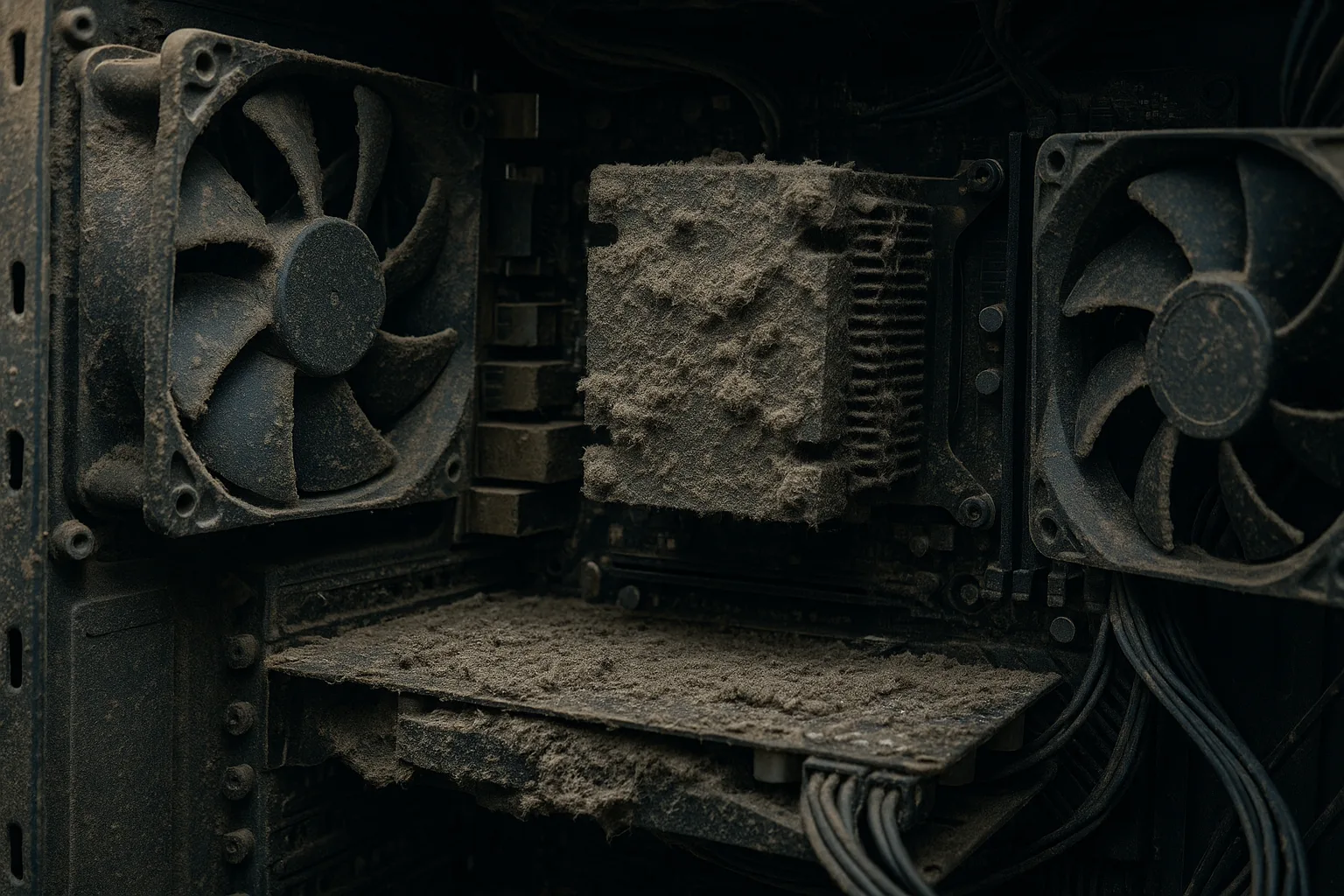
- Forgetting the dust. Re-pasting a chip while the fans and vents are still choked with dust only solves half the problem. Clean both at once.
- Not reconnecting the fan. It sounds obvious, but a forgotten fan cable means the freshest paste in the world will not save the chip.
Why laptops are trickier than desktops
Re-pasting a laptop is a different proposition entirely. Where a desktop cooler lifts off easily, a laptop has to be carefully taken apart, often most of the way down, to reach the processor, and the heatsink is usually a slim assembly held by fragile clips and screws that have to be loosened and tightened in a specific order. There are delicate ribbon cables, the battery to disconnect, hidden clips behind keyboards and palm rests, and tight tolerances throughout.
Done wrong, you can crack the board, tear a cable, strip a tiny screw or fail to reseat the cooler, leaving the laptop worse off than before. Many modern laptops also use the same heatsink to cool both the processor and the graphics chip, so both need re-pasting together, and getting the slim heat pipes to sit back down with even contact is fiddly. This is precisely why laptop re-pasting is one of the jobs we most often recommend leaving to a professional. We do it routinely, with the right tools and quality paste, as part of a proper internal clean, so the machine goes back together correctly and runs cool again. If you are also dealing with general care and cooling, our laptop care guide covers keeping it that way once it is sorted.
What a re-paste actually achieves
When old, dried paste is cleaned off and fresh compound applied, the improvement can be striking. Because heat once again flows efficiently from the chip to the cooler, processor temperatures drop, often by a meaningful margin under load. That has knock-on benefits you will actually notice:
- Restored speed, because a cooler chip no longer needs to throttle itself, so the sluggishness under load disappears.
- Quieter operation, as the fans no longer have to spin flat out to cope.
- Fewer crashes and shutdowns caused by hitting the thermal limit.
- Longer component life, since sustained high temperatures wear hardware out faster, and steadier battery behaviour on a laptop that is no longer fighting heat.
For an older laptop that has become hot, loud and slow, a clean-out and re-paste is frequently the single most cost-effective fix, far cheaper than replacing the machine and often more effective than people expect.
Does a re-paste really help an old laptop?
This is the question we are asked most, and the honest answer is: often yes, sometimes no, and it depends entirely on why the machine is hot. Where the original paste has genuinely dried out, the gains can be large. Real-world reports and our own bench experience point to idle temperatures falling by several degrees and load temperatures dropping by anywhere from around 10 to 20 degrees once degraded paste is replaced and the cooling cleared. On a machine that was throttling hard, that can feel like a different laptop.
But a re-paste is not a cure-all. If the heatsink fins are still packed with dust, a fan has worn out, the heat pipes are damaged, or the slowness was never a heat problem in the first place, then fresh paste alone will not transform things. A laptop can feel slow because of a failing hard drive, too little memory or a software mess, none of which paste will touch. In those cases an SSD upgrade or a bit more memory does far more. The trick is to fix the right thing, and on a genuinely overheating older laptop, a clean and re-paste is very often exactly that.
Myths and facts about thermal paste
A few stubborn myths cause people to overspend, overapply or worry needlessly. Here is the honest version.
- Myth: more paste means better cooling. Fact: a thin, even layer conducts best. Excess paste insulates and makes a mess.
- Myth: the most expensive paste will transform any machine. Fact: on a normal laptop or PC, the difference between a good standard paste and a premium one is usually only a few degrees. Fresh paste of any decent quality beats old, dried paste by far more.
- Myth: you should re-paste every year as routine. Fact: if temperatures are healthy, leave it alone. Opening a machine unnecessarily just adds risk.
- Myth: liquid metal is simply a better paste. Fact: it conducts far better but is electrically conductive and corrodes aluminium, so it is risky and wrong for most laptops.
- Myth: a re-paste fixes a slow computer. Fact: only if heat was the cause. A failing drive or too little memory needs a different fix entirely.
Re-pasting as part of a wider cooling fix
Thermal paste rarely fails in isolation. By the time the paste has dried out, the vents and fans have usually packed with dust as well, so the best results come from tackling both at once: a full internal clean to clear the dust, plus fresh thermal paste on the processor. Together they restore a machine's cooling to as-new condition, and either one on its own often disappoints because the other half of the problem is still there.
It is also worth confirming that heat really is the problem before opening anything up, because a slow or crashing computer can have other causes. Our guide to disk cleanup is a good first port of call when a machine feels sluggish but runs cool. We diagnose the actual cause first, so you do not pay for a re-paste when the real issue is something else. And if the machine is genuinely on its last legs, our honest take on repair or replace will help you decide whether it is worth the work.
How Manchester PC can help
If your computer or laptop is running hot, throttling, roaring its fans or shutting down under load, we can put it right. Our overheating and crash diagnosis pins down the cause, and where old paste is to blame we carry out a full internal clean and re-paste with quality thermal compound, restoring temperatures and quietening the machine. It is one of the most satisfying repairs we do, because the difference is so immediate, and we will always tell you honestly if the real fault lies elsewhere so you are not paying for work you do not need. If you would rather see the costs first, our guide to what it costs to fix a laptop lays it out plainly.
We cover Manchester and the surrounding areas with free local collection and return, and we will always tell you honestly whether a re-paste is what your machine actually needs. Whether it is a laptop or a desktop computer repair, get a free, no-obligation quote or call us on 0161 820 1992.