Key takeaways
- For most people, the answer is no. If your computer is running fine, there is usually no need to update the BIOS, and the old rule "if it is not broken, do not fix it" applies.
- There are good reasons to update: fitting a newer processor, fixing a specific stability or compatibility bug, a genuine security patch, or enabling TPM 2.0 and Secure Boot for Windows 11.
- There is one genuinely time-sensitive 2026 reason to check your firmware: Microsoft's 2011 Secure Boot certificates began expiring in June 2026, and a small number of PCs need a firmware or Windows update to stay fully protected.
- A BIOS update carries real risk. If power is lost or the wrong file is used mid-update, the motherboard can be left unusable ("bricked").
- If you do update, use the manufacturer's own tool and file for your exact model, keep the machine plugged in or on a UPS, and never interrupt the process.
- Because the downside is a dead motherboard, this is one job many people sensibly leave to a professional, especially on a machine they rely on.
Should you update your motherboard BIOS? For most people, most of the time, the honest answer is no. If your computer is stable and doing everything you need, a BIOS update brings little benefit and a small but real risk. The "if it is not broken, do not fix it" rule genuinely applies here. There are, however, a handful of good reasons to update, and there is one important 2026 caveat around Windows 11 and security. This guide explains exactly when a BIOS update is worth it, when to leave well alone, and how to do it safely if you decide to go ahead.
We update BIOS firmware as part of repairs and upgrades for customers across Manchester, and we have also rescued machines where a DIY update went wrong, so this is balanced, real-world advice rather than scaremongering or hype.
What the BIOS (or UEFI) actually is
The BIOS, or its modern successor UEFI, is the low-level firmware built into your motherboard. It is the very first thing that runs when you press the power button, before Windows even begins to load. Its job is to wake up and test the hardware, the processor, memory, drives and so on, and then hand control over to your operating system. This brief, behind-the-scenes routine is often called POST, short for Power On Self Test, and it is the reason your machine knows it has a keyboard, a drive to boot from and enough working memory before anything else happens.
Because it sits beneath everything else, the BIOS controls fundamental things: which devices the computer boots from, how the memory and processor are configured, and security features like Secure Boot and the TPM. A BIOS update, sometimes called a firmware update or a "flash", replaces that firmware with a newer version from the motherboard maker. The firmware itself lives on a tiny dedicated chip soldered to the board, completely separate from your hard drive or SSD, which is why updating it never touches your files. You only need to consider an update when there is a specific reason to, which is what the next sections cover.
BIOS vs UEFI: what actually changed
Strictly speaking, almost every computer made in the last decade no longer uses the old BIOS at all. It uses UEFI (Unified Extensible Firmware Interface), the modern replacement. People still say "BIOS" out of habit, so we use the terms interchangeably here, but the difference explains several of the features we discuss below.
| Feature | Legacy BIOS | Modern UEFI |
|---|---|---|
| Age | Designed in the 1980s | Standard since the mid-2010s |
| Drive size support | Limited to drives up to around 2TB | Supports very large drives |
| Interface | Text only, keyboard driven | Graphical, mouse friendly |
| Security | None to speak of | Secure Boot, TPM support |
| Boot speed | Slower | Faster start-up |
The practical upshot is that UEFI is what makes features like Secure Boot and fast boot possible, and those features are central to both the Windows 11 requirements and the 2026 security changes covered below.
The honest answer: usually, leave it alone
Unlike Windows updates or app updates, which you should absolutely keep on top of, BIOS updates are not something to do routinely "just to be current". The firmware your computer shipped with was tested with your exact hardware, and if everything works, a newer version is unlikely to make any noticeable difference to day-to-day use. It will not make a healthy PC faster or fix a slow laptop.
Set against that limited upside is a genuine, if small, risk that the update goes wrong and leaves the motherboard unusable. When the potential downside is a dead computer and the upside is "no change", the maths usually favours leaving it alone. So the default position should be: do not update the BIOS unless you have a specific, good reason to. That said, you should not ignore a clearly described security update from your manufacturer, and you should pay attention to the one-off 2026 Secure Boot change covered below. The skill is in telling a meaningful update apart from a "nice to have" one, which is exactly what reading the release notes lets you do.
Does updating the BIOS improve performance?
This is one of the most common reasons people consider a BIOS update, and the answer is usually disappointing: no, not in any way you will notice. A BIOS update will not make your computer boot faster, run programs quicker or speed up a sluggish laptop. Those problems come from other things entirely, such as a tired hard drive, too little memory, or a cluttered Windows install, which we cover in our guide on why your laptop is running slow.
The occasional exception is when a BIOS update specifically fixes a flaw that was holding performance back, for example a bug that stopped your memory running at its proper speed, or improved support for a particular processor. Even then, the gain is usually modest and limited to that specific issue. So if your goal is simply "make my PC faster", a BIOS update is almost never the answer, and the upgrades that genuinely help carry none of the bricking risk. The two changes that make the biggest real-world difference are moving to an SSD and adding more memory. Both are low-risk, both are reversible, and both deliver a difference you will feel every day, which is more than can be said for a routine firmware flash.
Good reasons to update the BIOS
There are several legitimate situations where a BIOS update is the right call, and sometimes the only way to solve a problem:
- Fitting a newer processor. This is the most common reason. A motherboard often needs a BIOS update to recognise and support a CPU released after the board, particularly when upgrading within the same socket. Without the update, a new chip may not be detected at all.
- Fixing a specific bug. If you are experiencing a known stability or compatibility problem, such as memory not running at its rated speed, a particular device not working, or random instability, and the manufacturer's release notes say a newer BIOS fixes exactly that, updating is worthwhile.
- A genuine security patch. Firmware-level vulnerabilities are occasionally discovered, and manufacturers release BIOS updates to close them. These matter, and the principles behind protecting firmware are set out in standards like the NIST BIOS Protection Guidelines.
- Enabling TPM 2.0 and Secure Boot for Windows 11. This is a big one in 2026. Many older but capable PCs can run Windows 11 once TPM 2.0 (called fTPM on AMD) and Secure Boot are enabled, and on some boards that requires a BIOS update first. If your machine fails the Windows 11 check on those points, a BIOS update can be the key, as we explain in our guide on upgrading to Windows 11. Microsoft's guide to enabling TPM 2.0 is a useful companion.
If one of these applies to you, the benefit clearly outweighs the risk, provided the update is done carefully. If none of them does, you almost certainly do not need to update. A good habit is to write down, in one sentence, the exact problem you are trying to solve before you download anything. If you cannot finish that sentence, that is usually your answer.
The big 2026 reason to check your firmware: Secure Boot certificates
There is one genuinely time-sensitive issue worth knowing about this year, and it is unusual because it affects a huge number of machines at once rather than just hobbyists fitting new parts. Secure Boot, the UEFI feature that stops untrusted code running before Windows loads, relies on a set of digital certificates. The original certificates were issued by Microsoft back in 2011, and they have a built-in expiry date.
According to Microsoft's own guidance on the Secure Boot certificate expiration, those 2011 certificates began expiring through 2026, starting in late June, with a further certificate following in October. The important point for ordinary users is reassuring: Microsoft states that devices which have not received the newer 2023 certificates will still start up and operate normally, and standard Windows updates will keep installing. Nothing suddenly stops working.
What an unpatched machine loses is the ability to receive future early-boot security protections, such as new revocation lists that block known boot-level malware. In other words, it quietly falls behind on one layer of defence. For most people the fix needs no thought, because Microsoft has been rolling the replacement 2023 certificates out through Windows Update since 2024, so the single most useful thing you can do is keep Windows fully up to date and leave Secure Boot enabled. A smaller number of machines, often older or business systems, may also need a firmware update from the maker to complete the change, and that is the one scenario where this topic genuinely points towards a BIOS update. If you are unsure whether your machine is affected, ask us to check rather than guess.
Updating the BIOS for a new processor
Fitting a newer CPU into an existing motherboard is the classic, legitimate reason to update, so it is worth a closer look. Manufacturers regularly release new processors that use a socket already on sale, but the board needs to "learn" about the new chip through a firmware update before it will recognise it. Here is how to get it right:
- Check the CPU support list first. Every motherboard maker publishes a CPU support list on the support page for your exact board. Find your intended processor on that list and note the minimum BIOS version it requires.
- Compare it with what you have. If your current BIOS version is the same or newer than the minimum listed, you are ready and do not need to update at all. If it is older, you will need to update before the new chip will work.
- Mind the chicken-and-egg problem. Sometimes the board will not even start with the new CPU because the old BIOS does not recognise it, which makes a normal update impossible. This is exactly what the BIOS Flashback feature (covered below) is designed to solve, because it can update the firmware with no working CPU installed at all.
- Do not skip versions blindly. Occasionally a manufacturer requires you to install an intermediate version before the latest one, or warns that a particular update cannot be rolled back. The release notes will tell you, so read them.
If you are doing this as part of a wider build or rebuild, our notes on building a new PC are worth a read, and we are happy to handle the CPU swap and firmware update together as a single safe job.
The risks: why a BIOS update is not like any other update
The reason we treat BIOS updates with such respect is the failure mode. If a normal program update fails, you simply try again. If a BIOS update fails part-way through, the motherboard can be left with corrupted firmware and refuse to start at all, a state known as being "bricked". Because the BIOS is what brings the machine to life, a broken one can mean the computer will not even power up to let you fix it.
The main ways an update goes wrong are losing power during the flash, using the wrong firmware file (one meant for a similar but different model), or interrupting the process by pressing reset or pulling the USB drive. The flash itself only takes a few minutes, but those few minutes are the most fragile moment in the life of the board. The good news is that all of these are avoidable, and many modern motherboards now include a recovery feature (often called BIOS Flashback) that can re-flash the firmware even if the main chip is corrupted. But on an older board or a laptop, that safety net may not exist, which is exactly why the precautions below matter so much.
Common BIOS update mistakes to avoid
Almost every bricked board we see in the workshop comes down to a small number of avoidable errors. If you are going to do this yourself, read this list twice:
- Downloading the file for the wrong model. Boards in the same family often have nearly identical names with one letter or number different. The file for a close cousin can brick your board. Match the model and revision exactly.
- Updating with no reason. Flashing "to be safe" when nothing is wrong is the single most common way people turn a working PC into a paperweight for no gain.
- Running it on a laptop with a low battery and no charger. A laptop that hibernates or dies mid-flash is in serious trouble. Plug in and charge first, every time.
- Walking away and using the machine for something else. Closing the lid, letting it sleep, or pressing a key at the wrong moment can interrupt the process. Leave it completely alone until it confirms it is done.
- Skipping the release notes. These tell you what the update fixes, whether it can be reversed, and whether any intermediate step is needed. Ignoring them is how people apply updates they did not need or miss a critical warning.
- Forgetting to back up. A BIOS update does not touch your files, but the surrounding work (resetting settings, swapping a CPU) is a good moment for things to go sideways. A current backup costs nothing and is covered in our guide on why backing up your data is critical.
How to update the BIOS safely
If you have decided an update is genuinely worth it, here is how to do it without drama. Take it slowly and do not skip steps:
- Identify your exact model and current version. On Windows, press the Windows key, type "System Information", and look for the BIOS Version/Date and your motherboard or system model. You need the precise model to get the right file.
- Download only from the manufacturer. Get the BIOS file from the official support page for your exact model, never from a third-party site or for a "similar" board. Read the release notes to confirm the new version actually addresses your reason for updating.
- Use the maker's own tool. Most manufacturers provide a safe utility, such as ASUS EZ Flash, MSI M-FLASH, Gigabyte Q-Flash, or a Windows-based updater from Dell and HP. Intel's guide to updating the BIOS walks through the general process. These vendor tools are far safer than manual flashing.
- Guarantee power. Plug a desktop into the mains (ideally via a UPS), and make sure a laptop is both plugged in and well charged. Power loss mid-update is the single biggest cause of a bricked board.
- Suspend BitLocker if you use it. If your drive is encrypted with BitLocker, suspend it before updating and turn it back on afterwards, otherwise you may be asked for your recovery key on the next start-up. Dell makes this point clearly in its official guidance.
- Do not touch anything during the flash. Do not switch off, restart, remove the USB drive or close the tool until it confirms it has finished and tells you to restart. It only takes a few minutes; let it run undisturbed.
After the update, your BIOS settings will usually reset to their defaults, so you may need to re-enable things like Secure Boot, XMP or EXPO memory profiles, fan curves or a specific boot order. Make a quick note or photo of any custom settings before you start so you can put them back. Your files and Windows installation are not touched by a BIOS update, so you will not lose any data, but as always a backup beforehand is sensible.
How the different manufacturers handle BIOS updates
One reason BIOS updates feel confusing is that every brand names its tools differently while doing broadly the same thing. The table below maps the main names you will run into so you know what to look for on your own machine. The features in the last column are the hardware recovery buttons that let you re-flash with no working CPU, which is exactly the safety net that saves a board if an update goes wrong.
| Brand | In-Windows or in-UEFI tool | Hardware recovery feature |
|---|---|---|
| ASUS | EZ Flash (in UEFI) | USB BIOS Flashback |
| MSI | M-FLASH (in UEFI) | Flash BIOS Button |
| Gigabyte | Q-Flash (in UEFI) | Q-Flash Plus |
| ASRock | Instant Flash (in UEFI) | BIOS Flashback Button |
| Dell | SupportAssist / Dell Command Update | BIOS recovery (key combo) |
| HP | HP Support Assistant | BIOS recovery (key combo) |
| Lenovo | Lenovo Vantage | Crisis recovery (model dependent) |
For pre-built and laptop brands like Dell, HP and Lenovo, the safest route is almost always the maker's own Windows application, because it identifies your exact model for you and downloads the correct file automatically. Dell, for example, recommends its SupportAssist tool for most users in its official BIOS update guide, while still offering manual options for those who prefer them. If you would rather a person did it, we service all of these brands directly, from Dell and HP to Lenovo, ASUS and MSI.
Laptop versus desktop BIOS updates
The advice so far applies to both, but there are real differences worth understanding because they change how risky the job is.
On a desktop, you usually update through the UEFI setup screen using a USB stick, and on a decent modern motherboard you often have a hardware Flashback button as a safety net. Power is easy to guarantee from the mains, ideally through a UPS, and if the worst happens you can clear the CMOS or use the recovery button without opening anything fragile.
On a laptop, things are tighter. Updates almost always run from within Windows using the maker's own tool, there is rarely any hardware Flashback button, and recovery options are far more limited if a flash fails. The battery is both a help and a hazard: it acts as a built-in backup against a power cut, but only if it is charged, so you must be plugged in and well charged before you start. Because the recovery net is thinner and a bricked laptop mainboard is expensive to replace, we are more cautious with laptops and often recommend leaving laptop firmware updates to an engineer unless the maker's tool makes it genuinely one-click. If your laptop will not even start to let you try, our guide on identifying your laptop model number helps you get the right file in the first place.
What to do if a BIOS update goes wrong
If the worst happens and the computer will not start after an update, do not panic and do not immediately assume the board is dead. First, try a full power cycle: switch off at the wall, hold the power button for thirty seconds to discharge residual power, then try again. Sometimes the machine simply needs a moment to settle after a flash.
If it still will not boot, check whether your motherboard has a recovery feature. Many modern boards include BIOS Flashback or a dual-BIOS arrangement that can restore working firmware from a USB stick even when the main chip is corrupted, and the manufacturer's manual explains how to use it. Resetting the CMOS, by removing the small coin battery for a minute or using the clear-CMOS jumper, can also bring a board back to its defaults. Some pre-built and laptop brands also have an emergency BIOS recovery you trigger with a specific key combination at power-on, which restores firmware from a USB stick; the exact keys are in your model's support documentation. If none of that works, the board may need professional recovery, which can sometimes be done by re-flashing the chip directly with specialist equipment. This is exactly the kind of rescue we handle in the workshop, so if a DIY update has left you with a machine that will not start, bring it to us before writing it off.
How to check your current BIOS version first
Before downloading anything, it is worth knowing what you already have, because you may already be on the latest version and have no need to update at all. Press the Windows key, type "msinfo32" and open System Information. The "BIOS Version/Date" line shows your current firmware version and date. Compare that against the latest version listed on your manufacturer's support page for your exact model.
If they match, you are already up to date and there is nothing to do. If the manufacturer has a newer version, read its release notes carefully to see what it changes. If those changes are not relevant to you, there is still no compelling reason to update. This five-minute check often ends the question entirely, and saves you taking any risk for no benefit. While you are in System Information, it is also worth noting whether "BIOS Mode" reads UEFI and whether "Secure Boot State" is On, because those two lines tell you a lot about your readiness for Windows 11 and the 2026 Secure Boot changes.
Myths and facts about BIOS updates
A lot of received wisdom about BIOS updates is out of date or simply wrong. Here are the ones we hear most often.
- Myth: "You should always run the newest BIOS." No. Newer is only better if it fixes something that affects you. Otherwise you are taking a risk for no reward.
- Myth: "A BIOS update will speed up my old computer." Almost never. Real-world speed comes from an SSD, more memory and a tidy Windows install, not firmware.
- Myth: "If it bricks, the board is always dead." Not necessarily. Flashback, dual-BIOS, CMOS resets and professional re-flashing recover many boards that seem lifeless.
- Fact: "You can update with no compatible CPU installed." True on boards with a Flashback button, which is what makes new-CPU upgrades on older boards possible.
When to let a professional handle it
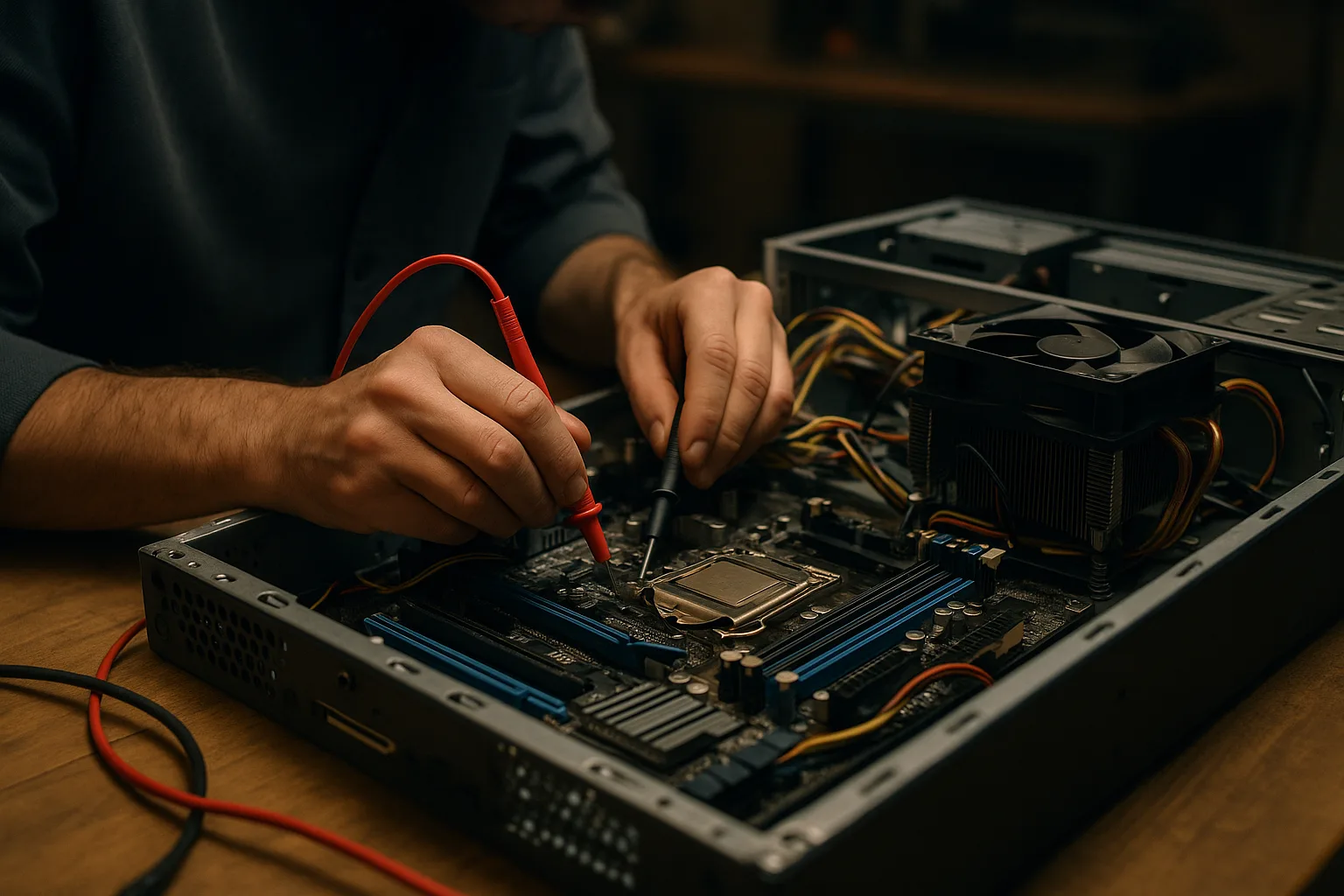
Updating a BIOS is well within reach of a confident user who follows the steps above carefully. But there is no shame in handing it over, and good reasons to. If the machine is essential to your work, if you are not completely sure you have the right file, if the board has no recovery feature, or if you simply would rather not risk it, a professional is the safe choice. The same is true if the job involves a CPU swap, a laptop with no Flashback safety net, or a firmware update tied to the 2026 Secure Boot change that you would rather have confirmed and done properly.
It is also worth getting help if the reason you are considering a BIOS update is an underlying problem you have not pinned down. Random instability, for example, is often not a BIOS issue at all; our guide on random crashes and restarts covers the more common causes. And if you are updating as part of a wider build or upgrade, our notes on building a new PC may help.
How Manchester PC can help
We carry out BIOS and UEFI updates, CPU upgrades, Windows 11 readiness checks and full diagnostics safely as part of our computer repair and computer service work across Manchester. If a DIY flash has gone wrong, we also handle board recovery and re-flashing in the workshop, often saving a machine that looks dead. We offer free local collection and return across Manchester and the surrounding areas, so you do not even need to leave the house. If you would rather have it done properly and safely, get a free, no-obligation quote or call us on 0161 820 1992.