Key takeaways
- This rugged HP EliteBook 840 G2 from Ancoats suffered a liquid spill that damaged the keyboard, battery, touchpad and corroded the battery connector.
- We sourced and replaced the damaged parts and gave it a thorough clean, returning it to full working order.
- If you spill liquid on a laptop, switch it off and unplug it immediately, do not try to power it on.
- Liquid damage is often repairable if acted on quickly; speed makes all the difference.
- Sugary and alcoholic drinks, beer included, are far more corrosive than plain water, so a sticky spill needs cleaning fast.
- Rice and hairdryers do not work; what a wet laptop needs is to be opened, cleaned and dried properly.
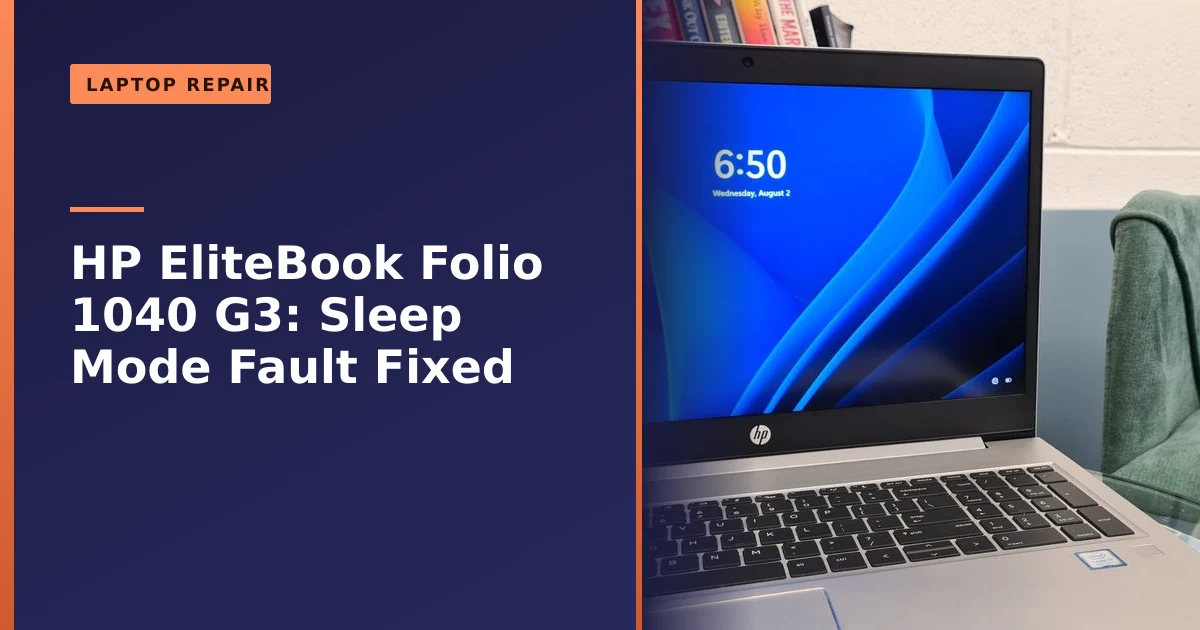
Spilled a drink on your laptop? Acting fast is everything. This tough HP EliteBook 840 G2 came in from Ancoats after a liquid mishap that had damaged the keyboard, battery and touchpad, and corroded the battery connector. We sourced the parts, replaced the damaged components and cleaned it up, getting this hardworking machine back to reliable performance. Here is the repair, and what to do if it happens to you.
What came in: a hardworking laptop after a spill
The HP EliteBook 840 G2 is a robust business laptop built to take some punishment, but liquid is the great leveller. This one had taken a spill that left several components damaged: the keyboard, battery and touchpad had all suffered, and the battery connector had corroded, a common consequence of liquid reaching the contacts. The owner relied on the laptop for work and deliveries, so getting it reliably back in action mattered.
The drink in question was beer, which is one of the trickier spills to deal with. Beer combines water, sugars, acids and other organic compounds, so it does not simply evaporate and leave the inside clean. It leaves a sticky, slightly conductive film behind that keeps attacking metal contacts long after the surface feels dry. By the time the laptop reached us, the battery connector had already started to corrode, which is exactly the sort of slow, creeping damage a spill causes when it is not cleaned out properly. The keyboard had stopped responding correctly, the touchpad was behaving erratically, and the battery was no longer holding a reliable charge. None of that is unusual after a sugary or alcoholic spill, and importantly, none of it meant the laptop was beyond saving.
How we fixed it
Liquid damage repair is about two things done together: replacing what is damaged and cleaning away what is left behind. Do only one and the repair tends to fail later, so both matter. We started by opening the laptop fully and assessing how far the liquid had travelled, because a spill rarely stops where you think it did. Liquid runs along seams and under components, following gravity and capillary action into places the original drink never visibly reached.
We then sourced the correct replacement parts and fitted them, swapping out the damaged keyboard, battery and touchpad, and addressing the corroded battery connector. Using genuine or correct-specification parts matters on a machine like this, because a poorly matched keyboard or battery can introduce its own faults. Just as importantly, we gave the laptop a thorough internal clean to remove all traces of the spill. This is essential because liquid residue keeps corroding contacts long after the drink itself has dried, so simply leaving a laptop to dry out almost never solves the problem on its own. With fresh parts and a proper clean, the EliteBook emerged restored and ready for another round of hard work.
Why liquid is so dangerous inside a laptop
To understand why speed matters so much, it helps to know what is actually happening inside the machine. A laptop is full of closely spaced metal contacts, copper tracks and tiny components, all carrying small electrical currents. The damage from a spill comes from two separate processes, and both are made worse by time.
The first is the immediate short circuit. Most liquids conduct electricity, especially anything with minerals, sugars or salts dissolved in it. When that liquid bridges two contacts that were never meant to be connected, current flows where it should not. If the laptop is powered on or the battery is still connected, this can fry components in seconds. That is why the single most important thing you can do is cut the power instantly. The repair specialists at iFixit make the same point: if the device is still on, turn it off, and disconnect it from every power source as quickly as you can.
The second process is corrosion, and this is the slow killer. Even after the visible liquid has dried, a thin film of moisture and residue remains on the board. Combine that film with the tiny voltages still present in places and you get a process engineers call electrochemical migration. As the technical explanation on electrochemical migration describes, metal ions dissolve and physically move across the gaps between contacts, growing branching structures that eventually bridge connections that should stay separate. This can begin within minutes and continues for days or weeks. It is why a laptop that seems to survive a spill can fail suddenly a fortnight later, as the corrosion finally eats through a critical connection. The lesson is simple: drying is not cleaning, and the only way to stop corrosion is to physically remove the residue.
Not all spills are equal: water, coffee, beer and fizzy drinks
People often assume any spill is equally bad, but the type of liquid makes a real difference to how much damage you are facing and how fast you need to act. The two factors that matter most are how conductive the liquid is and what it leaves behind once it dries.
| Liquid | Conductivity and acidity | Residue left behind | Risk level |
|---|---|---|---|
| Plain water | Low, fairly neutral | Minimal if clean | Lowest, but still needs drying and checking |
| Tea or black coffee | Moderate, mildly acidic | Light film, worse with sugar and milk | Moderate |
| Beer, wine, cider | Higher, acidic, contains sugars | Sticky, conductive film | High |
| Fizzy and sugary drinks | High, often acidic (cola can be pH 2.5 to 3.5) | Heavy, sticky sugar residue | Very high |
As iFixit notes, more acidic liquids such as cola, which can sit around pH 2.5 to 3.5, cause more rapid and severe corrosion than neutral water at around pH 7. Plain water is the least troublesome because it is relatively clean and neutral, though even water can cause corrosion if it is left to sit. Sugary and alcoholic drinks are the real problem. The sugar dries into a conductive, sticky layer that creates new pathways for electricity and corrodes contacts and solder joints over time. Beer, the culprit in this repair, sits firmly in the high-risk group: it is acidic, it contains sugars, and it leaves a film that simply will not dry away cleanly. If you are going to spill something, water is the one to pick, but with any sticky or sugary spill the clock is ticking faster.
The first few minutes: your spill response checklist
If you spill something on your laptop, what you do in the first few minutes makes a huge difference, because most lasting damage comes from electricity flowing through wet components, not the liquid itself. Work through these steps calmly and quickly:
- Switch it off immediately by holding the power button for several seconds until it goes dark. Do not head to the Start menu and choose Shut down, because every second the board is live with liquid on it risks a short. Hold the button.
- Unplug the charger and remove any USB sticks, mice, headphones and other accessories. Each connector is another path for liquid and current.
- Remove the battery if you can. Many older laptops have a removable battery you can slide out; on sealed modern machines you cannot, which is another reason to get it to a repairer quickly so the battery can be disconnected internally.
- Drain it. Turn the laptop upside down and open it like an inverted tent, so the liquid runs out and away from the keyboard and board rather than soaking deeper in. Sit it on a towel.
- Mop up gently. Dab any pooled liquid with a lint-free cloth or kitchen roll. Do not rub it into the keys or press hard.
- Do not try to turn it on to test it. This is the mistake that turns a recoverable spill into a write-off. Powering up a wet laptop is the surest way to cause permanent damage.
- Get it to a repairer promptly. The sooner the inside is cleaned and dried properly, the better the chances, especially with sugary or corrosive drinks like beer.
Resist the temptation to use rice or a hairdryer; what a wet laptop really needs is to be opened, cleaned and dried properly, and any corroded parts replaced. More on why those home remedies fail next.
Why rice and hairdryers are a waste of precious time
The rice trick is one of the most stubborn myths in technology, and it does more harm than good. Burying a wet laptop in a bag of rice feels like you are doing something useful, but the science does not support it. Rice only absorbs surface moisture from the air around it; it cannot reach the liquid trapped deep inside the laptop where the real damage happens. Worse, rice grains and the fine starchy dust they shed can work their way into ports and openings, and that dust can turn to a gritty paste in the presence of moisture. All the while, the corrosion clock keeps ticking. The single biggest problem with rice is that it convinces you to wait, and waiting is exactly what you must not do.
Hairdryers are no better and often worse. The heat can warp plastics, melt adhesives and damage sensitive components, and a hairdryer can blow liquid further into the machine rather than removing it. Neither method does anything about the residue that causes long-term corrosion. If you want to absorb a little ambient moisture while you arrange a repair, silica gel packets are a gentler option than rice, but they are no substitute for a proper internal clean. The honest truth is that there is no kitchen-cupboard fix for a serious spill. The only reliable cure is to open the laptop, clean the board chemically, and replace anything the liquid has damaged.
What actually happens in a professional liquid damage repair
It is worth knowing what a thorough liquid damage repair involves, because it explains why the do-it-yourself approach so often fails. A proper repair follows a careful sequence rather than just drying and hoping.
- Full disassembly. The laptop is taken apart so the technician can see exactly how far the liquid travelled. Cables, connectors and shields are removed so the areas underneath can be reached, because spills love to hide beneath components.
- Inspection under magnification. The board is examined closely for corrosion, discoloured contacts and damaged tracks. This is how the true extent of the damage is found, rather than guessed at.
- Cleaning the residue away. The board and affected parts are cleaned with high-purity isopropyl alcohol, and in many specialist workshops an ultrasonic cleaner is used. An ultrasonic bath uses high-frequency sound waves to lift corrosion and sticky residue out of the tiniest gaps that a brush could never reach. This is the step that genuinely removes the cause of corrosion.
- Replacing damaged parts. Components that the spill has ruined, such as the keyboard, battery, touchpad or a corroded connector, are replaced with correct-specification parts. In severe cases individual chips can sometimes be replaced rather than the whole board.
- Drying and testing. Everything is dried thoroughly before any power is reconnected, then the laptop is reassembled and tested properly to confirm each part works.
On this EliteBook, that sequence is exactly what brought it back: a full strip-down, a proper clean to halt the corrosion, and fresh keyboard, battery and touchpad along with attention to the corroded connector. Skip the cleaning and the corrosion would have spread; skip the parts and the faults would have remained. You need both.
What is repairable after a spill, and what often is not
The good news is that a great deal is repairable, particularly when the spill is caught early. The components most commonly damaged, and most commonly replaced, are the ones nearest the top where the drink lands first.
- Keyboard: very often the first casualty, and usually straightforward to replace. Our guide on laptop keyboard repair covers what is involved.
- Touchpad: sits right under the palm rest where spills pool, so it frequently needs replacing.
- Battery and battery connector: liquid reaching the contacts corrodes them quickly, as happened here. A corroded connector and a battery that no longer charges reliably are common, and both can be addressed. If your battery is misbehaving more generally, our guide on a laptop battery not charging is a useful read.
- RAM, storage and other modules: often survive or can be swapped, and your data on the drive is frequently recoverable even when the laptop itself is in a bad way.
The component that decides everything is the motherboard, sometimes called the logic board. If the spill was caught quickly and the board has only surface corrosion, a clean and a few replacement parts will usually restore the laptop. If the board took a heavy, sugary spill while powered on and corrosion has eaten through tracks or killed major chips, the repair becomes more involved and sometimes uneconomical. Even then it is rarely all bad news, because your files can usually still be rescued. If the worst has happened, our data recovery service can often retrieve documents and photos from the drive of a flooded laptop. This is also a good moment to mention backups: as we explain in why backing up your data is critical, a spill is exactly the kind of sudden disaster a recent backup protects you from.
The HP EliteBook 840 G2: built tougher than most
It is no accident that this particular laptop survived a beer spill in good enough shape to repair. The EliteBook 840 series is a business-grade machine designed for life on the move, with a magnesium and aluminium build and durability testing to the MIL-STD-810 standard. As the overview of MIL-STD-810 explains, that is a United States Department of Defense set of environmental tests covering knocks, drops, vibration, dust, humidity and temperature extremes, intended to show that equipment can survive the rough conditions of real working life.
EliteBooks of this generation also feature a spill-resistant keyboard with internal drainage channels designed to guide a modest splash away from the components below and out of the base. That design buys you time, and it is part of why the damage here, while real, was contained enough to repair rather than catastrophic. It is worth being clear about the limits, though. Spill resistance is meant to cope with a small, quick splash that you mop up, not a full drink left to soak in. A spill-resistant keyboard is a head start, not a force field, and a sugary or alcoholic spill still needs cleaning out promptly. The takeaway is encouraging rather than complacent: a well-built laptop gives you a better chance after a spill, but your own fast reaction still matters most. If you own an EliteBook, you can also read our other repairs, including an EliteBook repair in Miles Platting and an HP 840 G6 that would not turn on.
How to avoid the next spill
The cheapest liquid damage repair is the one you never need. A few simple habits dramatically cut the risk, especially if you tend to work with a drink to hand.
- Keep drinks to the side and behind the laptop, not in front of the screen where a knocked cup pours straight onto the keyboard.
- Use a cup with a lid, such as a travel mug or a bottle that seals. A closed lid turns most knocks into a harmless wobble.
- Stand the laptop on a separate surface from your drink where you can, so a spill on the desk does not automatically reach the keyboard.
- Consider a silicone keyboard cover if you regularly eat or drink at your machine. It is cheap insurance, particularly for sticky drinks.
- Be careful with sofas and beds, where laptops sit at odd angles and drinks are easily kicked or tipped.
- Back up regularly so that even a worst-case spill costs you a laptop, not your photos, coursework or accounts.
For more on keeping your machine healthy, our essential laptop care guide is a good companion read.
Is liquid damage worth repairing?
Often, yes, particularly on a well-built business laptop like the EliteBook. If the spill is caught early and the motherboard has survived, replacing damaged parts and cleaning the corrosion is usually far cheaper than a new machine. A quality business laptop also tends to be worth investing in, because the rest of the build has plenty of working life left once the spill is dealt with. As our guide on repair versus replace notes, it is always worth having liquid damage assessed before assuming the laptop is finished. A keyboard, by the way, is one of the more common casualties, as our guide on laptop keyboard repair covers.
The honest answer depends on the assessment. We always check the extent of the corrosion first, then tell you plainly whether a repair makes sense or whether your money is better spent elsewhere. If the board is sound, a clean and a handful of replacement parts will typically have you back up and running for a fraction of the cost of a replacement, and we will give you a clear quote before any work begins. If you want a sense of typical pricing, our guide on how much it costs to fix a laptop sets out what to expect.
How Manchester PC can help
Spilled something on your laptop? Switch it off, unplug it, and get it to us quickly. We assess liquid damage honestly, clean away corrosion and replace damaged parts, giving your laptop the best chance of full recovery. The faster a spill reaches us, the more we can usually save, so do not wait it out in a bag of rice.
We cover Manchester and the surrounding areas with free local collection and return, fair pricing and honest advice, we will always tell you when a repair is not worth it rather than push one. For an HP laptop repair after a spill or any computer repair, get a free, no-obligation quote or call us on 0161 820 1992.