Key takeaways
- This 21-inch 2019 iMac from Stockport was sluggish, held back by a slow mechanical hard drive and just 8GB of RAM.
- We fitted a fast SSD (cloning all the data across) and upgraded the memory to 32GB, transforming its speed.
- An SSD is the single biggest speed upgrade for an older iMac; a mechanical hard drive is usually the real bottleneck.
- Upgrading an iMac is far cheaper and greener than buying a new one, and gives it years more life.
- The 2019 21-inch iMac has a glued screen and tucked-away memory, so an upgrade is a workshop job, not a quick swap.
- A genuine SSD upgrade should always include a full data clone or migration, so you keep your files, apps and settings.
Is your iMac feeling slow? Before buying a new one, an upgrade is usually the smarter, cheaper and greener answer. This 21-inch 2019 iMac came to us from Stockport struggling to keep up, and by replacing its slow mechanical hard drive with a fast SSD and boosting the memory to 32GB, we turned it into a snappy, future-proofed machine. Here is what we did and why it works so well.
What came in: a capable iMac held back
This 21-inch 2019 iMac had a powerful processor more than capable of handling everyday tasks, but its performance was being throttled by two things: a slow, traditional mechanical hard drive, and only 8GB of RAM. The processor was eager, but the old drive and limited memory left it feeling sluggish, the classic sign of a machine that needs an upgrade rather than replacement.
When a customer describes the symptoms, they are almost always the same. The spinning beachball appears for no reason, the Mac takes a minute or two to reach the desktop, and apps bounce in the Dock for an age before they open. None of that means the iMac is worn out. It means the two slowest parts of the machine, the storage and the memory, cannot keep up with how the owner actually uses it. The good news is that those are exactly the two parts we can change.
Why does an older iMac feel slow?
It helps to understand what is actually happening inside, because once you do, the fix becomes obvious. There are two main bottlenecks in an older iMac like this one, and they often work together to make the machine feel far older than it really is.
The hard drive is the biggest culprit. A traditional mechanical hard drive stores your data on spinning metal platters, with a tiny arm that physically moves to read and write information. That movement is measured in thousandths of a second, which sounds fast until you compare it with an SSD, which has no moving parts at all and works in millionths of a second. Many of the hard drives Apple fitted to the 21-inch iMac spin at just 5,400rpm, the slower of the two common speeds, which is fine for bulk storage but painful as your main system drive. Every time macOS loads, every time an app launches, and every time you open a file, the machine is waiting on that slow drive. Over the years the problem gets worse as the drive fills up and files become fragmented and scattered across the platters, so the read head has to work even harder.
Some iMacs use a Fusion Drive, which hides the problem until it does not. Apple sold many iMacs with a Fusion Drive, which pairs a small amount of fast flash storage with a large mechanical hard drive and presents them as a single volume. According to Apple's own description of Fusion Drive, macOS automatically keeps your most-used files on the small flash portion and moves everything else to the slow hard drive. On many models that flash cache was only 24GB or 32GB. While your daily files fit on the flash, the Mac feels reasonably quick. The moment your work spills over onto the mechanical part, performance falls off a cliff, which is why so many Fusion Drive iMacs feel fast for a year or two and then mysteriously slow down. It is also two drives working as one, so if the mechanical half fails, the whole volume is at risk.
Not enough RAM forces the Mac to lean on that slow drive even harder. RAM (memory) is the short-term workspace your iMac uses for everything it is doing right now. When you run out of it, macOS starts using part of the hard drive as pretend memory, a process called swapping. On a machine with a fast SSD that is barely noticeable, but on one with a slow mechanical drive and only 8GB of RAM it is the worst of both worlds: the Mac is constantly shuffling data to and from the slowest component you own. This is the same root cause behind so many sluggish machines we see, which we cover in our guide on why your computer runs slow.
How we upgraded it
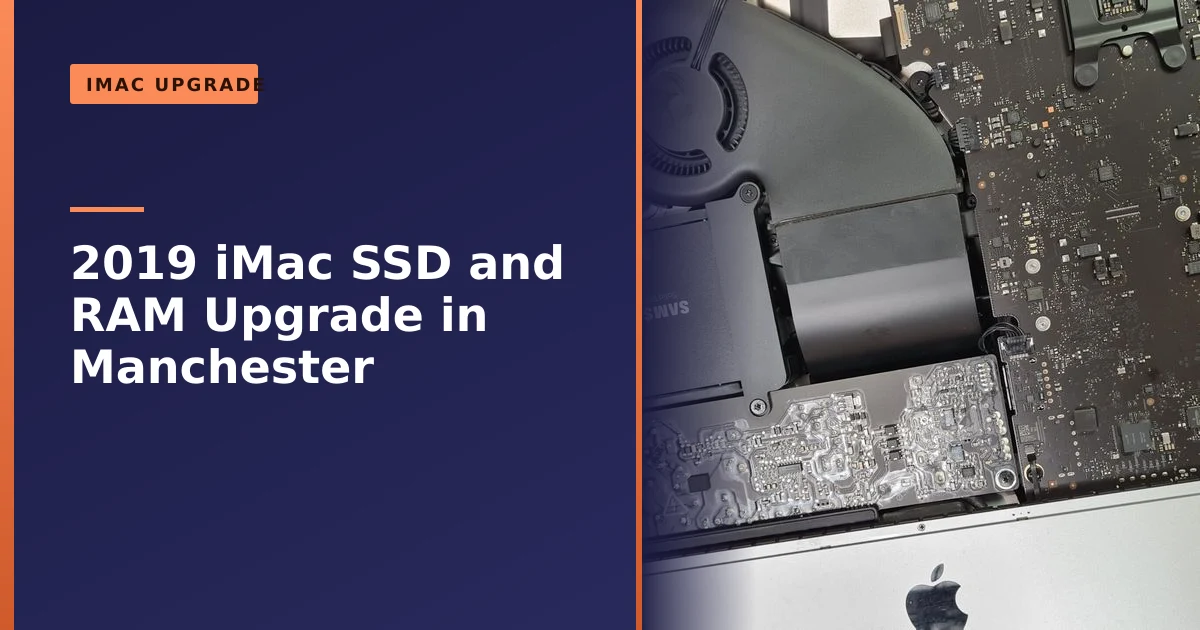
We collected the iMac from Stockport and got to work. Opening a modern iMac means carefully removing the glued-on screen without damage, a delicate job we do regularly. Inside, we installed 2 x 16GB memory modules, taking it to a generous 32GB of RAM for smooth multitasking. We then retired the clunky mechanical hard drive in favour of a solid-state drive that is many times faster and has no moving parts, making the iMac quicker, quieter, cooler and more reliable. Crucially, we cloned all of the client's data across to the new SSD, so they could pick up exactly where they left off, then resealed everything. The result is a super-fast iMac ready for years more work.
To put the difference in perspective, a 5,400rpm hard drive of this era typically manages around 100MB to 120MB per second in the real world, while a good SATA SSD of the kind that fits this iMac runs close to the limit of the connection, roughly 500MB per second. That is four to five times the throughput, and because an SSD also has near-instant access times rather than waiting for a platter to spin into position, the everyday feel is even more dramatic than the numbers suggest. Boot times that ran into the minutes drop to a handful of seconds.
Which iMacs can you upgrade, and which are sealed?
This is the question that catches most people out, because Apple has not treated all iMacs the same. Whether an upgrade is easy, hard or impossible depends entirely on which model you own, so it is worth knowing where yours sits before you spend anything.
| iMac type | RAM | Storage |
|---|---|---|
| 27-inch iMac (most years up to 2020) | User-upgradeable via a small hatch on the back, no need to open the machine | Internal drive can be replaced, but the screen must be removed |
| 21.5-inch iMac (including this 2019 model) | Not behind a hatch; memory is reachable only by fully opening the machine | Drive can be replaced once the screen is off |
| 24-inch iMac and later (Apple Silicon, M1 onward) | Soldered to the board, cannot be changed after purchase | Soldered storage, cannot be upgraded |
On the larger 27-inch iMacs, Apple fitted a memory door on the back, so adding RAM is genuinely a five-minute job. The 21-inch iMacs are a different story. The memory is not soldered, so it can be changed, but there is no access door, which means the only way to reach it is to remove the glued screen and work your way down to the logic board. The independent repair specialists at iFixit document this exact procedure and note that even getting to the memory means taking out the power supply, fan and logic board first. It is well within the reach of a workshop that does it regularly, but it is not a job to attempt at the kitchen table.
The newer 24-inch iMacs with Apple's own M-series chips are sealed entirely. Both the memory and the storage are soldered to the board, so whatever you choose at purchase is what you are stuck with for life. That makes the older Intel iMacs, like this 2019 model, surprisingly good candidates for upgrading, because they were built before Apple locked everything down.
The glued-screen process explained
People are often surprised to hear that a modern iMac screen is held on with adhesive rather than screws, so it is worth explaining what is actually involved, both so you understand the work and so you understand why it is best left to someone who does it often.
The display on a 2019 iMac is bonded to the chassis with a strong strip of double-sided adhesive that runs all the way around the edge. To open the machine we run a thin, purpose-made cutting tool around that seam to slice through the adhesive, then gently lift the display away while supporting its full weight, because the glass and panel are fragile and there are delicate ribbon cables connecting the screen to the logic board that have to be disconnected in the right order. Once the screen is off, the internals are exposed and the real work begins.
The part most people do not realise is that the original adhesive cannot be reused. Once it is cut, it is done. So when we reassemble the iMac we fit fresh, factory-grade adhesive strips made for the exact model, clean every mating surface, and press the screen back so it sits flush and sealed just as it left the factory. Done properly there is no visible sign the machine was ever opened. Done badly you end up with dust trapped behind the glass, a screen that lifts at the corners, or a cracked panel. That gap is exactly why this is a job for a workshop with the right tools and plenty of practice.
How much RAM and storage does your iMac actually need?
There is no point overspending on parts you will never use, and equally no point doing the work twice because you under-bought. Here is how we think about it for a machine like this, drawing on the amounts that software makers themselves recommend.
| How you use your iMac | Sensible RAM | Sensible SSD size |
|---|---|---|
| Email, web, banking, streaming, light documents | 8GB to 16GB | 256GB to 500GB |
| Lots of browser tabs, office work, video calls, family photos | 16GB | 500GB |
| Photo editing, design, light video, heavy multitasking | 16GB to 32GB | 500GB to 1TB |
| Serious video editing, large libraries, professional creative work | 32GB | 1TB or larger |
For everyday tasks, 8GB is honestly still workable in 2026, but 16GB has become the comfortable standard and is what every new Mac now ships with. The jump to 32GB, as we fitted here, makes sense if you keep a lot of apps open at once or do creative work. Adobe, for instance, recommends 16GB or more for Photoshop and Lightroom, and many photographers find 32GB gives Lightroom enough room to cache previews and keep everything smooth when other apps are open too. Because this customer wanted the iMac to last for years and to handle whatever they threw at it, 32GB was the sensible, future-proofing choice rather than the bare minimum.
On storage, the headline is simpler: almost any SSD will feel transformative after a mechanical hard drive, so the size is really about how much you need to store rather than speed. We size it to your data with a bit of breathing room, because an SSD that is kept under about 80 percent full stays at its best. If your old drive was a large 1TB or 2TB hard drive packed with photos and videos, we make sure the new SSD has room for all of it, or we talk through pairing a sensible-sized internal SSD with external storage for big media libraries. Our guides on upgrading to an SSD and whether you need more memory go into the why behind both choices in more detail.
Why an SSD is the best upgrade for an old iMac
If an older iMac feels slow, the mechanical hard drive is almost always the main culprit. These traditional drives read and write data slowly, which means long boot times, apps that take an age to open, and a general feeling of sluggishness no matter how good the processor is. Swapping it for an SSD is the single most transformative upgrade you can make, often many times faster, so the machine feels brand new. Our guide on upgrading to an SSD explains just how big the difference is.
Pairing the SSD with more RAM, as we did here, removes the second common bottleneck. With 8GB, an iMac can struggle with modern software and lots of open apps; 32GB gives it ample headroom for multitasking, video editing or design work, as our guide on whether you need more memory describes. Together, the two upgrades comprehensively cure the slowdown.
There is a quieter benefit too, which is reliability. A mechanical hard drive is the one part of an iMac with constantly moving components, and moving parts wear out. After six or seven years of daily spinning, a hard drive is far more likely to fail than the rest of the machine. By switching to an SSD you are not just gaining speed, you are removing the most failure-prone component in the computer and replacing it with one that runs cooler, draws less power and makes no noise. The fan has less heat to deal with, so the whole machine is quieter and calmer to live with.
How we clone your data across, so you lose nothing
The upgrade most people worry about is the one where they fear losing their photos, documents and settings. This is the part we take most seriously, and it is the difference between a proper upgrade and a risky shortcut.
Before we touch anything, we make sure your data is safe. Where the old drive is healthy, we clone it across to the new SSD so that your files, applications, accounts and settings all carry over and the iMac starts up looking and behaving exactly as it did before, just far faster. Where a customer is moving to a fresh, clean copy of macOS, the cleaner route is Apple's own Migration Assistant, which transfers your documents, apps, user accounts and settings into a new installation without replacing the operating system. Either way the outcome is the same from your side of the desk: you switch the iMac on and everything is where you left it.
We always pair this with a backup as a safety net, because no data move should rely on a single copy. If you do not already have a backup routine, an upgrade is the perfect moment to set one up, and our guide on why backing up your data is critical explains the simple habits that protect you. If a drive has already failed, that becomes a data recovery job rather than a straightforward clone, which is why we recommend upgrading a tired hard drive before it fails rather than after.
What an iMac upgrade costs, and how long it takes
We will always give you a clear, fixed quote before we start, so there are no surprises, but it helps to understand what drives the cost and the timescale. The price of an iMac SSD and RAM upgrade comes down to three things: the parts you choose, the labour involved in opening a glued machine safely, and the data work to move everything across.
- The parts. SSD and memory prices vary with capacity, so a 500GB SSD and 16GB of RAM costs less than a 1TB SSD and 32GB. We only fit reliable parts and tell you what we are using.
- The labour. An iMac is far more involved than a laptop or tower because of the glued screen, fresh adhesive and careful reassembly. That care is what protects your machine.
- The data. Cloning or migrating your files is included in how we work, because an upgrade that loses your data is not an upgrade.
Most iMac upgrades like this are turned around in a day or two once the machine is with us, depending on the size of the drive being cloned. Because the whole point is to save you money against a new Mac, we are always upfront about whether the sums make sense for your machine. Our guide on what repairs cost sets out our honest approach, and you can always ask for a free quote first.
Upgrade, don't replace
A new iMac is a big expense, and often you are paying for features you do not need to solve a problem that an upgrade fixes for far less. Upgrading the specific components holding your iMac back is cheaper, tailored to your needs, and keeps a perfectly good machine out of landfill, the sustainable choice we explain in our guide on repair versus replace.
The environmental case is stronger than many people realise. Most of a computer's lifetime carbon footprint comes from manufacturing, not from the years you use it, so the greenest thing you can do with a working iMac is to keep using it. Fitting an SSD and some memory uses a tiny fraction of the resources that go into a whole new machine. You spend less, you waste less, and you end up with a Mac that does everything you need. We see the same logic play out across all sorts of machines in our computer upgrade work around Manchester.
How long will an upgraded iMac keep going? macOS support and the OpenCore option
An honest answer matters here, because an SSD and RAM upgrade makes your iMac fast, but it does not change which version of macOS Apple will let it run. This is the one genuine limit on the life of an older Intel iMac, and it is worth understanding so your expectations are right.
Apple supports each Mac with new versions of macOS for a number of years and then stops. For 2026, macOS Tahoe is the headline release, and according to Apple's official compatibility list it is the final version of macOS to support any Intel-based Mac at all. The 2019 21-inch iMac is not on the Tahoe list, which means it stays on the last macOS version it was offered and continues to receive important security updates for a while after that. In plain terms, this machine has years of safe, useful life ahead of it for everyday work, email, web, photos and documents, especially now it is quick again. It simply will not gain the very newest macOS features.
For people who want to keep an older Mac on the latest macOS beyond Apple's cut-off, there is a well-regarded community project called OpenCore Legacy Patcher, which can install newer versions of macOS on officially unsupported Macs. It is clever software, but it is an enthusiast route, not an official one, it can be fiddly, and some features may not work perfectly on every model. For most customers we would not recommend depending on it, but it is worth knowing it exists. Whatever you decide, a fast SSD and plenty of RAM make the experience far better on whichever macOS version you run.
Signs your iMac is ready for an upgrade
How do you know whether your own iMac would benefit? In our experience the tell-tale signs are consistent, and most slow Macs show several of them at once. If this list sounds like your machine, an SSD and RAM upgrade will almost certainly transform it.
- It takes more than a minute to start up and reach a usable desktop.
- You see the spinning beachball regularly, even during simple tasks.
- Apps bounce in the Dock for a long time before they open.
- The machine slows to a crawl when you have several apps or many browser tabs open.
- You can hear the hard drive clicking, whirring or grinding, which can also be an early warning of failure.
- The storage is nearly full and clearing space barely helps.
- Everything was fine for a year or two and then performance steadily got worse, the classic Fusion Drive pattern.
- You are considering replacing the whole iMac purely because it feels slow.
That last point is the important one. Feeling slow is almost never a reason to scrap an otherwise healthy iMac. A little routine housekeeping helps too, and our guide on disk cleanup to help your computer run faster covers simple steps you can try yourself first.
Looking after your upgraded iMac
Once your iMac has a fresh SSD and plenty of memory, a few simple habits will keep it feeling fast for years. Keep at least 10 to 20 percent of the SSD free so macOS always has room to work. Install macOS and app updates when they are offered, since they include security fixes as well as improvements. Restart the machine now and then rather than only ever sleeping it, which clears out memory and tidies things up. Keep the vents free of dust so it can cool itself properly. And keep a backup running quietly in the background, because the one thing an SSD does not do is protect you from accidental deletion, theft or a spilled cup of tea, and we walk through the options in our guide on computer backup.
How Manchester PC can help
If your iMac or MacBook feels slow, an SSD and RAM upgrade can transform it for a fraction of the cost of a new Mac. We handle Apple machines with care, clone your data across, and quote clearly up front.
We cover Manchester and the surrounding areas, including Stockport and nearby Reddish and Levenshulme, with free local collection and return, fair pricing and honest advice, we will always tell you when a repair is not worth it rather than push one. For an iMac upgrade, an iMac repair, a Mac repair or any computer repair, get a free, no-obligation quote or call us on 0161 820 1992.