Key takeaways
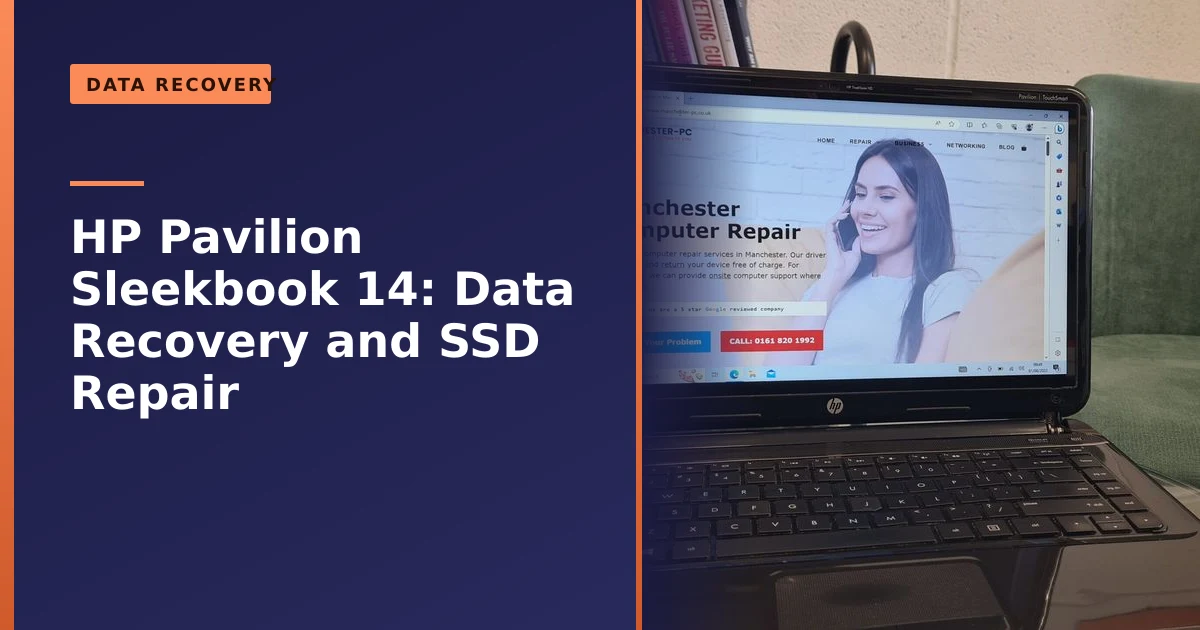
- This HP Pavilion TS Sleekbook 14 from Oldham was stuck at the Windows boot screen due to a failed hard drive holding over 250GB of data.
- We imaged the failing drive, recovered every file, then fitted a 250GB SSD and reinstalled Windows.
- A laptop stuck at boot is often a failing drive, and the data can frequently still be recovered.
- The biggest mistake people make is to keep switching a dying drive on and off, which can turn a recoverable problem into a lost cause.
- Backing up regularly is the best protection, but professional data recovery can rescue files when disaster strikes.
Laptop stuck on the Windows boot screen? It is often a failing hard drive, and your data may still be saved. This HP Pavilion TS Sleekbook 14 came to us from Oldham frozen at boot, with a failed drive holding more than 250GB of irreplaceable data. We recovered every file, fitted an SSD and got it running again. Here is how, and what to do if it happens to you.
What came in: stuck at boot, data at risk
The Sleekbook arrived stuck at the Windows boot stage, never reaching the desktop, a frustrating and worrying symptom for its owner. After a transparent quote so the client knew exactly what was involved, we diagnosed the cause: a failed hard drive. Worse, that drive held over 250GB of the client's valuable data, which appeared to be lost. As a full tech-support company, we offered to attempt a specialist data recovery, and the client agreed.
The HP Pavilion TS Sleekbook 14 is a slim, touch-screen ultraportable from HP's value range, the sort of dependable everyday machine plenty of households across Greater Manchester still rely on for email, banking, schoolwork and family photos. Like most laptops of its generation it shipped with a traditional spinning hard drive, and that mechanical drive is almost always the first part to wear out. By the time a Sleekbook of this age reaches us, the original drive has often been spinning for thousands of hours, so a failure is not a surprise so much as a matter of when. The good part of the story is that the laptop itself, the screen, the keyboard, the board and the battery, was perfectly healthy. Only the drive had given up, which meant a single component stood between the owner and a fully working machine.
The warning signs of a failing hard drive
Most hard drives do not die without warning. They give you clues, sometimes for weeks, and learning to spot them is the difference between a calm backup and a frantic recovery. If you notice any of the following, treat them seriously.
- Clicking, beeping or grinding noises. A healthy drive hums quietly. A repeated click, often called the click of death, means the read/write heads cannot find their position and keep resetting. According to data recovery specialists, a drive that has started clicking can fail completely within minutes, so this is the one symptom where you should switch off immediately.
- Freezing and crashing. If your laptop suddenly locks up when you open a file or launch a programme, and it never used to, a struggling drive is a strong suspect. Our guide on how to fix random PC crashes or restarts covers the other causes worth ruling out.
- Files that vanish and reappear. Documents that go missing, fail to open, or report as corrupted are a sign the drive can no longer reliably read its own platters.
- Everything slowing to a crawl. When folders take an age to open and programmes that once loaded instantly now take 30 seconds, the drive may be retrying failed reads behind the scenes. If your machine has gradually become unusable, our guide on why your laptop is running slow is a useful next read.
- SMART warnings. Modern drives run a built-in health monitor called SMART (Self-Monitoring, Analysis and Reporting Technology). When it flags a caution, the drive is telling you it no longer trusts itself.
SMART is worth understanding because it is the closest thing a drive has to a smoke alarm. As the Wikipedia entry on S.M.A.R.T. explains, it tracks indicators such as reallocated sectors, read error rates, temperature and power-on hours, and raises an alert when a value crosses a safe threshold. It is genuinely useful: research cited there found that drives showing certain errors were many times more likely to fail within 60 days. It is not foolproof though, because the same research found that around a third of failed drives showed no SMART warning at all before they died. In other words, a clean SMART report is reassuring but not a guarantee, which is exactly why a real backup matters more than any monitoring tool.
Why a laptop sticks at the Windows boot screen
A laptop that hangs at the boot screen has tripped over something it needs to start Windows, and it keeps retrying the same failed step rather than moving on. Microsoft breaks the startup sequence into distinct phases, and knowing roughly where a machine gets stuck tells you a lot about the cause. According to Microsoft's own boot troubleshooting guide, the process moves through the firmware (PreBoot) stage, the Windows Boot Manager, the operating system loader, and finally the kernel. A failure at each stage looks slightly different on screen.
The common culprits fall into two groups. The first is a failing drive, which is what we found in the Sleekbook. When the physical disk can no longer read its own data reliably, Windows asks for a boot file and simply does not get an answer in time, so the loading dots spin for minutes or hours while the system retries reads that never succeed. The second group is software corruption, where the drive is physically fine but the instructions Windows needs have been damaged. That includes a corrupt Boot Configuration Data store, a damaged Master Boot Record, a Windows update that did not finish, or a registry hive that will not load. Microsoft's guide lists recognisable error messages for these, such as Bootmgr missing or corrupted or the dreaded Inaccessible Boot Device stop error.
This distinction matters enormously. If the problem is software, tools such as Startup Repair, or commands like bootrec and chkdsk run from a recovery environment, can often rebuild the boot files and bring the machine back without losing anything. If the problem is a dying drive, those same repair attempts can make things worse, because every extra read you force on failing hardware uses up some of its remaining life. That is why the very first thing a competent technician does is work out which of the two it is, ideally without hammering the suspect drive in the process.
What to do if your laptop won't get past boot
A laptop that hangs at the boot screen, or shows error messages instead of starting, is frequently suffering a failing hard drive, though software corruption can cause it too. The most important advice is this: if you suspect a drive is failing and it holds data you do not have backed up, stop using the laptop. Continuing to power on a dying drive can make it worse and reduce the chances of recovery. Instead, have it assessed promptly, the sooner a failing drive is imaged, the better the odds.
If your files are precious and not backed up, here is the safe order of events:
- Switch it off and leave it off. Resist the urge to keep restarting in the hope it boots this time. Each attempt is a roll of the dice with hardware that is already on its last legs.
- Do not run repair tools blindly. Startup Repair, chkdsk and reinstalls are fine on a healthy drive, but on a failing one they generate exactly the kind of repeated reads and writes that finish the drive off.
- Do not open the drive yourself. The inside of a hard drive is sealed for a reason, and opening one outside a clean environment lets in dust that scratches the platters and destroys the data.
- Get it assessed quickly. The window for a clean recovery is widest right after the first symptoms. Waiting, or carrying on regardless, narrows it.
The good news is that data is often recoverable even from a drive that will no longer boot, using the imaging and reconstruction process described below, as our data recovery service explains. And once recovered, moving to an SSD makes the laptop faster and more reliable, since SSDs have no moving parts to fail.
How we recovered the data and repaired the laptop
Data recovery from a failing drive is a careful, methodical process. Using specialist equipment, we first imaged the hard drive, creating a precise sector-by-sector copy of everything on it, including from the damaged areas, so we could work on the copy rather than risk the fragile original. We then reconstructed the data from that image, scanning for files and folders and rebuilding the structure, and we successfully recovered every single file. With the data safe, we replaced the failed drive with a fast 250GB SSD, installed a clean copy of Windows, gave the laptop a full service, and migrated the recovered data across. The owner got back both a working, faster laptop and the data they feared was gone for good.
How professional data recovery actually works
It helps to understand why imaging comes first, because it is the single most important principle in the whole field. The golden rule among recovery engineers is simple: image first, read from the image second. Every read attempt on a failing drive risks producing more bad sectors, so you want to take as few reads from the original as possible. Specialist imaging hardware is built for exactly this. Unlike an ordinary copy, it can read sectors in any order, retry intelligently, and skip past unreadable regions to come back to them later, all while putting the gentlest possible load on the patient. The aim is to capture as much as possible on the first pass, then never touch the original again.
Once that image is secured, the rest of the work happens on the copy, where there is no risk of making the damage worse. Recovery software rebuilds the file system from the image, repairing damaged partitions, reuniting fragments and reconstructing the folder structure so your files come back with their names and organisation intact rather than as a heap of nameless data. In the Sleekbook's case the drive's problem was recoverable through imaging and reconstruction, and every file came back.
Some failures go further than this. When a drive has a mechanical fault, a seized motor or failed heads for example, the data cannot be reached at all until the hardware is stabilised, and that work has to happen in a cleanroom. The inside of a hard drive is engineered to extraordinarily fine tolerances, and the heads fly over the platters with a gap far smaller than a human hair, so a single speck of dust is enough to wreck the surface. Professional labs use ISO Class 5 (Class 100) cleanroom conditions to open drives safely, replace heads or clear debris, and get the platters spinning long enough to take an image. This is specialist, sometimes costly work, and it is precisely why prevention through backups is so much cheaper than cure. Manufacturers such as the bodies behind SMART build in early warnings for a reason: the easiest data to recover is the data you never lost in the first place.
HDD versus SSD: why we fitted a solid-state drive
When the recovery was done, we did not simply fit another spinning hard drive. We replaced it with a solid-state drive (SSD), and the reasons go beyond raw speed. The fundamental difference is mechanical. A traditional hard drive stores data on spinning magnetic platters read by an arm that moves across them, much like a record player. An SSD has no moving parts at all and stores data in flash memory chips. That single design change improves almost everything that matters in a laptop.
| Feature | Hard drive (HDD) | Solid-state drive (SSD) |
|---|---|---|
| Moving parts | Yes, spinning platters and a moving head | None |
| Typical read speed | Around 80 to 160 MB/s | Several times faster, often many hundreds of MB/s |
| Shock resistance | Vulnerable to knocks and drops while running | Far more rugged, no head to crash |
| Noise and heat | Audible hum, more heat | Silent, cooler, less power used |
| Common failure mode | Mechanical wear, gradual or sudden | Flash wears over many write cycles |
Reliability is where the difference really tells over a laptop's life. Backblaze, which runs hundreds of thousands of drives and publishes its failure data, reported in its SSD reliability study that SSDs held an annualised failure rate of around one per cent or less through their first four years, and that hard drives and SSDs failed at broadly similar rates early on but diverged after about four years, with the spinning drives failing more often as they aged. For a laptop that gets carried around, knocked and bumped, the absence of a delicate moving head also means an SSD shrugs off the kind of everyday handling that can finish off a hard drive. Add the speed, the silence and the lower power draw that helps battery life, and an SSD is the obvious choice. If you want the full case, our guide on why you need to upgrade to an SSD goes deeper, and it is comfortably the single best upgrade for breathing life into an older machine.
Cloning versus a fresh install of Windows
When you move from an old drive to a new SSD there are two ways to bring your system across, and the right choice depends entirely on the state of the old drive. Cloning makes an exact copy of the existing setup, Windows, programmes, settings and files, onto the new drive, so the laptop starts up looking just as it did. A fresh install puts a clean copy of Windows on the SSD and then restores your files on top.
| Approach | Best when | Trade-offs |
|---|---|---|
| Clone the old drive | The existing Windows is healthy and you want everything exactly as it was | Carries across any clutter, bloatware or hidden corruption |
| Fresh install | The old drive was failing, infected, or bogged down | You reinstall programmes and restore files, which takes longer up front |
For the Sleekbook the decision was easy. You cannot reliably clone a failing drive, because cloning reads every sector and a dying drive cannot give you clean reads, and you would only copy across whatever corruption helped cause the problem. So we did the right thing for a recovery case: we recovered the data separately, performed a clean install of Windows on the new SSD, and then migrated the recovered files across. A fresh install also lines the new drive's partitions up correctly for SSD performance and leaves you with a tidy, fast, clutter-free system rather than years of accumulated junk. Cloning is the quicker, more convenient route when you are simply upgrading a perfectly healthy laptop, but when a drive has failed, a clean start is both safer and better.
The lesson: back up your data
This story had a happy ending, but recovery is not always guaranteed, which is why a backup is your best insurance. Keeping a regular, automatic backup means a failed drive becomes a simple repair rather than a potential disaster, as our guide on why backing up your data is critical explains. If you are not backing up yet, it is the single most important habit to start.
The approach the professionals trust is the 3-2-1 rule, and it is easy to remember. Keep three copies of anything you cannot bear to lose, on two different types of media, with one copy kept off-site. In a home setting that might mean the files on your laptop, a copy on an external drive at home, and a third copy in the cloud. The logic is that no single mishap can wipe out all three at once: a drive failure does not touch your cloud copy, and a burglary or a spilled cup of tea does not reach the data sitting on a server elsewhere. The UK's National Cyber Security Centre, in its small organisation guide to backing up your data, makes the same core points: identify what you cannot afford to lose, keep a backup separate from your computer, and use the cloud as part of the mix. The advice is aimed at small businesses but it works just as well for a family laptop.
A few practical pointers make the rule stick. Automate it so you do not have to remember, because a backup you have to think about is a backup that quietly stops happening. Test it occasionally by actually opening a file from the backup, since a backup you have never restored from is only a hope, not a plan. And do not rely on a single external drive left permanently plugged in, because ransomware and power surges can take out the original and the backup together. If you would like a hand setting this up, our computer backup service can get a sensible, automatic routine running for you, and our guide comparing cloud storage versus an external hard drive helps you choose the right mix.
Common mistakes that ruin your chances of recovery
Over the years we have seen the same avoidable errors turn recoverable situations into lost data. Knowing them is half the battle.
- Carrying on regardless. The temptation to keep restarting and hoping is strong, but every power cycle of a dying drive spends some of its remaining life. The Sleekbook came to us before it was flogged to death, which is part of why every file came back.
- Running chkdsk or a reinstall on a failing drive. These are sensible tools on healthy hardware and risky ones on failing hardware. A reinstall in particular can overwrite the very data you are trying to save.
- Trusting freezer and other internet tricks. Putting a drive in the freezer, tapping it, or running random free recovery software on the original drive are folk remedies that more often finish off a marginal drive than save it.
- Opening the drive at home. Household air is full of dust that is invisible to you but catastrophic to a platter. Drives that need opening belong in a cleanroom.
- Assuming a backup exists when it does not. Plenty of people believe their photos are safely in the cloud, only to find sync was switched off months ago. Check, do not assume.
If you have already made one of these mistakes, all is not necessarily lost, but it does make the job harder, so the kindest thing you can do for your data is to stop and let it be assessed.
What to expect from a repair like this
People often ask what a job like the Sleekbook involves from their side, and the honest answer is: less hassle than they fear. The first step is always a diagnosis and a clear quote, so you know what is wrong and what it will cost before any work or any spend on recovery begins. We never start chargeable recovery work without your say-so. From there, imaging a drive can take anywhere from a few hours to a couple of days depending on how badly it is struggling, because a healthy-ish drive images quickly while a very sick one has to be coaxed gently. Fitting an SSD and reinstalling Windows is faster, typically within a day once the data is safe.
It is also worth being realistic about outcomes. We recovered everything from this Sleekbook, but recovery is assessed case by case and no honest company can promise 100 per cent every time, because the result depends on how far the drive has degraded. What we can promise is straight talk: if a recovery is not viable, or if a repair is not worth the money against the value of the laptop, we will tell you. Our guide on repair versus replace walks through how to make that call, and our page on what it costs to fix a laptop sets out typical pricing. A little routine care helps too, and our essential laptop care guide covers the habits that keep a machine healthy for longer.
How Manchester PC can help
If your laptop will not get past boot, or you have lost data from a failing drive, we can help. We recover data from failing and failed drives using specialist equipment, then repair or upgrade the laptop with a fast, reliable SSD. We quote before any recovery work.
We cover Manchester and the surrounding areas, including Oldham and nearby Chadderton, with free local collection and return, fair pricing and honest advice, we will always tell you when a repair is not worth it rather than push one. For data recovery, an HP laptop repair, or any computer repair, get a free, no-obligation quote or call us on 0161 820 1992.