Key takeaways
- A CAD PC from Manchester stopped working after its CPU water cooler pump failed and damaged the motherboard.
- We repaired the system and replaced the failed liquid cooler with a reliable be quiet! Pure Rock 2 air cooler.
- A failed water-cooling pump can cause sudden overheating and damage; air coolers have no pump to fail this way.
- For most PCs, a quality air cooler is the safer, lower-maintenance choice.
- Cooling reliability comes from the whole system: the cooler, fresh thermal paste, clean filters and good case airflow all matter.
Is a water cooler worth the risk in your PC? This repair shows why we often recommend air cooling. A CAD workstation from Manchester arrived dead after its CPU water cooler's pump failed, taking the motherboard with it. We repaired the system and fitted a dependable be quiet! Pure Rock 2 air cooler in its place. Here is what happened, and how to choose cooling that will not let you down.
What came in: a dead workstation
A client brought us their CAD PC, a workstation that had run smoothly for years before suddenly stopping. On diagnosis, the cause was clear: the CPU water cooler's pump had failed, and the failure had also caused damage to the motherboard. It is exactly the scenario that makes us cautious about liquid cooling, when a pump dies, cooling can stop almost instantly, and the knock-on effects can be expensive.
This matters more than usual on a CAD machine. Computer-aided design work, like 3D modelling, rendering and simulation, pushes a processor hard for long, sustained stretches rather than in short bursts. That keeps the CPU near its top power draw for hours at a time, so the cooling never gets a quiet moment to catch up. When the only thing moving heat away from the chip suddenly stops, the temperature climbs in seconds rather than minutes. For a self-employed designer or a small studio, a workstation that goes dark mid-project is not just an inconvenience, it can stall paid work and put deadlines at risk, which is why we treat cooling reliability on these machines as a priority rather than an afterthought.
How a water-cooling pump failure damages a PC
To understand why this repair was needed, it helps to know what an all-in-one (AIO) liquid cooler actually does. A small block sits on top of the processor, and inside that block a pump pushes coolant through thin tubes to a radiator, where fans blow the heat away. It is an elegant design when it works, but it depends entirely on that one pump keeping the fluid moving. Air cooling, by contrast, needs nothing to circulate; heat simply travels up metal heat pipes into a finned tower and is carried off by a fan. You can read a plain-English overview of both approaches in Wikipedia's summary of computer cooling.
When an AIO pump fails, coolant stops flowing. The processor is still drawing power and producing heat, but there is no longer anything carrying that heat to the radiator. Modern CPUs have built-in protection that throttles performance and then forces a shutdown to save themselves, but those safeguards are designed for gradual problems, not an instant loss of all cooling. If the temperature spikes faster than the system can react, or if a fault on the board confuses those protections, the heat and any associated electrical fault can damage the components around the socket. In this case the motherboard took the hit, which is why a simple cooler swap was never going to be enough on its own.
Pumps do not usually fail without any warning at all. Industry sources note that pump bearings tend to wear out somewhere between roughly 40,000 and 60,000 hours of running, and the early symptoms include grinding or rattling noises, a pump reading 0 RPM in the BIOS or monitoring software, and CPU temperatures that suddenly run hotter than normal. The trouble is that those signs are easy to miss if you are not actively watching for them, and a workstation that is left running unattended overnight can pass the point of no return before anyone notices.
How we fixed it
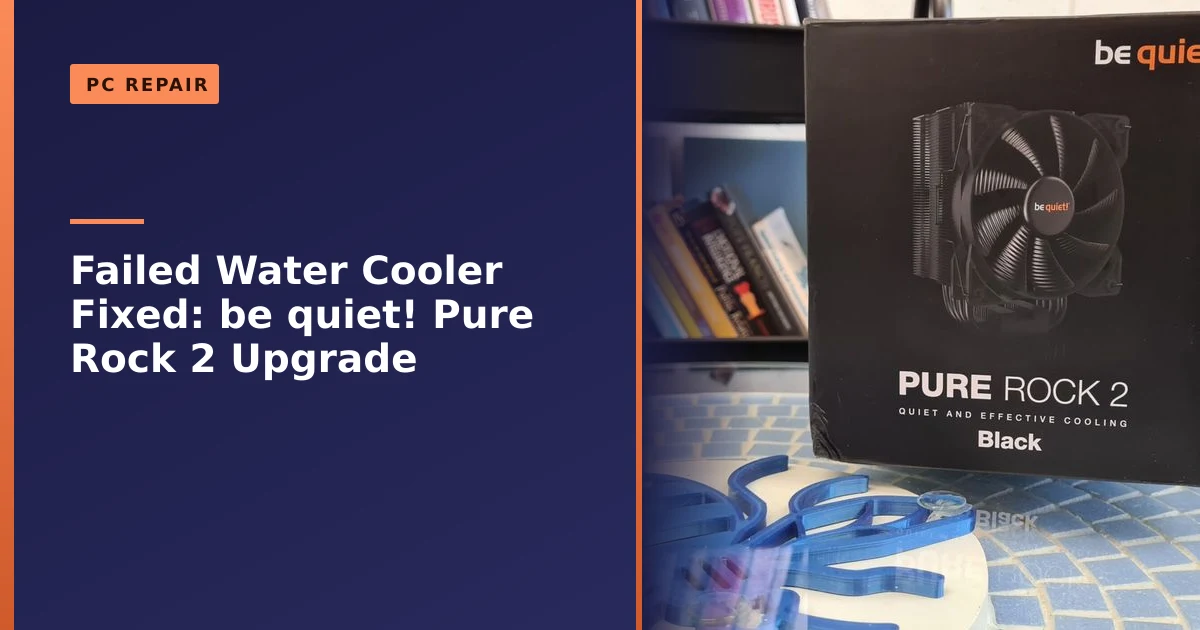
We repaired the damage caused by the cooling failure and then turned to a more reliable cooling solution for the rebuild. Rather than fit another liquid cooler, we recommended the be quiet! Pure Rock 2, a high-quality air cooler known for strong, quiet cooling without the leak or pump-failure risks of a water cooler. It pairs an efficient heatsink design with a quiet fan, has broad compatibility with different CPU sockets, and is built to last. With the Pure Rock 2 installed, the PC ran smoothly and quietly again, with its owner reassured that the cooling would not be the thing that lets it down next time.
The repair was more involved than swapping a part. We diagnosed the fault, addressed the motherboard damage, cleaned away the old thermal interface, applied fresh thermal paste and mounted the new cooler with even pressure so it makes proper contact with the processor. We then ran the machine under load and monitored temperatures to confirm the new cooling was doing its job before the PC went back to its owner. As a be quiet! authorised partner, we also know this kit inside out; you can read more about that on our be quiet! service centre page.
Why the be quiet! Pure Rock 2 was the right choice
The Pure Rock 2 is a deliberately sensible cooler rather than a flashy one, and that is exactly why it suited this rebuild. According to be quiet!'s official product page, it is rated to handle a 150W thermal load, uses four 6mm heat pipes to draw heat off the processor, and is cooled by a 120mm Pure Wings 2 PWM fan that tops out at a quiet 26.8 dB(A). It supports a wide range of sockets, including modern Intel and AMD platforms such as AM5 and AM4, and be quiet! backs it with a three-year warranty.
Independent reviewers have found it lives up to that billing, keeping a mid-range processor comfortably in check while staying barely audible inside a closed case. For a workstation that needs steady, dependable cooling rather than headline-grabbing numbers, that combination of quiet running and proven reliability is ideal. Its asymmetrical design also avoids overhanging the memory slots, which makes installation and any future memory upgrades straightforward. Crucially, there is no pump, no tubing and no coolant, so the single most common way an AIO fails simply does not exist here.
Air cooling versus water cooling: which is safer?
Liquid coolers can look impressive and cool extreme systems well, but they carry risks that matter for an everyday or professional machine. The biggest, as this repair shows, is pump failure: an all-in-one liquid cooler relies on a small pump to circulate coolant, and when it fails, the processor can overheat rapidly, leading to shutdowns or damage. There is also the small but real risk of a leak, and the fact that sealed coolers gradually lose performance and have a limited lifespan. Our full guide on the dangers of water cooling goes into the detail.
A good air cooler, by contrast, has no pump to fail and nothing to leak. If its fan ever slows, you still get some cooling and plenty of warning, and it needs little more than an occasional dust-out. For the vast majority of PCs, including powerful workstations, a quality air cooler like the Pure Rock 2 is the safer, simpler, lower-maintenance choice, and good thermal paste and case airflow matter just as much as the cooler itself.
The table below sums up the practical differences we see day to day in the workshop. There is no single right answer for everyone, but for most people the trade-offs line up clearly in one direction.
| Factor | Quality air cooler | All-in-one liquid cooler |
|---|---|---|
| Moving parts that can fail | One fan | Pump plus one or more fans |
| Failure behaviour | Gradual; still cools if fan slows | Can be sudden if the pump dies |
| Leak risk | None | Low but not zero |
| Typical lifespan | Very long; fans are cheap to replace | Around 5 to 7 years for a sealed unit |
| Maintenance | Occasional dust clean | Dust clean; performance fades as coolant permeates |
| Noise | Quiet with a good model | Can be quiet, but the pump adds a sound source |
| Best suited to | Everyday PCs and most workstations | Extreme or heavily overclocked builds |
The real risks of liquid cooling, explained
It is worth being fair to liquid cooling: on a quality, modern AIO the headline risks are not common. But low-probability is not the same as no-probability, and when something does go wrong the cost can be high, so it pays to understand what you are signing up for.
- Pump failure. This is the most common way an AIO reaches the end of its life. The pump is the heart of the system, and once it stops, cooling stops. Pump bearings are typically rated for tens of thousands of hours, but a machine that runs long days, like a CAD or rendering workstation, gets through those hours quickly.
- Leaks. Reputable manufacturers report leak failure rates well under one in a thousand units over a cooler's life, so a leak is genuinely rare. The problem is the consequence: coolant on a live motherboard or graphics card can cause real damage, which is why even a small risk deserves respect.
- Permeation and lost performance. Even a perfectly sealed cooler slowly loses a tiny amount of coolant through the microscopic pores of its tubing. You cannot see it and you cannot top it up. Over several years this lets air into the loop, which is what causes the gurgling sound some people notice, and it gradually reduces how well the cooler shifts heat. An AIO is, in effect, a consumable part with a finite working life.
- A single point of failure. With air cooling, the heatsink keeps drawing heat away even if the fan slows, buying you time. With liquid cooling, everything depends on one pump, and there is no graceful fallback if it stops.
None of this means liquid cooling is bad. It means liquid cooling is a maintenance item with a clock running on it, and it earns its place when you genuinely need the extra cooling headroom rather than fitting it by default.
Signs your PC's cooling is failing
Cooling problems rarely arrive out of nowhere, and catching them early can be the difference between a quick clean-up and a damaged motherboard. These are the warning signs we tell people to watch for, and they apply whether you run air or liquid cooling.
- Sudden shutdowns or restarts under load. If your PC cuts out when you are gaming, rendering or running CAD, but behaves on the desktop, that is a classic thermal protection shutdown. The processor is pulling power before it cooks itself.
- Performance that fades the longer you work. Everything feels fine for the first few minutes, then slows, stutters or drops frames as heat builds. That is thermal throttling, the chip deliberately slowing down to stay within safe temperatures.
- Fans running at full tilt constantly. Loud fans that never settle down, even on light tasks, usually mean the cooling is struggling to keep up.
- High temperatures in monitoring software. Free tools such as Core Temp or HWMonitor let you watch your CPU temperature. Seeing it sit at 90C and above under load, with clock speeds dropping, points firmly at a cooling problem. Idle temperatures stuck above the 50C to 60C mark can suggest poor cooler contact or dried-out thermal paste.
- A pump reading 0 RPM (liquid cooling only). If your monitoring software or BIOS shows the pump has stopped, treat it as urgent and shut the machine down rather than risk a spike.
- A very hot case, odd smells or unusual noises. A case that is hot to the touch, a faint hot-electronics smell, or new grinding and rattling all deserve a look before you carry on.
If you spot any of these, the safest move is to stop using the machine under load and get it checked. Overheating that is left to run is one of the more common roads to the kind of crashes we cover in our guide to random PC crashes and restarts, and ignoring it is how a cheap clean turns into an expensive repair.
When liquid cooling is actually worth it
We are not anti-liquid-cooling, we are anti-unnecessary-risk. There are builds where an AIO or a custom loop genuinely makes sense, and it is worth being honest about where the line sits.
As a rough guide, a good tower air cooler comfortably handles processors up to around 150W of sustained heat, and the very best air coolers can push beyond that with strong case airflow. The Pure Rock 2 sits right in that mainstream band, which covers the vast majority of everyday and professional machines. Liquid cooling starts to pull ahead when power draw climbs much higher, for example with high-core-count chips run flat out, or when you are aggressively overclocking for the last few percent of performance. In those situations a radiator can shed more heat and hold temperatures steadier, which can help a chip maintain its boost speeds for longer.
So liquid cooling is a reasonable choice if you are an enthusiast chasing peak overclocks, or you run a seriously high-powered chip under constant heavy load and you accept the maintenance and replacement that comes with it. For nearly everyone else, including most gamers, office machines and many workstations, a quality air cooler delivers the cooling you actually need with far less to go wrong. If you are weighing this up for a new machine, our notes on building a new PC are a good starting point.
How to choose reliable cooling
If you are picking a cooler, or asking us to, a few sensible checks will steer you towards something dependable rather than just eye-catching.
- Match the cooler to the chip, then add headroom. Check your processor's power draw and choose a cooler rated comfortably above it, so it is not running flat out all the time. A cooler that is loafing runs quieter and lasts longer.
- Check it physically fits. Tall air coolers can foul case side panels, and wide ones can block memory. The Pure Rock 2's offset design helps here, but it is always worth confirming clearance for the case and memory.
- Favour fewer points of failure. For a machine you rely on, simpler is safer. An air cooler has one moving part; that is one thing to ever go wrong.
- Look at noise figures, not just cooling. A cooler quoted at under 30 dB(A) at full speed, like the Pure Rock 2, will be pleasant to sit next to all day.
- Buy a reputable brand with a real warranty. A three-year (or longer) warranty and a UK support presence mean help is there if you need it. Intel and AMD both offer general guidance on cooler choice that is worth a read alongside the manufacturer's own specifications.
If in doubt, ask. We are happy to recommend cooling that fits your machine and your budget, and we will not push expensive kit you do not need.
Thermal paste and airflow: the other half of cooling
A cooler is only as good as its contact with the processor and the air moving through the case. Two things are easy to overlook and make a real difference.
The first is thermal paste. The surfaces of a processor and a cooler look flat but are covered in microscopic gaps, and thermal paste fills them so heat can cross efficiently. Over time the paste dries out and loses its effectiveness; a common rule of thumb is to refresh standard paste every two to three years, and premium paste every three to five, and always to reapply it whenever a cooler is removed and refitted. A fresh, correctly applied layer can drop temperatures by several degrees, which is often the cheapest cooling improvement available. Applying too much, too little, or refitting an old crusty layer is one of the more common DIY mistakes we see.
The second is case airflow. Even the best cooler struggles in a case full of hot, stagnant air. The aim is a clear front-to-back, bottom-to-top flow, with cool air drawn in and warm air pushed out. Running slightly more intake than exhaust, known as positive pressure, helps keep dust out because air is forced out through gaps rather than sucked in through them, but it only works if you keep the intake filters clean. A case clogged with dust is one of the most common causes of overheating we see, and it is completely preventable.
Keeping a workstation stable for the long run
Reliability is not a one-off; it is a habit. A few simple steps will keep a machine like this CAD workstation cool and stable for years, and most of them cost nothing.
- Dust it out a couple of times a year. A blast of compressed air through the heatsink, fans and filters keeps airflow healthy. Do it more often if you have pets or a dusty room.
- Keep the PC off the floor and clear of clutter. Giving the intakes room to breathe, and keeping the machine out of direct sun or a sealed cupboard, makes a measurable difference to temperatures.
- Watch your temperatures occasionally. A quick check with monitoring software every few months tells you if things are trending warmer, long before they become a problem.
- Refresh thermal paste periodically. If a machine is a few years old and running warmer than it used to, fresh paste is an easy win.
- Back up your work. Cooling failures can take a system down without warning, so a current backup means a hardware fault never becomes a data disaster. If the worst happens, our data recovery team can help, but a good backup is always cheaper and less stressful.
For business machines and shared workstations, it is worth building these checks into a simple maintenance routine, something we can help set up as part of our business computer support.
Reliable cooling, sensible advice
Cooling is one area where flashy is not always best. We recommend solutions that prioritise reliability over looks, because the cost of a cooling failure, an overheated processor or a damaged motherboard, far outweighs any benefit. That honest, practical approach runs through everything we do, including our guidance on building a new PC. The goal is always a machine that quietly gets on with its work, not one that demands attention.
How Manchester PC can help
Whether your PC is overheating, you suspect a failed cooler, or you want reliable cooling fitted, we can help. We diagnose cooling faults, repair the damage, and recommend dependable cooling that suits your machine, never flashy kit you do not need.
We cover Manchester and the surrounding areas with free local collection and return, fair pricing and honest advice, we will always tell you when a repair is not worth it rather than push one. For a PC repair or cooling upgrade or any computer repair, get a free, no-obligation quote or call us on 0161 820 1992.