Key takeaways
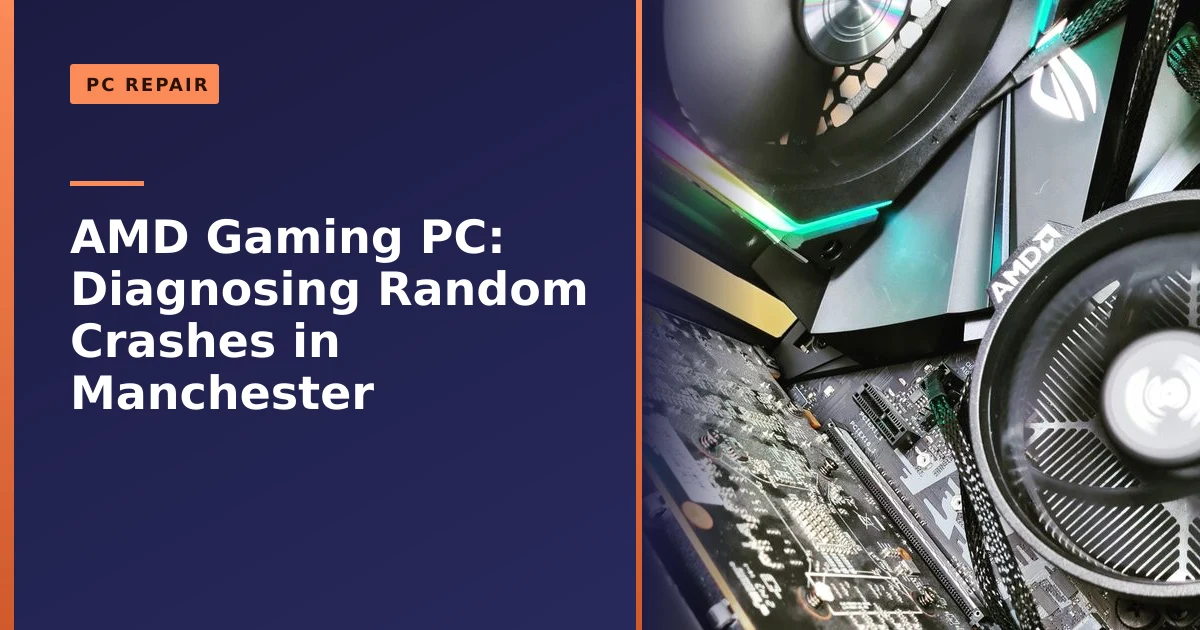
- This AMD gaming PC (Ryzen 5 5600, ROG STRIX B450-F) came to us from Manchester with random, infrequent crashes.
- Intermittent crashes are the hardest faults to diagnose, because they often refuse to appear during testing.
- A methodical approach, ruling out heat, power, memory and drivers, then component swaps with extended testing, is the only reliable way.
- Windows leaves a trail: Event Viewer, Reliability Monitor and minidump files are the first place we look for clues.
- On AMD systems, BIOS version, chipset drivers and EXPO or DOCP memory profiles are common culprits worth checking early.
- Honest, transparent diagnosis matters more than a quick guess when a fault is rare and elusive.
Why does a gaming PC crash randomly, and how do you fix it? Random, infrequent crashes are genuinely the trickiest faults to diagnose, because the problem often hides whenever you are watching for it. This capable AMD gaming rig came to us in Manchester, a Ryzen 5 5600 on a ROG STRIX B450-F GAMING board with 16GB of RAM, suffering exactly this. Here is how we approach an elusive crash like this, honestly and methodically.
What came in: a powerful PC with a rare fault
This was a well-built machine: an AMD Ryzen 5 5600 processor, a ROG STRIX B450-F GAMING motherboard, 16GB of RAM, entry-level graphics and Lian Li Uni Fan cooling. There was nothing obviously wrong with it, which was exactly the problem. The owner had been plagued by random and infrequent crashes, the kind that strike without warning and then refuse to happen again for hours or days. We gave an upfront quote and collected the PC the next day to begin investigating.
It is worth saying that this is a sensible, mid-range gaming setup rather than an exotic overclocked monster. The Ryzen 5 5600 is a six-core chip on AMD's mature AM4 platform, and the B450-F is a popular, reliable board. None of that rules out a fault, but it does mean the usual suspects are the everyday ones: heat, power, memory, storage and software, rather than something wildly unusual. When a dependable build like this starts crashing at random, the cause is almost always one specific thing quietly going wrong, and the job is to find which one.
Why intermittent crashes are so hard to diagnose
An intermittent fault is the hardest kind to track down, and it is worth being honest about that. When a PC crashes only occasionally, it can pass days of testing without a single fault appearing, like a problem that hides whenever you are watching. That was the case here: despite meticulous testing, the crash stubbornly refused to reveal itself under our observation. This is normal with rare faults, and it is precisely why a structured, patient approach matters far more than a lucky guess.
The reason comes down to simple probability. A repeatable fault appears on demand, so you can change one thing, reproduce the crash, and instantly see whether your change helped. An intermittent fault gives you no such feedback loop. If a machine crashes once every two or three days under a particular mix of conditions, you can run it hard for a full day, see nothing, and learn almost nothing, because the absence of a crash in 24 hours does not prove the fault is gone. You have to test for long enough that a crash becoming very unlikely actually starts to mean something. That is why extended testing, measured in days and weeks rather than hours, is not us being slow. It is the only way to gather real evidence about a fault that only shows up rarely.
There is a second trap with rare crashes: it is dangerously easy to fool yourself. Change three things at once, go a week without a crash, and you will never know which change mattered, or whether the fault simply chose not to appear. Good diagnosis means changing as little as possible at a time and waiting long enough for silence to count as a real result.
How we approach random crashes
Rather than swap parts at random, we work through the common causes of crashing methodically, ruling each out in turn:
- Heat: we check temperatures and cooling under load, since overheating is a leading cause of crashes.
- Power: a failing or inadequate power supply can cause exactly these random drops, so it is a prime suspect.
- Memory: we run extended RAM tests, as a single faulty memory module can crash a system intermittently.
- Storage and software: we check the drive's health and look for driver, Windows and overheating-related issues.
Where a fault still will not show itself, the next logical step is targeted component replacement combined with extended testing. In this case, because the system is AMD-based and the symptoms pointed that way, the plan was to replace the CPU and run a thorough 21-day test on its return, long enough to give a rare crash the chance to appear or confirm it is gone. Our full guide on fixing random PC crashes and restarts walks through these causes in detail.
The most common causes of random crashes, ranked
Random crashes, freezes and restarts almost always trace back to a short list of culprits. Any one of them can produce nearly identical symptoms, which is exactly why guessing is a poor strategy. Here is how the usual suspects stack up, and what each one tends to look like in practice.
| Likely cause | Typical signs | How we check it |
|---|---|---|
| Overheating | Crashes under load or in games, fans loud, hot case, sudden shutdowns | Monitor CPU and GPU temperatures under stress, inspect cooling and thermal paste |
| Power supply | Random shutdowns or restarts, worse under heavy load, no clean error | Check load behaviour, voltages, and swap in a known-good PSU |
| Memory (RAM) | Crashes at random, blue screens, file corruption, instability after enabling EXPO or DOCP | Extended MemTest86, test one stick at a time, check at stock speed |
| Storage drive | Freezes, slow loading, file errors, failed boots | Read SMART health data, check for reallocated or pending sectors |
| Graphics card | Crashes only in games or 3D apps, visual glitches, driver timeouts | Stress the GPU, monitor temperatures, test on clean drivers |
| Drivers and Windows | Blue screens naming a .sys file, crashes after an update, corrupt system files | Review logs, update or roll back drivers, run system file checks |
| Malware | Sudden slowdowns, high background load, overheating, odd behaviour | Full offline scan, check running processes and startup items |
| Unstable settings | Instability after overclocking or enabling a memory profile | Return to stock, update BIOS, retest from a known-good baseline |
Overheating
Heat is one of the most common causes of random crashes and shutdowns, especially under the load of a demanding game. When a CPU or GPU reaches its temperature limit, the system will throttle and, if that is not enough, cut power to protect itself. The usual reasons are dust clogging the cooler and fans, a fan or pump that is failing, or thermal paste that has dried out and stopped transferring heat efficiently. Thermal paste is the conductive compound that sits between the chip and the cooler, and its whole job is to fill the microscopic air gaps that would otherwise act as insulation, as the Wikipedia entry on thermal grease explains well. Over a few years it can degrade. If your crashes only happen when the machine is working hard, heat moves straight to the top of the list. Our guide to thermal paste and our honest take on water cooling are both worth a read here.
Power supply
A failing or underpowered power supply is one of the sneakiest causes of random crashes, because it rarely leaves a clean error behind. The classic sign is a machine that runs fine while browsing but shuts down or restarts the moment it is pushed, launching a game, exporting video or hammering the GPU. The power supply unit converts mains AC into the regulated low-voltage DC your components need, and when it can no longer hold those voltages steady under load, the system simply drops. Bulging or leaking capacitors, buzzing or coil whine, or a faint burnt smell are all red flags. The cleanest confirmation is to swap in a known-good unit and see whether the symptoms vanish. We have seen power problems hide in unexpected places before, as in this case of a failed power supply caused by a faulty DVD drive. If you want the technical detail, the Wikipedia article on the computer power supply unit covers rails and tolerances thoroughly.
Memory
A single faulty RAM module, or memory running at a speed it cannot reliably sustain, will crash a system intermittently and often with no warning. Memory faults are a favourite cause of random blue screens and, worse, of quiet file corruption, because if a bit flips mid-operation the system cannot safely continue. This is also where AMD systems deserve special attention, which we cover below. If you are wondering whether more or better memory would help your machine in general, our guide on whether you need extra memory is a good starting point.
Storage and the drive
A failing drive can cause freezes, failed boots and corrupted files that look a lot like a crash. Modern drives report their own health through SMART data, which can flag reallocated or pending sectors long before total failure. We always check this early, because a dying drive is also a data-loss risk, which is why backing up your data matters before any deeper work begins. If your machine boots from an old mechanical drive, moving to an SSD often cures sluggishness and instability at once, as we explain in our piece on why you should upgrade to an SSD.
Graphics card, drivers and software
If crashes only strike in games or 3D applications, the graphics card and its drivers move up the list. Buggy or out-of-date drivers can miscommunicate with the system and trigger a hard stop, and a crash that names a specific .sys file in the logs often points the finger at a particular driver. Corrupt Windows files, a bad update, or conflicting software can all do the same. A clean driver install and Windows file checks are quick, non-destructive steps that rule a lot out.
Malware
Malware such as cryptominers or spyware can cause crashes indirectly by running hidden processes that hammer the CPU, drive up heat and starve legitimate software of resources. Sudden, unexplained slowdowns and a machine that runs hot while apparently idle are worth a full scan. If you suspect something has got in, our virus removal service can clean it out properly.
Reading the clues Windows leaves behind
Before touching a screwdriver, we read what Windows already knows. A crash usually leaves a trail, and learning to read it turns guesswork into evidence. Three tools do most of the work, and you can use them at home too.
- Reliability Monitor: type "reliability" into the Start menu and open "View reliability history". It gives you a simple timeline of crashes, freezes and failed updates, scored day by day. It is the fastest way to spot a pattern, for example crashes that all began the week a driver or update was installed.
- Event Viewer: open it from the Start menu (or run eventvwr.msc) and look under Windows Logs. Critical Kernel-Power events (ID 41) point to unexpected power loss or a hard shutdown, while error entries around the crash time can name a failing driver or service. Do not panic at the many harmless warnings every Windows machine logs; focus on Critical and Error entries near the time of the crash.
- Minidump files: when Windows blue screens it usually writes a small dump file to C:\Windows\Minidump. These can be analysed to find the stop code and, often, the component or driver involved. A WHEA Uncorrectable Error, for example, is a hardware-level fault reported through the Windows Hardware Error Architecture; it confirms real hardware is misbehaving, though not which part, since WHEA watches the whole system.
The catch with an intermittent fault is that these logs only help once a crash has actually happened. If the machine refuses to misbehave under your eyes, there may be nothing fresh to read, which is exactly the frustration we hit with this build. The logs still set the direction; they just cannot finish the job alone.
Stress testing and memory testing the right way
When the logs are thin, the next step is to provoke the fault deliberately and watch closely. The aim is to load each subsystem hard enough that a marginal component reveals itself.
- Memory testing: MemTest86, booted from a USB stick outside Windows, is the standard tool. According to PassMark's own execution-time notes, the default is four passes and a single pass is usually enough to catch consistent errors, but intermittent faults need far longer. We typically run multiple passes, often overnight, and for a suspected rare fault we will leave it running much longer. Testing one stick at a time helps isolate a single bad module.
- CPU and whole-system stress: tools such as Prime95, OCCT or AIDA64 push the processor and memory controller to full load, generating maximum heat and power draw. If the machine crashes under stress but is fine at idle, that narrows things considerably towards heat, power or memory.
- Graphics stress: a GPU stress test or a demanding game loop, with temperatures monitored, catches faults that only appear under graphics load.
- Temperature and voltage logging: throughout, we log temperatures and voltages so that if a crash does occur, we can see what the machine was doing the instant before.
Even this has limits. A stress test recreates heavy load, but it cannot recreate every odd combination of conditions that real use produces. A fault that only appears with one particular game, at one particular moment, can still dodge a clean bill of health on the bench. That is the honest reality of chasing something rare.
The AMD angle: BIOS, chipset drivers and memory profiles
Because this was an AMD Ryzen system, a few platform-specific checks deserved early attention, and they are worth knowing about if you run a Ryzen machine yourself.
First, memory profiles. AMD's one-click memory speed profiles, called EXPO on newer kits (and DOCP on many ASUS boards, AMD's equivalent of Intel's XMP), set your RAM to its advertised high speed. They are wonderful when they work, but they are also a very common source of instability, because that advertised speed is not guaranteed on every board, with every CPU, or with every combination of sticks. A machine that is rock solid at the RAM's default JEDEC speed but crashes at random once a memory profile is enabled is pointing straight at memory stability. A standard diagnostic step is to return memory to stock speed and see whether the crashes stop.
Second, BIOS and chipset drivers. AMD platforms have matured enormously through BIOS updates, and an out-of-date BIOS can leave memory training and stability worse than it needs to be. Updating to a current, stable BIOS release and installing AMD's latest chipset drivers is a sensible early move, though a BIOS update should always be done carefully, as we explain in our guide on whether you should update the motherboard BIOS. On this B450 board with a Ryzen 5 5600, both BIOS and chipset versions were worth confirming.
Third, memory training and context. AMD systems "train" their memory at boot, and certain BIOS options around memory context can affect stability. The practical takeaway for a home user is simple: if you have enabled any speed or overclock profile, the cleanest test is to strip everything back to stock and build stability back up from a known-good baseline.
When swapping the CPU makes sense
Replacing a processor is not where you start. The CPU is one of the most reliable parts in a modern PC, and on the suspect list it usually sits near the bottom, below heat, power, memory and storage. So why was a CPU swap the plan here?
The logic is one of elimination. When the everyday causes have been checked and ruled out, when the logs and testing have not pinned the fault on memory, storage, drivers or power, and when the symptoms still point at the core platform, a targeted component swap becomes the most reliable next move. Swapping the CPU, then running an extended test, does two things at once. If the crashes stop, you have likely found the culprit. If they continue, you have definitively cleared a major component and can focus the search elsewhere with confidence. Either outcome is real progress, which is more than a random fault usually offers.
The key word is targeted. A CPU swap only makes sense after the cheaper, more common causes have been eliminated, and it should always be paired with a test long enough to mean something. That is why the plan here was a 21-day test on the machine's return: long enough that a fault which previously appeared every few days would have many chances to show itself, and long enough that genuine silence starts to count as evidence of a fix.
How long diagnosis takes and what to expect
People are often surprised that an intermittent fault can take weeks rather than hours, so it helps to set honest expectations up front. A repeatable fault might be found and fixed in a single session. A rare, random crash is a different animal, because the testing has to outlast the fault's hiding time.
- Initial diagnosis: checking temperatures, power behaviour, drive health, logs and memory typically takes the first day or two.
- Provoking the fault: stress and memory testing runs over hours to days, often overnight.
- Confirming a fix: this is the long part. After any change, the machine needs an extended test, days to weeks, before anyone can say with a straight face that the crash is gone.
We always quote up front, and we would far rather be honest that a rare fault needs patience than promise a same-day miracle we cannot guarantee. If you are weighing the cost of all this against the value of the machine, our guide on repair versus replace can help you decide when fixing is the smart call and when it is not.
Common mistakes people make with random crashes
If you are trying to tackle a random crash yourself before bringing it to us, a few mistakes are worth avoiding, because they tend to waste time or muddy the evidence.
- Changing several things at once. New thermal paste, a driver update and a memory tweak all in one go means that if the crashes stop, you will never know which one mattered. Change one thing at a time.
- Declaring victory too soon. Going two days without a crash on a fault that strikes every three days proves nothing. Patience is part of the method.
- Ignoring the logs. Reliability Monitor and Event Viewer often hand you a strong clue for free. Skipping them is throwing away evidence.
- Leaving an aggressive memory profile on. If you have enabled EXPO, DOCP or an overclock, test at stock first. It is the single most common Ryzen stability check.
- Forgetting backups. Random crashes can be an early sign of a failing drive. Back up your important files before you start poking around, every time.
Honesty over a quick fix
It would be easy to declare a random fault fixed after a quick tinker, but that helps nobody. With elusive crashes, transparency matters: explaining what has been ruled out, what the likeliest causes are, and how we will confirm a fix with extended testing. That honest, patient approach is how rare faults get genuinely solved rather than masked, and it is how we treat every diagnosis.
Related reading: planning a build or upgrade? See our guide on building a new PC, and our take on repair versus replace for when to fix rather than replace. If your machine has simply grown sluggish rather than crashing, our guide on why a computer runs slow and our tips on disk cleanup may be more relevant.
How Manchester PC can help
If your PC crashes, freezes or restarts at random, we can help. We diagnose methodically, rule out heat, power, memory and software in turn, and use extended testing to confirm a real fix rather than a lucky guess. We quote up front.
We cover Manchester and the surrounding areas with free local collection and return, fair pricing and honest advice, we will always tell you when a repair is not worth it rather than push one. For a gaming PC repair or any computer repair, get a free, no-obligation quote or call us on 0161 820 1992.